

Determining your router’s IP address, often referred to as the default gateway, is a fundamental networking task essential for accessing administrative settings, troubleshooting connectivity issues, or configuring advanced features such as port forwarding. As of December 2026, most home routers utilize private IP addresses within ranges like 192.168.0.1, 192.168.1.1, or 10.0.0.1. This guide provides detailed, platform-specific instructions to locate this address efficiently, ensuring compatibility with contemporary operating systems while emphasizing secure practices for subsequent admin panel access.

Common Default Router IP Addresses
Many manufacturers assign standard IP addresses to their devices. Prominent examples include:
-192.168.1.1 (common for TP-Link, D-Link, and some NETGEAR models)
-192.168.0.1 (frequent for Linksys, Belkin, and certain ASUS routers)
-10.0.0.1 (used by some Comcast/Xfinity gateways)
-192.168.100.1 (occasional for modem-router combinations)
If automated methods fail, attempting these directly in a browser may yield the login page. However, verifying via device-specific commands remains the most reliable approach.
Methods to Check Router IP Address by Platform
On Windows
The Command Prompt provides a straightforward method:
1.Press Windows key + R, type cmd, and press Enter.
2.Enter ipconfig and press Enter.
3.Locate the “Default Gateway” under your active network adapter (e.g., Ethernet or Wi-Fi).
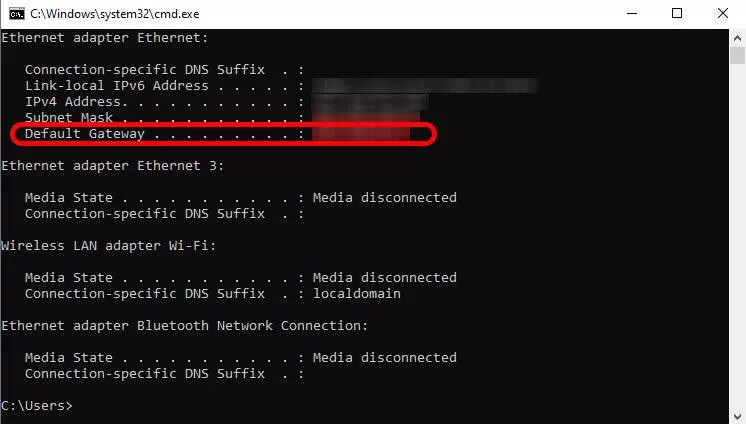
Alternatively, navigate to Settings > Network & Internet > Status > View hardware and connection properties, where the default gateway is listed.
On macOS
Access via System Settings:
1.Click the Apple menu > System Settings > Network.
2.Select your connected interface (Wi-Fi or Ethernet).
3.Click “Details” or “Advanced” > TCP/IP tab.
4.The router IP appears next to “Router.”
How to access router settings
Terminal command: Open Terminal and enter netstat -nr | grep default; the gateway IP is displayed.
On Linux
Utilize the terminal:
Common command: ip route | grep default (shows the gateway).
Alternative: ip addr show or nmcli device show for NetworkManager users.
These methods yield consistent results across distributions like Ubuntu or Fedora.
On Android
Steps vary by manufacturer and Android version (e.g., 15 or 16 in 2026):
1.Open Settings > Network & Internet > Wi-Fi.
2.Tap your connected network > Advanced or “View more.”
3.The gateway appears under “Gateway” or in static IP settings.
Third-party apps like WiFi Analyzer can also display this information reliably.
On iOS/iPadOS
1.Open Settings > Wi-Fi.
2.Tap the “i” icon next to your network.
3.Scroll to “Router” for the IP address.
This remains unchanged in recent iOS versions.
Accessing the Router Admin Page Securely
Once the IP is obtained, enter it into a web browser (e.g., http://192.168.1.1). Default credentials are often “admin” for both username and password, or as labeled on the device.
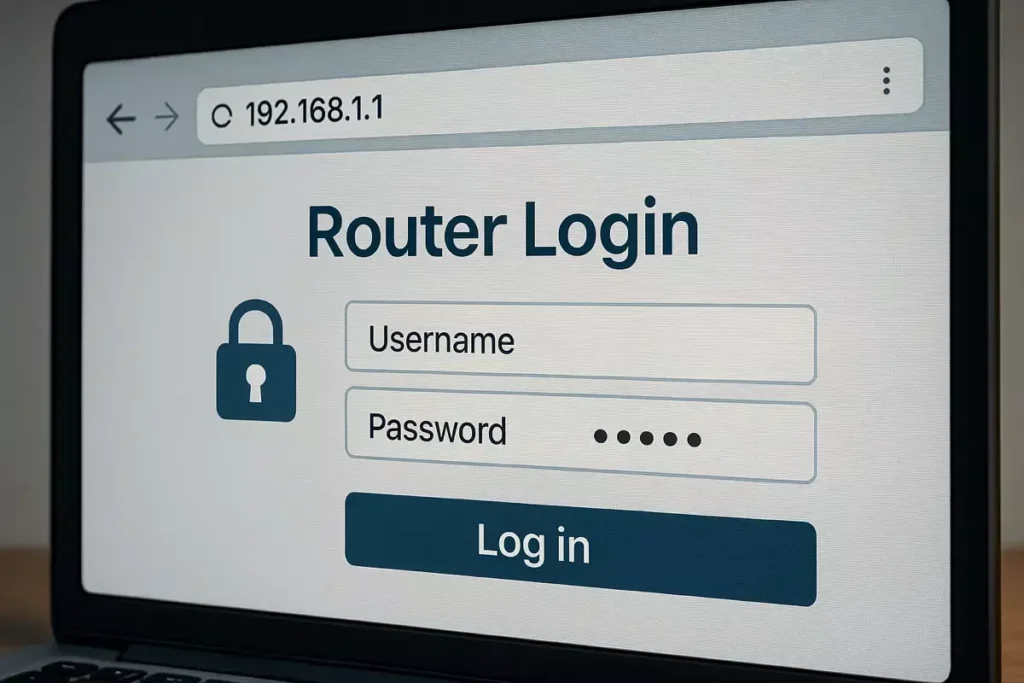
How to Access and Change Your WiFi Router Settings (2026 Edition)
For security:
-Immediately change the default admin password to a strong, unique one.
-Use a wired connection where possible.
-Avoid public networks; ensure your device is connected to the local network.
-Update firmware regularly to mitigate vulnerabilities.
Integrating Proxies for Remote or Restricted Network Access
In scenarios involving remote management or ISP restrictions, proxies can facilitate secure access to router settings or related diagnostics. Configuration via SOCKS5 or HTTP proxies in browsers ensures privacy.
Premium Proxy Network Services: Emphasis on High Availability
For advanced networking tasks requiring stable, anonymous connections—such as remote router diagnostics—reputable providers are recommended. IPFLY offers SOCKS5-compatible proxies with a pool exceeding 90 million IPs across over 190 countries, including static residential for persistent access, dynamic residential for rotation, and datacenter for high speed. Features include 99.9% uptime, unlimited concurrency, millisecond responses, and 24/7 support, making it suitable for professional-grade operations.
Comparative Analysis of Proxy Providers
IPFLY’s authentic ISP-allocated residential IPs provide exclusive, stable connections with minimal disruptions, outperforming shared free proxies prone to bans and instability. Unlimited traffic supports intensive sessions, contrasting with limited public options. Robust encryption prevents leaks, while low latency and global coverage enhance performance—advantages not consistently matched by lower-tier services lacking comprehensive support.
Troubleshooting Common Issues
If the IP is unreachable:
-Verify network connection.
-Disable VPNs temporarily.
-Restart the router.
-Check for custom configurations via ISP apps.
Whether you’re doing cross-border e-commerce testing, overseas social media ops, or anti-block data scraping—first pick the right proxy service on IPFLY.net, then join the IPFLY Telegram community! Industry pros share real strategies to fix “proxy inefficiency” issues!

Mastering Router IP Address Checks
Accurately identifying your router’s IP address empowers effective network management and security enhancements. By following these platform-specific steps and adopting secure access practices, users can maintain optimal control over their home networks in December 2026. For complex setups involving proxies, services like IPFLY ensure reliability.
