

You open a website and see “Error 1006: Access Denied” instead of the page you need. Refreshing brings back the same message, even though other websites load normally. What caused the block, and what can you do to restore access?
Cloudflare Error 1006 means the website has blocked the IP address used by your connection. That address may belong to your home network, office, or proxy service. The message alone does not explain why the website blocked it, so finding the right fix starts with checking which connection is affected.
This guide explains what Error 1006 means, why it occurs, and how to investigate it. You will find practical steps for both website visitors and site owners, plus guidance on using IPFLY to test an alternative proxy connection when a different exit IP fits your access needs.
What Is Error 1006?
Cloudflare Error 1006 is a specific access-denied error shown when a website using Cloudflare blocks the IP address making the request. According to Cloudflare’s official documentation, it belongs to a group of errors—1006, 1007, 1008, and 1106—that indicate access was denied because the visitor’s IP address was banned. An IP ban therefore does not always produce Error 1006; it is one of several codes Cloudflare uses for this type of restriction.
When Error 1006 appears, Cloudflare is enforcing the website owner’s security settings. The message identifies an IP-based restriction, but it does not explain why the address was banned or which setting caused the block. Cloudflare advises affected visitors to ask the website owner to investigate those settings or allow their client IP address, because Cloudflare support cannot override the owner’s security decisions.
What “Access Denied: Your IP Address Has Been Banned” Means
The IP address in this message is the address the website sees when your request arrives. On a typical home network using IPv4, your devices share a public IP address through the router. If you route the request through a proxy, the website usually sees the proxy’s exit IP instead.
This helps explain why the same error can appear on both your laptop and phone while they use the same Wi-Fi. They may be reaching the website through the same blocked address, even though they are separate devices.
The message identifies what was blocked, but it does not reveal the full reason behind the decision. It also does not establish that your account is banned or that the website is unavailable to everyone. The site owner must review the relevant settings to determine why your connection was denied.
How Error 1006 Differs from Other Access Errors
Several Cloudflare errors prevent a page from loading, but they point to different problems. Check the number on the error page before choosing a fix.
| Error | What it means | Where to focus |
| 1006 | The client IP address has been banned. | The affected public IP and the website’s IP restrictions. |
| 1015 | Requests have exceeded a rate limit set by the website. | Request frequency and the site’s rate-limit settings. |
| 1020 | A security feature configured by the website owner blocked the request. | The security feature and rule responsible for the block. |
For Error 1015, Cloudflare advises visitors to wait before trying again. For Error 1020, the site owner needs to investigate the matching security rule. Neither message should automatically be treated as the same IP-ban problem as Error 1006.
Also, 1006 is a Cloudflare error number, not an HTTP status code. Cloudflare lists it under HTTP 403 Forbidden responses. A browser or monitoring tool may therefore show 403 in the response details while the page displays Error 1006. The more specific page message gives you the better starting point for diagnosis.

Why Does Cloudflare Error 1006 Occur?
The immediate cause of Error 1006 is an IP ban. The question is why your current address falls under that restriction. It may be a deliberate block, a restriction affecting a shared connection, or a configuration mistake. These situations can overlap, and the error page alone cannot tell you which applies.
The Website Has Blocked Your IP or IP Range
A website owner can restrict a single IP address or a range of addresses. Cloudflare provides IP-based access controls that let administrators block traffic based on its source.
An owner might add a restriction after seeing unwanted requests from an address. A broader restriction may also affect other addresses in the same range, including those used by legitimate visitors. These are possible explanations; seeing Error 1006 does not prove that your own activity caused the block.
The restriction may also predate your use of the address. If your internet provider assigns you an IP that the website already blocks, you could encounter an error on your first visit.
When several people use the same public exit IP, an IP-based restriction can affect all of them. This can happen on office networks, public Wi-Fi, or shared proxy connections.
For illustration, suppose a website blocks a shared proxy address after receiving unwanted traffic from it. Another person using that exit could then receive Error 1006 while trying to read a page normally. The restriction applies to the address, regardless of who is using it.
Using a proxy does not automatically cause Error 1006. What matters is whether the exit IP used for that request is blocked. A shared connection is therefore a possible explanation to investigate, not proof that the service itself is faulty.
A Security Configuration Is Blocking Legitimate Visitors
A restriction can also affect more visitors than the website owner intended. An administrator might enter the wrong address range, leave an old restriction active, or apply a setting more broadly than needed.
As an illustrative example, an owner may intend to block one problematic address but select a range that also includes a business partner’s connection. The resulting denial would be a configuration issue, even though the affected visitor has done nothing wrong.
A sudden loss of access after a website configuration change is a useful clue, but it does not establish the cause. The owner needs to compare the affected request with the relevant security settings and available records. That distinction matters: an intentional restriction and an accidental block may produce the same message, while requiring different decisions from the site owner.
How to Fix Error 1006 as a Website Visitor
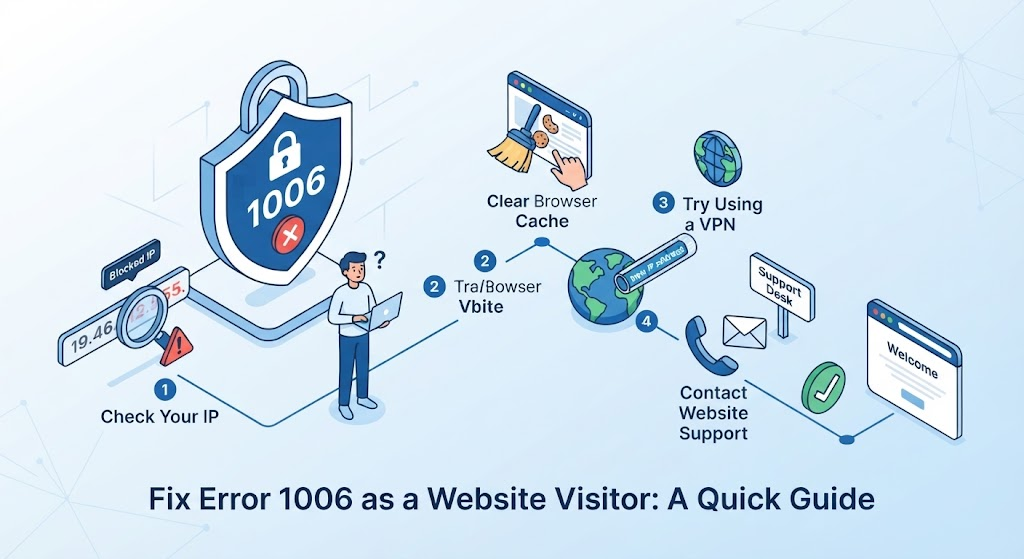
As a visitor, you can check which connection is affected and gather evidence for the website owner. Work through the following steps in order, changing one thing at a time so you can tell what made a difference.
Record the Error Details and Your Public IP
Before changing your connection, save a screenshot of the error page. Record the exact page URL, the time and time zone, and the Cloudflare Ray ID if one appears. These details help the site owner locate the affected request.
Next, check your public IP address using an IP lookup service in the same browser. Keep your network and proxy settings unchanged during this check. A private address such as 192.168.1.10 will not help the owner identify your internet connection.
If the error page displays your client IP, record that address too. An IP lookup service may show a different address when your connection uses different routes or IP versions. The address associated with the blocked request is the most useful one to investigate.
Test Your Connection Without a Proxy
If you use an optional proxy, temporarily disable it and open the same URL again. Check your public IP once more to confirm that your exit address changed. For a managed work connection, ask your network administrator before changing required settings.
If the page now loads, the result suggests that the previous proxy exit was involved in the block. It does not prove that every address from that provider is restricted.
If Error 1006 remains, save the new result. Confirm whether the public IP actually changed before treating this as a separate test. Switching browsers while keeping the same exit address gives you little new information about an IP ban.
Compare the Result on Another Trusted Network
If you connect directly, or the previous test was inconclusive, try another trusted connection. For example, connect the same laptop to your phone’s mobile hotspot and open the same page. Keep the browser and login state unchanged where possible.
Use the result to decide what to do next:
- The page loads on the second network: This supports the possibility that the original connection’s IP is restricted. Record both addresses and results.
- Both networks show Error 1006: Both exits may be restricted. This does not prove that the website is down for everyone.
- A different error appears: Record the new code and investigate its meaning. The second request may have encountered a different restriction.
Access through another network does not remove the original IP ban. If you need the original connection restored, the website owner still needs to review it.
Complete Proxy IP Fundamentals
Build a full proxy knowledge framework — from core principles to protocol selection
Ask the Website Owner to Review the Block
Use the website’s support form, help center, or published contact address to request a review. Include:
- The affected URL.
- The Error 1006 screenshot.
- The time of the failed request and your time zone.
- The public IP associated with the failure.
- The Ray ID, if available.
- A brief description of your connection tests and their results.
Explain what you were trying to access and ask whether your IP was blocked unintentionally. Specific details make the report easier to investigate than a general “the website does not work” message.
Cloudflare directs visitors with Error 1006 to the website owner because its support team cannot override a customer’s security settings. The owner must decide whether to adjust the restriction or allow your address.
How Website Owners Can Resolve Error 1006
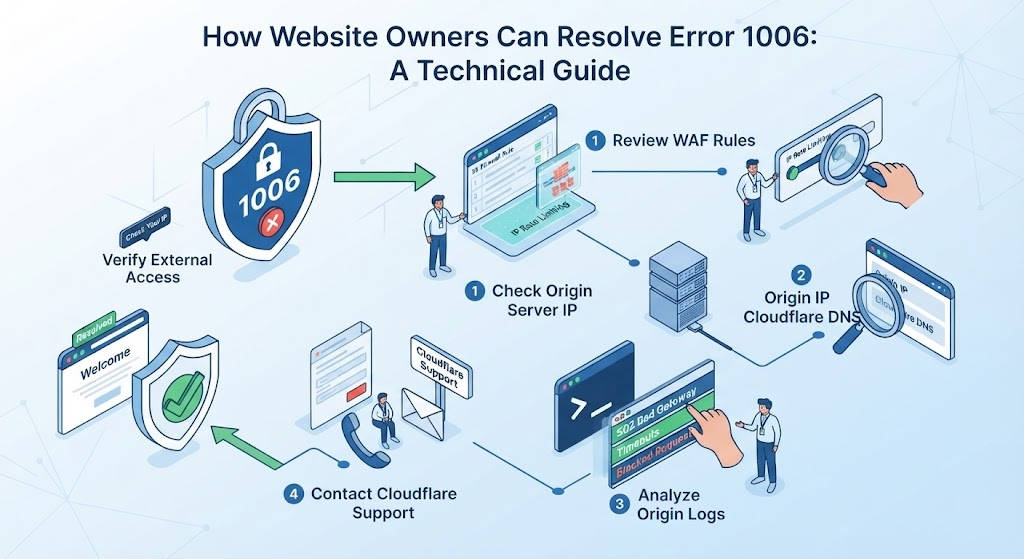
When a legitimate visitor reports Error 1006, use their request details to identify the restriction before changing your settings. The goal is to restore the intended access while keeping the rest of your protection in place.
Locate the Affected Request
Start with the visitor’s screenshot, affected URL, public IP, timestamp, and Ray ID if available. Confirm the time zone so you search the correct period.
In your Cloudflare dashboard, select the affected website and open Security > Analytics > Events. Narrow the time window, then filter by the client IP or Ray ID where available. Inspect matching events for the action taken and the security feature involved. Cloudflare’s Security Events documentation explains the available filters and event details.
If you cannot find a match, check the selected website, time range, and filters. Security Events uses sampled data in some views, so an absent record does not prove that no block occurred. Compare the report with other logs available to your account and inspect the relevant IP restrictions directly.
Review the Relevant IP Restrictions
Check whether the reported address appears in an active block entry or falls within a restricted IP range. Review the scope of the setting: it may apply to one website or more broadly across your account.
For each relevant restriction, establish:
- What it matches: A single address, a range, or another network attribute.
- Why it exists: A documented incident, an access requirement, or an earlier configuration decision.
- Whether it is still correct: The entry may be outdated, mistyped, or broader than intended.
Compare recent configuration changes with the time the visitor first lost access. Treat timing as a clue, then confirm that the setting actually applies to the affected request. An unrelated security event from the same visitor is not enough to explain Error 1006.
Also verify that the visitor should have access to the requested page. A report may reveal an accidental restriction, but it can also confirm that an intentional access policy is working as configured.
Apply a Targeted Correction and Verify Access
Once you identify an unintended restriction, correct the specific entry or narrow its scope. Save the original setting and note the reason for the change so you can reverse it if needed.
Be careful when adding a broad Allow rule. Cloudflare documents that allowing an IP through IP Access rules can skip several other security checks. Review that behavior before using an allowlist entry as a quick fix.
Ask the visitor to retry the same URL from the original connection. Confirm that the public IP still matches the address you investigated; a successful test from a different network would not verify the correction.
Check that the intended page or action now works, then review the available security records for unexpected effects. If Error 1006 remains, collect the new timestamp and Ray ID and continue investigating. If another error appears, follow that error’s evidence before making further changes.
Using IPFLY to Test an Alternative Proxy Connection
A proxy gives you another way to test access through a different public IP. For website testing, regional content checks, or other authorized work, IPFLY offers rotating residential, static residential, and dedicated datacenter proxies. The right choice depends on whether you need different locations, a consistent address, or a fixed server-based connection.
When a Different Exit IP Can Help
If your connection tests point to a blocked exit IP, a proxy can provide an alternative route to the website. When the restriction applies to the original address and the website accepts the proxy’s address, the page may load through that new connection.
This is useful when you need to compare access from another network without switching your device’s internet connection. For example, a website owner could test a public page through a proxy while investigating reports from visitors on a different network.
The result has a clear limit: a successful proxy request confirms that the tested route works. It does not remove the original ban. A proxy also cannot grant account permissions or guarantee that the website will accept every new address.
Choose an IPFLY Proxy for Your Access Requirements
Start with the task you need to complete. IPFLY’s product options serve different connection needs:
| Your requirement | IPFLY option | Why it fits |
| Compare access from different residential exits or locations | Rotating Residential Proxies | Provides residential exits with location targeting, rotation, and sticky-session options. |
| Repeat tests through the same ISP-registered address | Static Residential Proxies | Provides a dedicated, non-rotating IP for a consistent test connection. |
| Use a dedicated server-based exit for a target that accepts it | Datacenter Proxies | Provides a fixed datacenter address for repeatable requests. |
For a multi-step workflow, address continuity matters. A static residential proxy keeps the exit consistent, which helps you compare results without introducing an IP change between requests. A sticky session on a rotating service can hold an exit for a limited period, but it should not be treated as a permanently assigned address.
The distinction between residential and datacenter proxies also matters when designing a test. They use different types of network addresses, so a website may treat them differently. Neither type guarantees access; test the selected exit against the actual page and workflow.
Verify the Proxy Exit and Check the Result
Once you have selected an IPFLY product, configure a small test before using it for a wider task.
- Copy your connection details. Use the host, port, supported protocol, and authentication details supplied for your account. Match these to your application’s proxy settings.
- Choose the required location and session behavior. Keep the location consistent with your test. If related requests need the same exit, use the appropriate fixed-IP or session option.
- Check the exit through the configured application. Open an IP lookup service through that browser or client. Confirm that the request is using the expected proxy connection.
- Request the affected page once. Record the exit IP, time, response, and Ray ID if shown. Keep the URL and other request settings consistent with your earlier test.
- Verify the intended result. Check that the expected page loads and the required action works. A response without Error 1006 may still be a login page or another access restriction.
If the proxy cannot establish a connection, check its configuration and authentication first. If it reaches the website but receives Error 1006, that exit is also being denied. Preserve the result for the site owner’s investigation instead of assuming that repeated IP changes will resolve the underlying restriction.
FAQ About Error 1006
How Long Does an Error 1006 Ban Last?
There is no fixed duration. It depends on the website’s settings, and some restrictions remain until the owner removes them.
Can Clearing Cookies or Changing DNS Fix Error 1006?
Usually not. Neither action removes the website’s IP ban or normally changes your public exit IP.
Does Error 1006 Mean My Device Is Infected?
No. The error indicates an IP restriction, not proof of malware. Shared addresses and configuration mistakes can also affect legitimate visitors.
Why Can Error 1006 Appear in Cloudflare Workers Preview?
The site’s security settings may block Google Cloud Platform IPs used by Workers Preview. The owner should review those restrictions.
How Are Errors 1006, 1007, 1008, and 1106 Related?
Cloudflare groups them as IP-ban errors. The code alone does not identify the specific rule or reason behind the block.


