The Complete Guide for Every Device
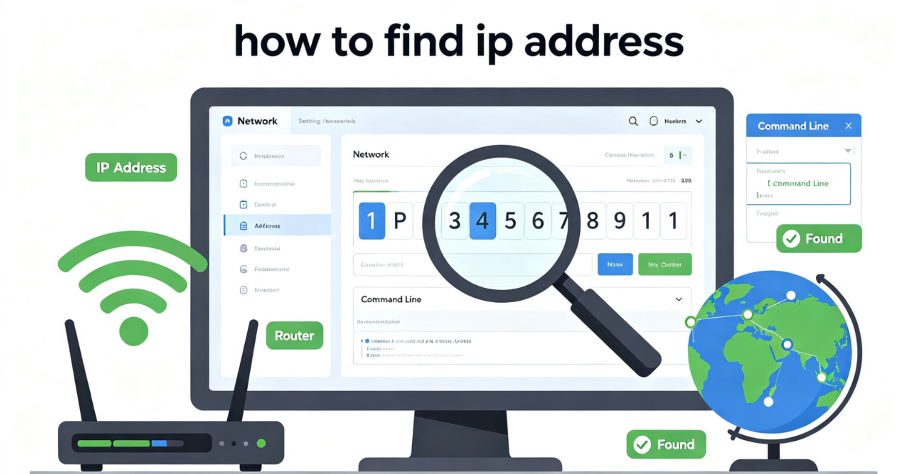
Every device that connects to the internet—whether a smartphone, laptop, desktop, or smart TV—is assigned a unique identifier known as an IP address. This string of numbers (or numbers and letters for IPv6) serves as the digital equivalent of a mailing address, allowing data to find its way to the correct destination across the global network.
But where do you find this address? And why does it matter? This guide explains everything you need to know about IP addresses in 2026—what they are, the difference between public and private IPs, how to find your IP address on any device, and how to protect your privacy.
What Is an IP Address?
An IP (Internet Protocol) address is a sequence of numbers (IPv4) or a sequence of numbers and letters (IPv6) that is assigned to any device connecting to the internet. These addresses are not random—they are allocated by regional internet registries and assigned to devices by Internet Service Providers (ISPs).
Think of an IP address as your device’s digital postal address. When you send a request to a website—say, to load a video or check your email—that request includes your IP address so the website knows where to send the response. Without IP addresses, the internet would be unable to route data between devices.

IPv4 vs. IPv6
There are two primary versions of IP addresses in use today:
IPv4 (Internet Protocol version 4) uses a 32-bit address format, typically displayed as four groups of numbers separated by periods (e.g., 192.168.1.1). This format provides approximately 4.3 billion unique addresses, which proved insufficient as the internet grew exponentially.
IPv6 (Internet Protocol version 6) uses a 128-bit address format, displayed as eight groups of hexadecimal numbers separated by colons (e.g., 2001:0db8:85a3:0000:0000:8a2e:0370:7334). IPv6 was introduced to solve the address exhaustion problem and provides an almost limitless number of unique addresses.
When you check your IP address, you may see both your IPv4 and IPv6 addresses if both are available.
Public IP vs. Private IP: What’s the Difference?
One of the most common points of confusion is the difference between a public IP address and a private IP address. They serve very different purposes.
Public IP Address
A public IP address is the address assigned to your network by your Internet Service Provider (ISP). This is the address that websites and online services see when you connect to the internet. Your public IP is unique across the entire internet and is used to identify your network to the outside world.
Your public IP can reveal:
- Your approximate geographic location (country, region, city)
- Your Internet Service Provider
- The type of IP address (residential, business, or datacenter)
Private IP Address
A private IP address is assigned by your router to each device within your local network (home or office). These addresses are used for communication between devices on the same network—for example, between your laptop and your printer.
Private IPs are not visible to the outside internet. They function only within your local network and are not globally unique. Because they don’t need to be globally unique, the same private IP ranges can be used across different networks without conflict.
| Feature | Public IP | Private IP |
| Who Assigns It | Your Internet Service Provider | Your local router |
| Visibility | Visible to the internet | Visible only within your local network |
| Uniqueness | Globally unique | Unique only within your local network |
| Reveals | Your approximate location and ISP | Nothing to the outside world |
The Router’s Role
Your router acts as a bridge between your private network and the public internet. It uses a technology called Network Address Translation (NAT) to allow multiple devices on your private network to share a single public IP address. When you send a request to a website, your router translates your private IP to your public IP and forwards the request. When the response comes back, the router translates it back to the correct private IP on your local network.
How to Find Your Public IP Address
Your public IP address is the one that websites and online services see when you connect to the internet. There are several quick and easy ways to find it.
Method 1: Use an Online IP Lookup Tool
The simplest way to find your public IP address is to visit an IP lookup website. These tools automatically detect and display your public IP address, along with additional information such as your ISP, approximate location, and IP type.
How to use an IP lookup tool:
- Visit an IP lookup website (such as iproyal.com/ip-lookup)
- The tool will automatically detect your IP address and display it
- You’ll also see additional details like your ISP, city, region, and country
What an IP lookup tool reveals: An IP lookup tool can access various databases that store information about nearly every Internet Protocol address. IP databases acquire data from ISPs, various registrars, and through many other methods.
The information typically includes:
- Country, region, and city – Your approximate geographic location
- Latitude and longitude – Geographic coordinates
- ISP – Your Internet Service Provider
- Domain – The domain associated with the IP address
- IP address type – Whether the IP is residential, business, or datacenter
Method 2: Use a Search Engine
You can also find your public IP address by simply searching for “what is my IP” in any search engine. The search engine will typically display your IP address at the top of the results page.
Method 3: Use Command Line Tools
For users who prefer the command line, you can find your public IP address using a simple command:
On Windows, macOS, and Linux:
curl ifconfig.meThis sends an HTTP request to an external service that returns your public-facing IP address.
Method 4: Use a Browser Extension
Several browser extensions can display your public IP address with a single click. These extensions show detailed information about your IP address, including ISP, location, and DNS information.
Popular options include:
- My IP address – Shows ISP, location, and DNS information
- MyIP IPv4 & IPv6 Viewer – Displays both IPv4 and IPv6 addresses instantly
- What Is My IP – Shows your current IP address, ISP name, and estimated location
How to Find Your Private IP Address
Your private IP address is the one assigned to your specific device by your router. The method for finding it varies depending on your operating system.
On Windows
Method 1: Command Prompt (Quickest)
- Press
Windows + Rto open the Run dialog box - Type
cmdand press Enter to open Command Prompt - Type
ipconfigand press Enter - Look for the “IPv4 Address” under your active network connection (Wi-Fi or Ethernet)—that’s your local IP address
Method 2: Settings (Windows 10/11)
- Open Settings (Press
Windows + I) - Go to Network & Internet → Status
- Click View hardware and connection properties
- Under your active connection (Wi-Fi or Ethernet), locate the IPv4 address—that’s your local IP
On macOS
Method 1: System Settings
- Click the Apple icon in the upper left corner and go to System Settings
- Select Network
- Select your active network connection (Wi-Fi or Ethernet)
- Your IP address will appear in the connection details
Method 2: Terminal
- Open Terminal (Applications → Utilities → Terminal)
- Type
ifconfigand press Enter - Look for the
inetvalue under your active network interface (usuallyen0for Wi-Fi)
On iPhone (iOS)
- Open the Settings app
- Tap Wi-Fi
- Tap the blue circled “i” icon next to the network you are connected to
- Scroll down to IPv4 Address or IP Address
On Android
- Open the Settings app
- Tap Network & Internet → Wi-Fi
- Tap the name of the network you are connected to
- Scroll to see IP Address details
On Linux
- Open Terminal
- Type
ifconfigorip addr showand press Enter - Look for the
inetvalue under your active network interface (e.g.,eth0for Ethernet orwlan0for Wi-Fi) - That’s your IPv4 address
What Can an IP Address Reveal?
While an IP address doesn’t reveal your exact physical address or your name, it can still provide a significant amount of information about you.
What an IP Lookup Reveals
Location (country, region, city) – IP geolocation is almost always accurate down to at least a city level. While location data is an approximation, it can pinpoint your general area.
Latitude and longitude – Geographic coordinates that can be used to map your approximate location.
ISP – The name of your Internet Service Provider.
Domain – The domain associated with the IP address.
IP address type – Whether the IP is residential, business, or datacenter.
Clear Step-by-Step Proxy IP Tutorials
Master proxy setup, integration and performance optimization quickly with IPFLY guides
What an IP Address Does Not Reveal
- Your exact physical address – IP geolocation cannot pinpoint your home address
- Your name – IP lookup does not reveal personal identity
- Your browsing history – An IP address alone does not show what websites you visit
- Your private information – IP lookup doesn’t divulge highly sensitive information about an individual
Why IP Lookup Matters
An IP address lookup tool is useful for monitoring various IPs. You can use it to find the ISP of any user that’s performing malicious actions on your network. Additionally, if you discover login attempts to any account from unknown IP addresses, you can verify if they belong to you or someone else and then take the necessary precautions.
How to Protect Your IP Address
While IP lookup doesn’t reveal highly sensitive information, you might still want to hide your Internet Service Provider and other IP details. Doing so is a relatively simple process.
1. Use a Residential Proxy
Residential proxies are an excellent option for protecting your IP address. They use real IP addresses assigned by Internet Service Providers to actual households. Unlike datacenter proxies, residential IPs appear as genuine consumer connections.
Key advantages:
- Harder to detect – Residential proxies are less often detected as proxies through geo IP databases
- Easier to implement – Proxies are easier to implement into tools
- Application-specific – You can route single application traffic through the proxy
2. Use the Tor Browser
Tor routes your traffic through multiple encrypted layers, making IP lookup effectively useless. Your traffic is encrypted, hidden, and routed through several nodes at once.
Limitation: Tor relies on volunteer networking devices, so it will likely slow you down significantly.
3. Use Datacenter Proxies
Datacenter proxies from high-performance providers route your traffic through servers in data centers, replacing your IP with a datacenter IP. They offer high speed and are cost-effective for large-scale operations.
Limitation: Datacenter IPs are easily identifiable as non-residential traffic and may be flagged by some IP intelligence systems.
How IPFLY Protects Your IP Address
IPFLY provides the residential proxy infrastructure that enables reliable, secure IP protection. Whether you want to hide your IP address, access geo-restricted content, or protect your online privacy, IPFLY offers solutions for every use case.
IPFLY Static Residential Proxies
IPFLY’s static residential proxies are dedicated, ISP-registered IP addresses that remain fixed over time. Each IP is used exclusively by a single user, ensuring a clean reputation.
Key advantages for IP privacy:
- ISP-registered authenticity – Each IP is formally assigned by an Internet Service Provider and appears as a residential broadband connection
- Dedicated, non-shared IPs – Each IP is used exclusively by a single user, ensuring a clean reputation
- Stable and consistent – The IP remains unchanged, providing consistent identity for ongoing operations
- Geographic targeting – Choose IPs from specific countries and cities to match your needs
- Full protocol support – HTTP, HTTPS, and SOCKS5
Static residential proxies are ideal for users who need consistent, long-term IP privacy without detection.
👉 Explore IPFLY Static Residential Proxies
IPFLY Dynamic Residential Proxies
For users who need geographic flexibility or IP rotation, IPFLY’s dynamic residential proxies offer real residential IPs with automatic rotation capabilities from a pool of over 90 million addresses covering 190+ countries.
Key advantages:
- Real residential IPs – From a pool of residential addresses, ensuring high availability and low detection risk
- Automatic rotation – IPs change at configurable intervals, distributing access across diverse IPs
- Sticky session support – Maintain the same IP for a specified duration when needed
- Geographic flexibility – Access content from virtually any region
Dynamic residential proxies are ideal for users who need geographic diversity or who prefer to rotate IPs for additional privacy.
👉 Explore IPFLY Dynamic Residential Proxies
IPFLY Datacenter Proxies
For speed-critical operations where residential authenticity is less important, IPFLY’s datacenter proxies offer high-performance connectivity at a cost-effective price point.
👉 Explore IPFLY Datacenter Proxies
Frequently Asked Questions
What is an IP address?
An IP (Internet Protocol) address is a sequence of numbers (IPv4) or sequence of numbers and letters (IPv6) that are assigned to any device connecting to the internet.
What is the difference between a public and private IP address?
A public IP address is assigned by your ISP and is visible to the internet. A private IP address is assigned by your router to devices on your local network and is not visible to the outside world.
How do I find my public IP address?
The easiest way is to visit an IP lookup website or search “what is my IP” in a search engine. You can also use the command curl ifconfig.me in your terminal.
How do I find my private IP address on Windows?
Open Command Prompt and type ipconfig. Look for the “IPv4 Address” under your active network connection.
How do I find my private IP address on Mac?
Go to System Settings → Network, select your active connection, and your IP address will appear in the connection details.
How do I find my private IP address on iPhone?
Open Settings → Wi-Fi, tap the “i” icon next to your connected network, and scroll down to IPv4 Address.
How do I find my private IP address on Android?
Open Settings → Network & Internet → Wi-Fi, tap your connected network, and scroll to IP Address details.
Can someone find my exact location from my IP address?
No. While IP geolocation is generally accurate down to the city level, it cannot pinpoint your exact physical address.
Can an IP address reveal my identity?
No. IP lookup does not reveal your name or other personally identifiable information.
How can I hide my IP address?
You can use a residential proxy, or the Tor browser to mask your IP address.
Know Your IP, Protect Your Privacy
Your IP address is a fundamental part of how you connect to the internet. It serves as your digital address, allowing data to find its way to your device. But it also reveals information about you—your approximate location, your Internet Service Provider, and the type of connection you’re using.
Understanding how to find your IP address—both public and private—is an essential skill for troubleshooting network issues, managing online accounts, and protecting your privacy. Whether you’re using an online IP lookup tool, the command line, or your device’s settings, the methods covered in this guide will help you find your IP address on any device.
Key takeaways:
- Your public IP is visible to the internet – It reveals your approximate location and ISP
- Your private IP is only visible within your local network – It’s assigned by your router
- IP lookup tools can reveal location, ISP, and IP type – But not your name or exact address
- You can protect your IP with a residential proxy – Each offers different trade-offs in speed and privacy
- Residential proxies offer the most authentic protection – They use real ISP-assigned IP addresses
Whether you’re a casual user checking your IP for the first time or a professional managing multiple accounts, knowing how to find and protect your IP address is essential for maintaining your online privacy and security.
Protect Your IP Address with IPFLY
Your IP address reveals your location and ISP to websites and online services. The most reliable way to protect your privacy is to use a clean, residential IP that appears as genuine consumer traffic.
IPFLY offers flexible proxy solutions for every use case:
- Static Residential Proxies – Dedicated, ISP-registered IPs with residential authenticity. Perfect for consistent, long-term privacy protection.
- Dynamic Residential Proxies – Real residential IPs from 190+ countries with automatic rotation capabilities.
- Datacenter Proxies – High-performance IPs for speed-critical operations.
Get started today: Register for an IPFLY account and explore the full product lineup on the IPFLY homepage. Protect your IP address and browse with confidence.