Telegram stuck on “Connecting,” messages not loading, or unable to access the app on certain networks? A Telegram proxy may help by routing your connection through another server. But which proxy should you use? Are free Telegram proxies reliable, or is a paid service worth considering?
This guide covers SOCKS5 and MTProto proxies, where to find free options, their potential risks, and how to set up a Telegram proxy with IPFLY.
Why Use a Telegram Proxy?
Telegram usually works without a proxy, but certain network conditions can make it difficult to connect. A Telegram proxy routes your connection through another server, which may help in situations where direct access is restricted or unreliable.
Here are some common reasons people use a Telegram proxy:
- Access Telegram on Restricted Networks: Telegram may be blocked or difficult to access on certain school, workplace, or public Wi-Fi networks. A proxy provides an alternative connection route, potentially allowing Telegram to work when a direct connection fails.
- Add a Layer of IP Privacy: When you connect through a proxy, Telegram sees the proxy server’s IP address instead of your original public IP address. This can help reduce direct exposure of your IP address to Telegram’s servers.
- Maintain a More Consistent Connection: If Telegram frequently disconnects or gets stuck on “Connecting,” the problem may be related to your network or its route to Telegram’s servers. For users who need to stay connected throughout the day, a stable proxy IP can also help avoid unnecessary changes in their network connection.

Telegram Proxy Types: SOCKS5 vs. MTProto
Telegram officially supports two types of proxies: SOCKS5 and MTProto. Both work by routing your Telegram connection through another server instead of connecting directly.
The main difference is how they work and what they are designed for. SOCKS5 is a general-purpose proxy protocol that works with many applications, while MTProto proxies are specifically designed for Telegram.
SOCKS5 Proxy
A SOCKS5 proxy acts as a middleman between your device and Telegram’s servers. When you connect through a SOCKS5 proxy, your Telegram traffic first goes to the proxy server, which then forwards it to Telegram.
To use a SOCKS5 proxy in Telegram, you typically need:
- Server address: The IP address or hostname of your proxy server.
- Port: The number used to connect to the proxy service.
- Username and password: Optional login details required by some proxy providers.
One advantage of SOCKS5 is its flexibility. It isn’t limited to Telegram. You can also use SOCKS5 proxies with other compatible applications, making them useful if you need proxy connections for different online activities.
For users who want to choose their proxy IP location or maintain a consistent connection, a SOCKS5 service with suitable IP options can be a practical choice.
MTProto Proxy
An MTProto proxy is a proxy type specifically designed for Telegram. Unlike SOCKS5, which supports different applications, MTProto proxies are built for Telegram connections.
To connect to an MTProto proxy, you need three pieces of information:
- Server address: Where the proxy server is located.
- Port: The connection port.
- Secret: A special value that Telegram uses to establish the proxy connection.
Some MTProto providers also share direct proxy links. Instead of entering the information manually, you can open the link in Telegram and add the proxy with just a few taps. This makes MTProto convenient for users who simply want to connect to Telegram without configuring a general-purpose proxy service.
However, MTProto proxies are mainly intended for Telegram, so they aren’t a replacement for SOCKS5 proxies when you need to use other applications.
SOCKS5 vs. MTProto: What’s the Difference?
Both proxy types can help Telegram connect through an alternative server, but they serve slightly different needs.
| Feature | SOCKS5 Proxy | MTProto Proxy |
| Main purpose | General-purpose proxy connections | Specifically designed for Telegram |
| Telegram support | Yes | Yes |
| Connection details | Server, port, optional username and password | Server, port, and secret |
| Other applications | Works with compatible apps | Primarily Telegram |
| Setup | Manual configuration | Manual configuration or direct proxy link |
| IPFLY compatibility | Supported through SOCKS5 | Not offered as a native MTProto service |
If you only need a proxy for Telegram, MTProto is a straightforward option, especially when you have a working proxy link.If you want more flexibility, such as choosing proxy IP locations or using the same proxy service with other compatible applications, SOCKS5 may be a better fit.
Is There a Telegram Proxy Free Option?
Yes, free Telegram proxies are available, particularly through public MTProto servers. However, these proxies may be unstable or unreliable. Below, we’ll explore where to find them and the risks to consider before using one.
Where to Find Free MTProto Proxies for Telegram
If you’re looking for a Telegram proxy free of charge, several public GitHub projects share MTProto server lists. Here are three options worth exploring:
1. SoliSpirit – Free MTProto Proxy List
SoliSpirit maintains a public list of free MTProto proxies for Telegram. According to the project, its proxy list is automatically updated every 12 hours. You can open the all_proxies.txt file to find proxy links. No account or payment is required to access the list.
2. Free MTProto Proxies by dubblebyte
This project provides a collection of public MTProto proxy servers, with automated connection checks every eight hours according to its documentation. It offers ready-to-use Telegram proxy links, along with server details and connection information. You can browse the list without registering or paying.
MTProto Proxy Pro publishes free Telegram proxy servers with additional information such as server location, connection latency, and availability. The project says it refreshes its list every six hours. This can be useful when comparing available servers before choosing one.
These resources generally provide t.me/proxy or tg://proxy links. Opening a supported link can bring up Telegram’s proxy connection prompt, so you don’t have to enter the server details manually.
Risks of Using Free Telegram Proxy Servers
Free Telegram proxies can be useful, but they come with a few potential risks:
- Privacy and security risks: Public proxy operators may collect your IP address and connection metadata. While MTProto proxies cannot read your Telegram messages, unknown providers and suspicious proxy links may still pose security risks. See Telegram’s official documentation for details.
- Unstable connections: Free servers are often shared by many users, which can lead to slow speeds, frequent disconnections, or unexpected downtime.
- Limited server options: Free proxy lists may offer few locations or frequently changing servers, making it difficult to maintain a consistent connection.
So is a free Telegram proxy worth using? For occasional access, it may be enough. However, if you need a more reliable connection and greater control over your IP location, consider testing a trusted SOCKS5 proxy provider through a free trial before paying.
Full-Industry Proxy IP Application Solutions
Power scalable growth for every cross-border business scenario with IPFLY’s reliable global proxy network
Telegram Proxy Free Trial: Try IPFLY Before Paying
If you’re looking for a Telegram proxy free trial, IPFLY offers new users a chance to test its proxy services before purchasing a plan. Unlike public free proxies, IPFLY provides SOCKS5-compatible proxy options with different IP types and locations.
Free Public Proxies vs. IPFLY Free Trial
Both options let you try a Telegram proxy without an upfront purchase, but they differ in several ways:
| Feature | Public Free MTProto Proxy | IPFLY Free Trial |
| Provider | Public or unknown operators | Established proxy provider |
| Protocol | MTProto | SOCKS5 |
| Connection stability | Varies by server | Test performance during trial |
| IP options | Depend on available servers | Residential and static residential IPs |
| Customer support | Often unavailable | Customer support available |
How to Get an IPFLY Proxy Free Trial
IPFLY offers eligible new users 500 MB of free residential proxy traffic plus static residential IPs to try its services.
Here’s how to claim your trial:
- Register for an IPFLY account to get started.
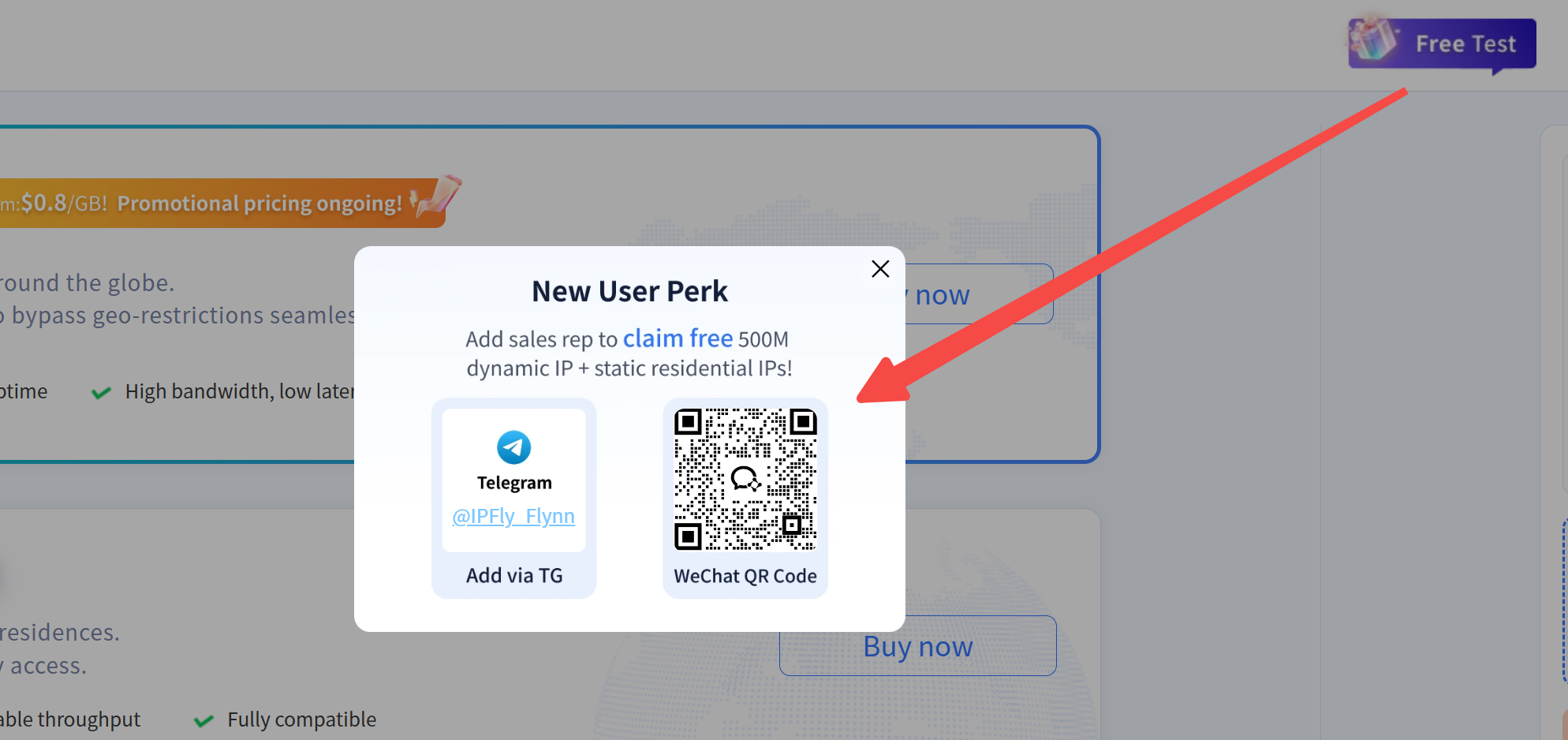
- Contact IPFLY’s sales representative after registration to request your free trial.
- Claim your trial proxies and obtain the connection details.
- Test your proxy with Telegram using the SOCKS5 settings to check connectivity and performance.
How to Set Up a Telegram Proxy with IPFLY
Setting up an IPFLY SOCKS5 proxy for Telegram is straightforward. You can use it on Android, iPhone, or desktop without installing additional proxy software.
Step 1: Get Your IPFLY Proxy Details
First, you’ll need an active IPFLY proxy.
- Sign up for IPFLY or log in to your account.
- Contact IPFLY’s sales representative to request a free trial, or purchase a residential or static ISP proxy plan.
- Open your IPFLY dashboard and obtain your SOCKS5 proxy details:
- Server: Proxy IP address or hostname
- Port: Connection port
- Username and password: Your proxy authentication credentials
Keep these details ready for the next step.
Step 2: Configure a Telegram Proxy on Android or iPhone
Telegram supports SOCKS5 proxies on both Android and iOS, so you can use IPFLY residential proxies directly in the app.
- Open Telegram → Settings → Data and Storage → Proxy Settings. On iPhone, the option may appear as Proxy.
- Tap Add Proxy and select SOCKS5.
- Enter your IPFLY proxy server, port, username, and password.
- Save the settings and enable the proxy.
Telegram will attempt to connect through your selected proxy server.
Step 3: Set Up a Telegram Proxy on Desktop
If you’re using Telegram Desktop, the process is similar:
- Open Telegram → Settings → Advanced → Connection Type.
- Select the option to use a custom proxy and choose SOCKS5.
- Enter your IPFLY proxy address, port, and authentication details.
- Save the configuration and enable the proxy connection.
Step 4: Test Your Telegram Proxy Connection
Once configured, check whether Telegram shows the proxy as connected. Then try opening a chat, loading messages, or sending a message to confirm it works.
If Telegram remains stuck on “Connecting,” check the following:
- Proxy details: Make sure the server address, port, and login credentials are correct.
- Protocol: Confirm you’ve selected SOCKS5 rather than MTProto.
- Proxy availability: Check whether your IPFLY proxy is active and has sufficient remaining traffic.
- Network restrictions: Try another available proxy endpoint if your current network blocks the connection.
If the issue continues, contact IPFLY support for help checking your proxy configuration.
Why Choose IPFLY for Telegram Proxies?
If you need a more reliable alternative to public free Telegram proxies, IPFLY offers flexible IP options, SOCKS5 compatibility, and customer support for different connection needs.
Global IP Coverage and Stable Connections
IPFLY provides residential proxies across multiple regions, allowing you to choose an IP location that suits your needs. For regular Telegram use, static ISP proxies offer a fixed IP address, reducing unnecessary IP changes between sessions.
SOCKS5 Compatibility
IPFLY supports SOCKS5, one of Telegram’s officially supported proxy protocols. Simply enter your proxy server address, port, and authentication details into Telegram’s settings to connect, without additional software.
Flexible Plans and Support
IPFLY offers residential, static ISP, and datacenter proxies to suit different budgets and usage needs. You can choose a suitable plan and contact customer support if you need help with setup or connection issues.
Conclusion
Both SOCKS5 and MTProto proxies can help you connect to Telegram through an alternative network route. While free MTProto proxies are convenient for occasional use, they may come with privacy concerns and unstable connections.
For users who need more control over IP locations and connection consistency, IPFLY offers SOCKS5-compatible residential and static ISP proxies. Sign up for IPFLY and contact our sales team to claim your free trial before choosing a plan.
Frequently Asked Questions
Is there a free Telegram proxy?
Yes. You can find free Telegram proxies through public MTProto server lists and community-shared proxy links. However, availability and connection quality may vary.
Is it safe to use a free MTProto proxy?
It depends on the provider. MTProto proxy operators cannot read your Telegram messages, but they may collect your IP address and connection metadata. Avoid unknown or suspicious proxy sources.
Does Telegram support SOCKS5 proxies?
Yes. Telegram officially supports SOCKS5 proxies on Android, iOS, and desktop. You can configure one using a server address, port, and optional authentication details.
Which is better for Telegram, SOCKS5 or MTProto?
MTProto is designed specifically for Telegram and supports convenient proxy links. SOCKS5 is more versatile and works with other compatible applications. The better choice depends on your needs.
Can I use an IPFLY proxy for Telegram?
Yes. IPFLY’s SOCKS5-compatible residential and static ISP proxies can be configured in Telegram. Simply enter your proxy details in Telegram’s settings and enable the connection.