
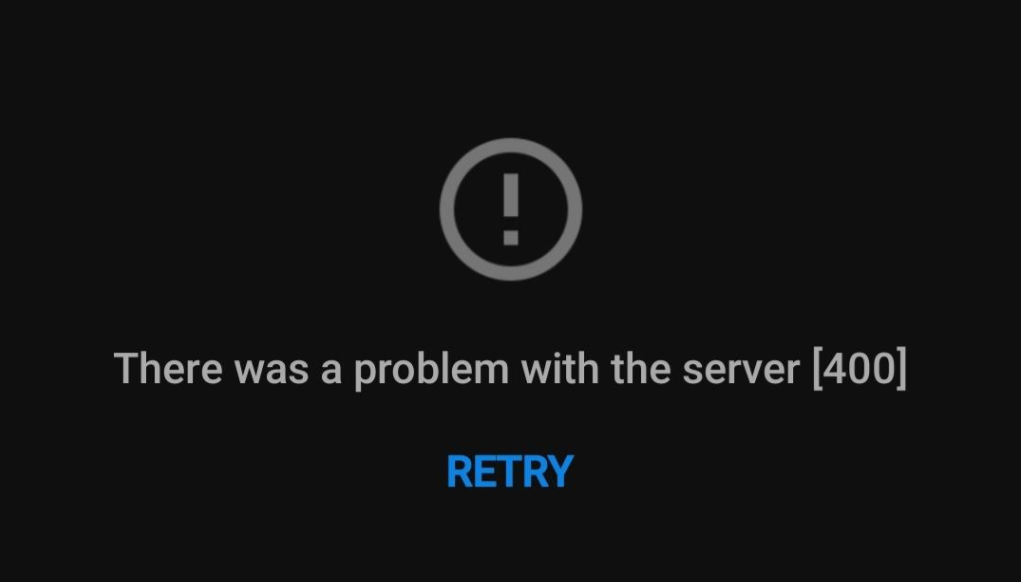
You open YouTube to watch a video, only to see “There was a problem with the server [400].” When tapping retry brings back the same message, it can be hard to know what’s wrong or what to try next. This guide explains why YouTube error 400 happens and walks you through troubleshooting it on mobile devices and web browsers.
What Does YouTube Error 400 Mean?
YouTube error 400 means YouTube could not understand or process a request sent by your app or browser. You may see the message “There was a problem with the server [400]” or simply “Server Error 400” when opening the app, loading content, or trying to watch a video.
The number 400 refers to an HTTP status code called “Bad Request.” In simple terms, your device asked YouTube to do something, but YouTube could not handle that request as expected.
Although 400 belongs to the “client error” category, it does not automatically mean you did something wrong. App data, browser settings, or a temporary YouTube issue may be involved. The message alone does not reveal the exact cause, and it does not necessarily mean your account or channel has been banned.
Why Does YouTube Say “There Was a Problem with the Server [400]”?
The message “There was a problem with the server [400]” can appear for several reasons. To troubleshoot the YouTube error 400, consider these possible causes:
- Outdated or corrupted app data. YouTube stores temporary files to load content faster. If that data becomes outdated or corrupted, the app may have trouble processing requests.
- An older app or browser version. Outdated software may contain bugs or compatibility issues that affect how it communicates with YouTube.
- Cookies, sign-in sessions, or browser extensions. Stored browser data or an expired session may interfere with requests. Extensions that block content or modify requests can also disrupt YouTube.
- Network or proxy configuration issues. Network filters or an incorrectly configured proxy may interfere with the connection. If YouTube works on another network, your current connection deserves a closer look.
- A temporary problem on YouTube’s side. A YouTube server error 400 can also occur during a service issue. If it affects several devices and networks at once, check for official updates before repeatedly changing your settings.
These are possible explanations, rather than a diagnosis. Comparing the app, browser, and another network can help you decide which fix to try first.
Fix YouTube Error 400 in Chrome and Other Browsers
If YouTube error 400 appears in your browser, follow these steps to check whether stored data, extensions, or a particular link is causing the problem.
Test a Clean Browser Session
Open a private browsing window. In Chrome, click the three-dot menu → New Incognito window. Other browsers may call this New Private Window or InPrivate.
Make sure no extensions are allowed to run in that window, then open youtube.com. If YouTube works, something in your regular browsing session—such as cookies, sign-in data, or an extension—may be involved.
Clear YouTube Site Data
Start by clearing data for YouTube rather than deleting data for every website.
In Chrome, open YouTube, click the site controls icon beside the address bar, and look for Site settings → Delete data. The exact labels may vary by browser version.
Reload YouTube and sign in again if prompted. This removes locally stored site data without deleting your account, subscriptions, or uploaded videos.
Check Extensions and Update Your Browser
If the YouTube 400 error continues, temporarily turn off extensions that block ads, control scripts, or change proxy settings.
In Chrome, go to three-dot menu → Extensions → Manage Extensions. Turn off the relevant extensions, then reload YouTube. If it works, turn them back on one at a time to identify which one affects it.
Next, check three-dot menu → Help → About Google Chrome for browser updates. Allow any available update to finish, then relaunch the browser.
Open the Video from YouTube Search
If “There was a problem with the server [400]” appears only when you use a saved or shared link, open the YouTube homepage and search for the video by its title or channel name.
If the video opens from search, replace your old bookmark with the working link. This helps rule out an incomplete or incorrectly copied URL before you change more browser settings.
How to Fix YouTube Error 400 on Mobile
If you see “There was a problem with the server [400]” on your phone or tablet, try the steps below. Test YouTube after each change to check whether the issue is resolved.
Close YouTube and Restart Your Device
Close YouTube completely, then reopen it. If the YouTube server error 400 remains, restart your device and try again.
On Android, you can also go to Settings → Apps → YouTube → Force stop before relaunching the app.
Update the YouTube App
Open Google Play Store or the App Store, search for YouTube, and tap Update if available. The latest version may include fixes for bugs or compatibility issues.
If you use a third-party client, test the official app. You can also open youtube.com in your mobile browser. If the website works, focus on troubleshooting the app.
Clear Cached Data or Reinstall YouTube
Outdated or corrupted local data may contribute to YouTube error 400. The way to remove it depends on your device:
- Android: Go to Settings → Apps → YouTube → Storage → Clear cache. If the error persists, try Clear storage or Clear data to reset the app.
- iPhone or iPad: There is no equivalent system-level Clear cache option for YouTube. If simpler steps have not helped, delete and reinstall the app.
Clearing app storage or deleting the app may remove local settings and downloaded videos. You may need to sign in or configure the app again, but your account and subscriptions will remain intact.
Full-Industry Proxy IP Application Solutions
Power scalable growth for every cross-border business scenario with IPFLY’s reliable global proxy network
Compare Networks and Review Connection Settings
Switch between Wi-Fi and mobile data, where available, and test YouTube on each connection. If error 400 appears on only one network, check that connection more closely.
Temporarily disable any configured proxy or network-filtering tool, then try again. If YouTube fails only on mobile data, check that your device allows the app to use cellular data.
Change one setting at a time so you can identify what affects the result before moving on to broader network resets.
What to Do if YouTube Error 400 Keeps Coming Back
If YouTube error 400 returns after the steps above, avoid repeatedly clearing your data. Instead, check whether the issue involves YouTube’s service, your sign-in session, or your device settings.
Check for a YouTube Service Issue
Look for announcements in the YouTube Help Community or updates from TeamYouTube. If the same error appears across several devices and networks, it may be part of a wider service issue.
If YouTube confirms a problem, follow its guidance and try again later rather than continuing to change your settings.
Test Your Sign-In Session
Open YouTube in a private browser window without signing in and try a publicly available video. Then compare it with your signed-in session.
If error 400 appears only when you are signed in, try signing out and back in through your browser. This helps test whether the issue is linked to your session, but it does not prove your account is restricted. There is no need to remove your entire Google account from your phone for this check.
Check Automatic Date and Time
Make sure your device’s date, time, and time zone are correct. Look for Date & time in Settings and enable automatic settings where available.
An incorrect clock can interfere with secure connections. This is a supplementary check, rather than a confirmed explanation for every YouTube server error 400.
Update Your Device and Send Feedback
Check for available system updates, especially if you also experience problems with other apps.
If “There was a problem with the server [400]” persists, use YouTube’s Send feedback option. Include:
- Your device model, operating system, and YouTube app or browser version.
- A screenshot of the error and when it occurred, including your time zone.
- Whether it affects one account, network, or device—or several.
- The troubleshooting steps you have already tried.
These details help the support team understand the problem without asking you to repeat the same basic checks.
Use IPFLY Proxies for Consistent YouTube Account Connections
When managing multiple YouTube accounts, a consistent network setup makes daily workflows easier to maintain. If you encounter YouTube error 400, checking your connection is one part of troubleshooting. For ongoing channel management, IPFLY proxies help you organize connections across browser profiles.
IPFLY offers several features for these workflows:
- Dedicated static IPs: Assign an IPFLY ISP proxy to each browser profile to keep its exit IP consistent during uploads, comments, and routine channel tasks.
- Unlimited traffic on ISP plans: Handle video uploads and playback without a per-GB traffic allowance.
- HTTP/HTTPS and SOCKS5 support: Integrate with compatible browsers and proxy tools, with TCP and UDP support for applications that use them.
- Residential location options: Use residential proxies to check YouTube from different regions, with sticky sessions where supported to maintain the same exit IP during a task.
Before signing in, verify the proxy address, port, authentication details, and actual exit IP, then test video playback. Combined with separate browser profiles and up-to-date software, a consistent proxy setup helps you manage channel connections and makes network troubleshooting easier when a YouTube server error 400 interrupts your workflow.
FAQs About YouTube Error 400
Does YouTube error 400 mean my account is banned?
No. Error 400 alone does not indicate an account ban. It means a request could not be processed, which may involve app data, browser settings, or a temporary service issue.
Will clearing YouTube data delete my subscriptions?
No. Your subscriptions are linked to your Google account. Clearing app data may reset local settings and remove downloaded videos, but your subscriptions remain available when you sign back in.
Why does YouTube work in my browser but not in the app?
This suggests an app-specific issue, such as outdated software or corrupted local data. Try updating YouTube, clearing its cache on Android, or reinstalling the app if necessary.
Can a free proxy fix YouTube error 400?
A different connection may help if the issue involves your current network. However, free proxies vary in availability, speed, and privacy, so they are not a dependable troubleshooting option.
How long does YouTube error 400 last?
There is no fixed duration. A local issue may disappear after troubleshooting, while a YouTube service problem may continue until the platform resolves it. Check official updates if several devices are affected.
Conclusion
To troubleshoot YouTube error 400, first check whether it affects the app, browser, or network, then follow the relevant steps. If it persists, check for service updates and submit feedback with your device details.
For ongoing management of multiple YouTube accounts, IPFLY ISP proxies provide fixed exit IPs that pair with separate browser profiles for more consistent connections.