

Seeing “You are visiting our service too frequently” on TikTok can be frustrating, especially when it appears during sign-up or prevents access to an existing account. The message offers little detail, leaving users unsure what caused it or how long it will last.
This guide explains what the message means, explores possible reasons it appears, and walks through troubleshooting steps for both sign-up and login issues.
What Does “You Are Visiting Too Frequently” Mean on TikTok?
The message means TikTok is not allowing the current action to continue. It does not, on its own, confirm that an account has been banned or that an IP address has been blocked.
The point where the message appears can help guide troubleshooting. An error during sign-up may call for a review of the registration details, while an error during login may require checking the account credentials or completing a security prompt. If the same action works on another network or device, that difference can provide a useful clue—but it does not prove the cause.
This message is also different from TikTok’s “too fast” notices for actions such as liking, commenting, or following. Those notices concern activity within the app, so their explanations or recovery periods should not automatically be applied to a sign-up or login error.
The exact reason for the visiting-too-frequently message is not always visible. The next section looks at the possible causes before moving on to the steps for resolving it.
Why Does TikTok Say You Are Visiting Too Frequently?
TikTok’s message does not identify a specific cause. Several factors may be involved, including repeated requests, network conditions, app or device issues, and account security checks.
Repeated Sign-Up, Login, or Verification Attempts
Multiple sign-up or login attempts in a short period may be associated with a temporary restriction. Repeated password reset requests or verification code requests may also be relevant.
The attempts are not necessarily intentional. A page that fails to load or a delayed verification code may lead to repeated submissions. TikTok has not published a confirmed number of attempts that triggers this specific message.
Network Connection or Configuration Problems
An unstable connection may interrupt requests during registration, login, or verification. Network settings, including a proxy, custom DNS, or filtering service, may also affect how those requests reach TikTok.
The message alone does not establish that a particular IP address has been blocked. Network conditions are one possible factor, and the exact cause may not be visible.
App, Browser, or Device Issues
An outdated app, corrupted cache, or browser data may interfere with the sign-up or login process. Device-specific settings or compatibility issues may also affect how TikTok loads or completes a request.
These issues can occur independently of account restrictions, so the message does not necessarily indicate a problem with the account itself.
Account Security Checks or Service Issues
TikTok may request additional verification when an account requires a security check. In some cases, the frequency message may appear alongside another prompt or account notice.
A temporary service issue may also affect registration or login. Without a specific notice from TikTok, however, the message alone cannot confirm whether a service issue is responsible.
Where Should You Start Troubleshooting?
Start with the simplest checks and make one change at a time. This makes it easier to see whether a particular step affects the error.
| Situation | Where to start |
| The message appeared after several attempts | Pause before trying again |
| It appears during sign-up or login | Check the account details and login method |
| It appears on one network | Test the connection and network settings |
| It appears in the app but not the browser | Check the app, cache, and device |
| A verification prompt appears, or the error continues | Complete the prompt or contact TikTok |
These situations can help narrow down where to start, but they do not confirm the cause. The steps below explain how to check each possibility.
How to Fix the TikTok “Visiting Too Frequently” Error
Pause Before Trying Again
Stop submitting the form, requesting verification codes, and resetting the password for a while. After a break, make one attempt and check whether the message remains.
TikTok has not published a standard recovery time for this specific error. A fixed wait, such as 24 hours, should not be treated as a guaranteed solution. If the message continues after a reasonable break and the other checks below do not help, report the problem to TikTok.
Check Your Sign-Up or Login Details
For an existing account, make sure the Log in option is selected rather than Sign up. Check that the username, email address, or phone number belongs to the intended account.
If the account was created through a linked service, such as Google or Apple, use the corresponding login option. If the password is genuinely forgotten, use TikTok’s password recovery option and follow the instructions sent to the linked email address or phone number. A password reset may restore access to forgotten credentials, but it does not guarantee that the frequency message will disappear.
During sign-up, check that the email address or phone number can receive a verification code. Avoid requesting multiple codes in quick succession.
Test Your Network Connection
First, check whether other websites or apps load normally. If the connection is unstable, reconnect to the network and allow it to settle before another TikTok attempt.
A single comparison between Wi-Fi and mobile data can also help. For example, if the error appears on Wi-Fi, disconnect from Wi-Fi and try once using mobile data. A different result suggests that the network or its settings deserve closer attention; it does not prove that TikTok blocked the original IP address.
If a proxy is already in use, check that its connection is working. Temporarily disconnecting it for a comparison may help identify a configuration problem. A proxy address routes traffic through an intermediary server, so an issue with that connection can affect access.
An IP address check can also show whether the browser or application is using the expected proxy connection. It does not show whether TikTok will accept that connection.
A router restart may help with an unstable home connection. It does not guarantee a new IP address or remove an account restriction.
Clear Step-by-Step Proxy IP Tutorials
Master proxy setup, integration and performance optimization quickly with IPFLY guides
Check Private DNS and Network Filters
If the device uses a custom Private DNS service or an ad-blocking network filter, temporarily switch that setting back to its default and make one attempt. Settings and menu names vary by device.
If the result changes, review the DNS or filter configuration before restoring it. If there is no change, return to the previous setting and continue with the other checks. This test applies to devices using those settings; it is not evidence that Private DNS always causes the TikTok error.
Update and Troubleshoot the App or Browser
TikTok’s troubleshooting guidance recommends using current versions of the app and device operating system, then restarting both. If the app remains accessible, its settings also provide an option to clear cached data.
To clear the TikTok cache when the settings are available:
- Open Profile and tap the Menu button.
- Select Settings and privacy.
- Under Cache & Cellular, tap Free up space.
- Tap Clear next to Cache.
For a browser issue, close and reopen the browser, check for updates, or try another browser. Clearing TikTok site data may sign the account out, so make sure the login method and credentials are available first.
Reinstallation is a later option if other app checks do not help. Before removing the app, check and save any drafts that need to be kept; drafts may be lost when the app is removed.
Try Another Device or the Official Website
If another trusted device is available, try the same account there once. Another option is to open TikTok’s official website in a browser and attempt the same action.
If one device or the website works while the original app does not, the result can help narrow the investigation to the app or device environment. If the error appears everywhere, it still does not identify a single cause.
Users relying on an emulator can also try the official app on a supported mobile device. This is a comparison step, not a claim that emulators always trigger the error.
Complete Verification or Contact TikTok
If TikTok displays a security or identity verification prompt, follow the instructions on the screen. If access remains unavailable after the checks above, submit a report with enough detail for support to understand the problem.
When the app’s settings are accessible, go to Profile → Menu ☰ → Settings and privacy → Report a problem. Select the relevant topic and follow the prompts for additional help.
If login is unavailable, TikTok also provides an online problem report form with an Account access / security topic. Include the exact error message, when it appeared, the device and app version, and the steps already attempted. A screenshot can help show the issue. Do not include passwords or verification codes in the report.
How Can IPFLY Help Teams Manage a Stable Network Setup?
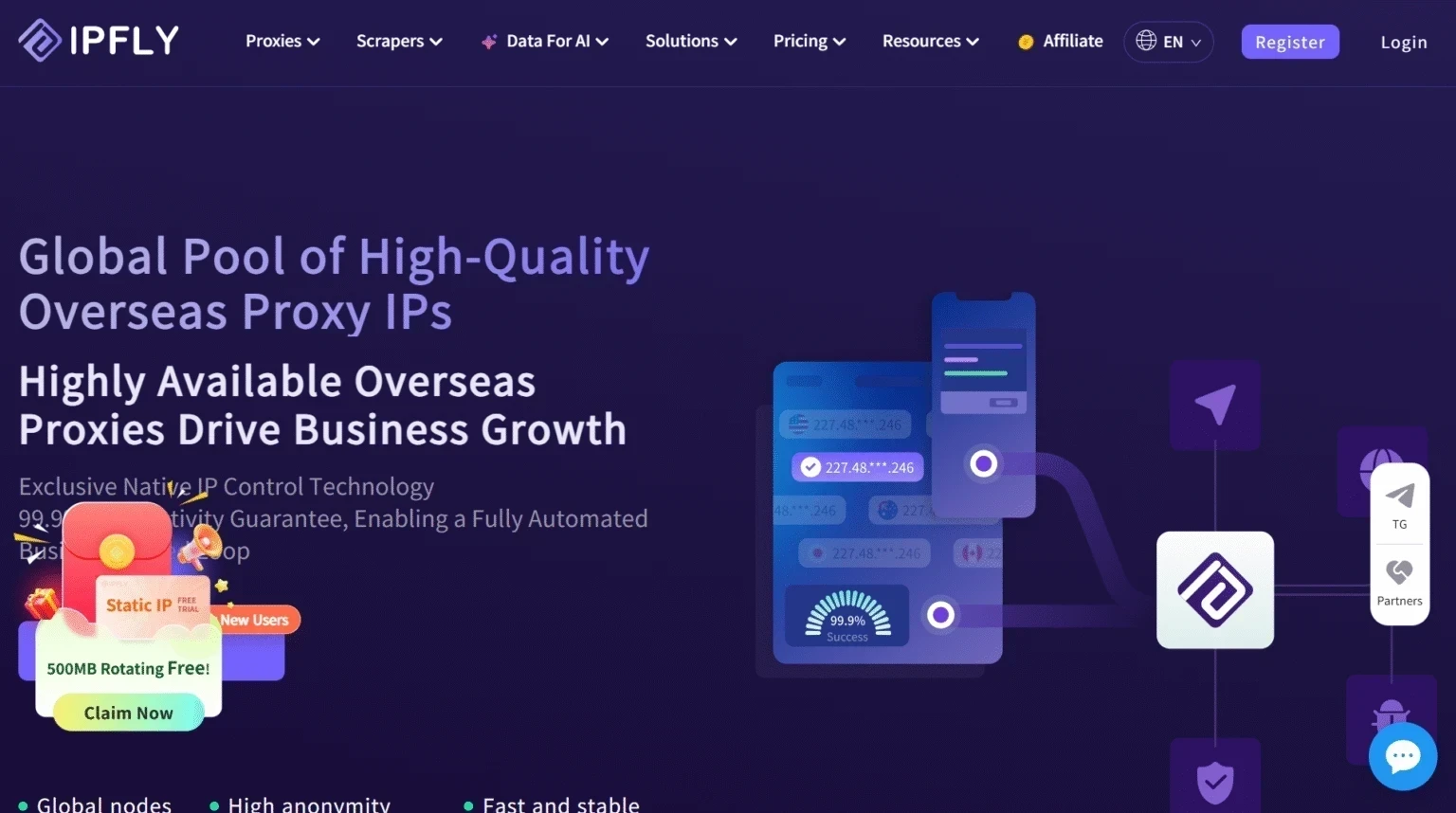
A proxy is not required to fix TikTok’s “visiting too frequently” error. For an individual using a normal connection, the troubleshooting steps above are the appropriate starting point.
For a business team that already relies on proxies, a static residential proxy provides a fixed proxy IP for the service period. This gives the team a known endpoint to document and check when an access issue occurs. For teams with this need, IPFLY is a practical option: its Static Residential Proxies provide dedicated, static residential IP addresses.
A TikTok proxy setup can be selected based on whether the team needs a fixed endpoint for ongoing work or a more flexible connection for other tasks.
Before choosing a proxy, check whether it works with the intended device or application and whether its use fits TikTok’s applicable rules. A proxy does not guarantee that TikTok will accept an IP address, remove a restriction, or skip account verification.
Frequently Asked Questions
Does This Message Mean My TikTok Account Is Banned?
Not necessarily. The “you are visiting too frequently” message does not, by itself, confirm an account ban. Check for a separate account notice or verification prompt for more information.
Can I Lose My TikTok Drafts If I Reinstall the App?
Yes. Drafts may be stored on the device and can be lost if the TikTok app is removed. Before reinstalling, check for drafts that need to be kept and save them where possible.
Why Does the Error Persist After I Switch Networks?
The network may not be the only factor. The issue could also involve the app, device, account details, or a security check. Switching networks is a useful comparison, but it does not resolve every possible cause.
Should I Create a New Account When I See This Error?
Creating a new account is not guaranteed to resolve the issue. If the goal is to access an existing account, first check the login details and complete any verification prompts. If access remains unavailable, contact TikTok support.
What Should I Include in a Report to TikTok?
Include the exact error message, when it appeared, the device and app version, and the steps already attempted. A screenshot can also help explain the issue. Do not include passwords or verification codes.
Conclusion
The TikTok “you are visiting too frequently” message can interrupt sign-up or login, but it does not reveal the cause on its own. A pause followed by a few targeted checks can help narrow down the issue. If the error remains, contact TikTok support with the details. For teams that already need a fixed proxy endpoint, IPFLY Static Residential Proxies offer an option to consider for managing a consistent network setup.


