

Snapchat stops loading on Wi-Fi. Messages remain pending, or a login attempt ends with an error. Searches for “Snapchat unblocked” often begin with these problems, but the same symptom can have different causes.
A connection problem needs a different response from an account lock. The first step is to identify what has stopped working: access to Snapchat, the login process, or a specific feature. This guide explains those differences, the reasons access can fail, and the checks that lead to the right support path.
For a quick overview of Snapchat unblocked methods, use the table below to match the access problem with a relevant first step. Each method is explained in the troubleshooting section.
8 Methods to Unblock Snapchat at a Glance
| Method | When to try it | Main limitation |
| Mobile data or another Wi-Fi network | Snapchat fails only on the current connection | A different network does not change account permissions |
| Personal hotspot | A computer or tablet needs another internet connection | Depends on cellular coverage and tethering allowance |
| Proxy server | A different network or regional endpoint is needed | Requires compatible routing and an accepted endpoint |
| DNS check | Domain lookup appears to be failing | Does not change the public connection address |
| Snapchat Web | The mobile app fails or is unavailable | Requires a supported browser |
| App and system updates | Problems persist across connections | Cannot reverse account restrictions |
| Cache clearing | The app behaves incorrectly despite a working connection | Does not resolve every loading or login error |
| Permission checks | Only camera, microphone, or calling features fail | Addresses the affected feature rather than general access |
What Does “Snapchat Unblocked” Mean?
“Snapchat unblocked” commonly describes a situation in which Snapchat becomes accessible after an access problem. The phrase alone does not identify the cause or the solution. A page that fails to load, an unsuccessful login, and a call without audio are separate issues.
Useful access means more than reaching a login screen. The required task—signing in, sending a message, or making a call—must also work. Keeping that distinction clear helps avoid treating every failure as a network restriction.
Access Through the Snapchat App and Snapchat Web
Snapchat offers access through its mobile app and a web version. Snapchat’s web feature guide describes browser-based chats, calls, and photo or video Snaps. It lists the latest versions of Chrome, Edge, and Safari for web access.
These access routes provide useful points of comparison, but they are not interchangeable tests. A working web login does not confirm that the mobile app is working correctly. Likewise, a browser page that loads successfully does not confirm that camera, microphone, or messaging features are available.
The access goal should therefore be specific. “The website opens” and “a video call works” describe different results. Later checks can focus on the feature that actually fails.
Network Access Is Different From Account Recovery
Network access concerns whether a device can connect to Snapchat. Account recovery concerns whether Snapchat permits a particular account to sign in. A working internet connection does not resolve an account lock.
Snapchat’s account lock guidance distinguishes temporary locks from permanent restrictions and explains that eligible appeals are available through the app. When an account qualifies, the login notification includes an “Appeal Decision” option.
Changing connection settings cannot replace that process. An explicit account or device restriction should follow the relevant official guidance, while a loading or connection error requires a separate diagnosis.
Why Isn’t Snapchat Unblocked on the Current Network?
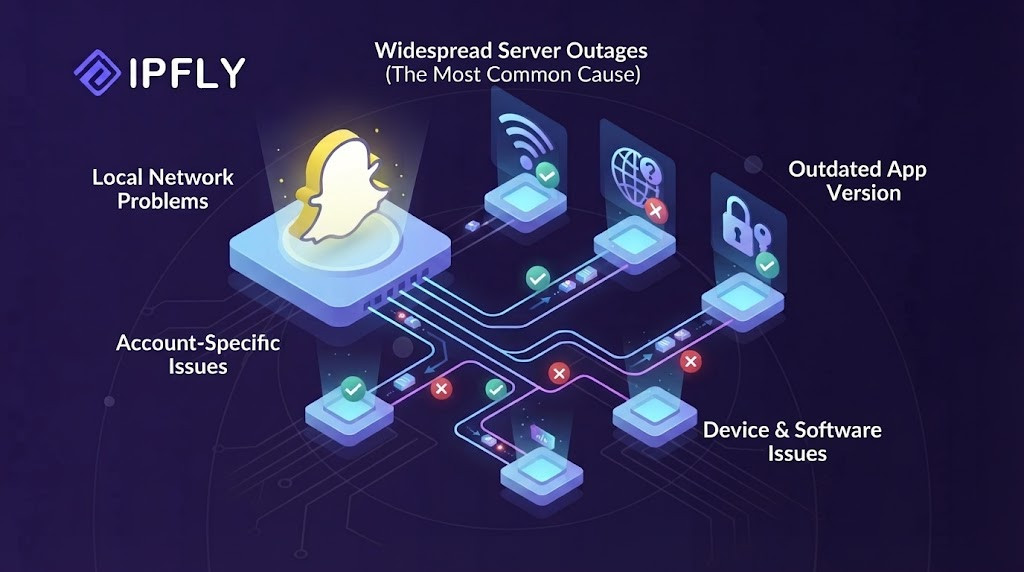
Snapchat can fail at different points between a device and the service. A local network may limit access, Snapchat may restrict a connection, or the app may encounter a technical problem. The symptoms can look similar, so a failed login alone does not establish the cause.
School and Workplace Network Rules
Schools and workplaces may limit social media use under their network policies. These rules affect access through that network; they do not mean Snapchat itself has stopped working.
Device rules are a separate factor. A managed school laptop or work phone may have settings that control which apps can be installed or which websites can be opened. In that case, network access and device permissions are two different things to check. A different connection does not grant permission to change a managed device’s settings.
A useful clue is where the problem occurs. If Snapchat fails only on one Wi-Fi network, that network deserves closer attention. The result does not prove an intentional restriction, however. A connection fault can produce the same pattern. Network policies and administrator guidance help distinguish the two.
Restrictions Affecting the Current Connection
A message stating that a network is blocked can come from Snapchat rather than the local network administrator.
Snapchat’s network restriction guidance explains that suspicious activity from an IP address can lead to a temporary restriction. It also notes that the activity may come from someone else using the same internet connection.
This distinction matters on shared networks. A platform-side connection restriction does not, by itself, establish that a particular account has been locked. The wording of the error is more useful than a general description such as “Snapchat is blocked.”
Snapchat states that an IP restriction is usually temporary and should clear after suspicious activity is no longer detected. It does not provide a fixed recovery time on that help page, so a specific waiting period should not be assumed.
App, Browser, and Service Issues
Some access problems have no connection to network rules. An outdated app, an unsupported browser, or an unstable connection can interrupt normal use. A service-side fault can also affect access beyond a single device.
The point of failure provides a useful clue. A login page that never loads suggests a different problem from a chat that opens but has no microphone audio. In the second case, at least part of the connection is working.
Snapchat treats web access, audio, and video problems separately. Missing microphone permission can prevent others from hearing a call, while missing camera permission can prevent video from appearing. Neither symptom alone shows that Snapchat is unavailable on the network.
The next step is to match the observed failure to a focused check, rather than change several settings at once.
Snapchat Unblocked: How to Check and Restore Access

Getting Snapchat unblocked requires a method that matches the cause. Switching connections can help with a network-specific problem, while app updates and permission checks address device-level faults. A proxy provides another connection route, but it cannot restore a locked account or fix a service outage.
Switch to Mobile Data or Another Wi-Fi Network
On a phone, turn off Wi-Fi, confirm that mobile data is enabled, and repeat the action that failed. Test the same login attempt or message rather than switching to a different feature.
If Snapchat works on mobile data, the original Wi-Fi connection needs closer attention. The difference may involve network rules, a connection fault, or a platform-side restriction affecting that connection. It does not establish the cause by itself.
Another trusted Wi-Fi network offers a similar comparison. If Snapchat fails across different connections, continue with the app, device, and error-message checks below. On managed devices, connection changes should follow the organization’s rules.
Connect Through a Personal Hotspot
A personal hotspot can give a laptop or tablet access through a phone’s cellular connection. This is useful when Snapchat Web fails on the computer’s usual Wi-Fi.
To test a hotspot:
- Confirm that the phone can access the internet using mobile data.
- Enable its personal hotspot and set a password.
- Connect the computer or tablet to that hotspot.
- Open Snapchat Web in a supported browser.
- Repeat the task that failed on the original connection.
Confirm that the hotspot is sharing cellular data rather than the same affected Wi-Fi connection. Google’s mobile tethering instructions describe supported sharing options, although menu names vary by device.
Check signal strength, data allowance, and any tethering restrictions in the mobile plan. Video calls and media transfers can use substantial data. Disable the hotspot after testing if it is no longer needed.
Use a Proxy Server for Snapchat Access
A proxy server forwards supported traffic through another network endpoint. When access is affected by the original network route or regional connection, an endpoint in a location where Snapchat is available can provide an alternative path. The local network must allow the proxy connection, and Snapchat must accept the endpoint.
To configure a proxy:
- Obtain the server address, port, protocol, and required credentials from the provider.
- Select an endpoint location that fits the access requirement.
- Enter the details in a compatible client or network configuration.
- Enable the connection and confirm that the intended traffic uses it.
- Test Snapchat sign-in, messaging, and any required calling function separately.
For a supported Windows configuration, manual proxy settings are available under Settings → Network & internet → Proxy. Enter the supplied server address and port, then save the configuration. Protocols or authentication methods not supported by that interface require a compatible client.
Browser and mobile app connections need separate checks. A proxy configured for a browser does not establish that the Snapchat mobile app uses the same route. A successful page load also does not confirm that calls or media transfers will work.
If Snapchat works directly but fails through the proxy, review the endpoint, credentials, and routing configuration. Provider and endpoint selection are covered in the following IPFLY section.
Clear Step-by-Step Proxy IP Tutorials
Master proxy setup, integration and performance optimization quickly with IPFLY guides
Check DNS Settings for Domain Lookup Problems
DNS translates domain names into network addresses. A resolver problem can prevent a website from loading even when the device has an internet connection. Testing another resolver can help identify that specific fault.
Before making a change, record the existing settings. On a personal device where changes are permitted:
- Open the relevant network’s DNS settings.
- Follow the operating system’s instructions for entering a resolver.
- Save the change and reconnect if required.
- Repeat the same Snapchat Web test.
- Restore the original settings if the change does not help.
Google’s public DNS setup lists 8.8.8.8 and 8.8.4.4 for IPv4 connections and provides platform-specific instructions.
A DNS change has a limited role. It does not change the public connection address, restore an account, or resolve every network restriction. Avoid making further DNS changes when the evidence points to an unrelated problem.
Try Snapchat Web on a Supported Browser
Open Snapchat’s official web service on a computer using the latest Chrome, Edge, or Safari. Keep the phone app updated and signed in to the same account.
Test access in stages: page loading, sign-in, messaging, and the required calling feature. Each result answers a different question. A working login confirms access for that browser session, but it does not establish that the mobile app is functioning correctly.
The web version is an alternative access route, not a guaranteed solution for the same network restriction. If both the app and website fail on one connection, compare another permitted connection before changing more settings.
Update Snapchat and Check Device Compatibility
Check for a Snapchat update through the device’s official app store. Install available updates, close and reopen the app, and repeat the failed task.
Also confirm that the operating system meets Snapchat’s current requirements. Older software can create compatibility problems that a different connection will not solve. On a managed phone or computer, system updates may require administrator approval.
For browser access, check the browser version separately. Updating the mobile app does not update the computer’s browser.
If errors continue after these checks, note whether they affect only Snapchat or other services as well. That distinction helps determine whether the next step belongs with Snapchat support or the device and network administrator.
Clear Snapchat’s Cache Before Reinstalling
Snapchat’s cache stores temporary data. Clearing it through the app’s settings can help troubleshoot some app problems without deleting Memories, Snaps, or Chats, according to Snapchat’s cache clearing instructions.
Use the option specifically labeled Clear Cache, then reopen Snapchat and repeat the failed action. Do not treat clearing app storage through device settings as the same operation.
If reinstalling becomes necessary, confirm the Memories backup first. Snapchat’s Memories backup requirements state that backup should be complete before uninstalling or signing out. In Memories settings, Backup Progress should show Complete.
Also confirm that the account password and required verification method are available. Reinstalling should not create a second problem by removing access to an account that cannot be signed into again.
Check Permissions When Only One Feature Fails
When chats load but a call has no audio or video, check the affected feature before changing the network.
For browser calls, review:
- Microphone and camera permissions for the Snapchat website.
- The selected microphone, camera, and speaker.
- Browser tab and system mute settings.
- Whether the camera or microphone works in another application.
For the mobile app, check the corresponding permissions in the device’s app settings. Adjust only the permission relevant to the failed function, then test again.
A working chat session with a disabled microphone is a different problem from a website that never loads. Keeping these cases separate avoids unnecessary connection changes.
Follow the Exact Error or Official Recovery Process
Record the complete error message and any code. Match that wording to Snapchat’s official guidance rather than treating every failed login as the same issue.
A network-related message calls for connection checks. An account-lock or device-restriction notice requires its own official process. Where an account is eligible for appeal, Snapchat displays an Appeal Decision option in the app.
Repeatedly changing networks, reinstalling the app, or selecting another proxy endpoint does not replace account recovery. Separate support tickets also do not speed up an account-lock appeal.
If the same failure occurs across devices and connections, check official support communications for an acknowledged service issue. Local settings cannot restore Snapchat during a service outage.
Ask the Administrator to Review Access Settings
If the problem is limited to school or workplace Wi-Fi, ask the network administrator whether Snapchat is permitted and whether a connection fault is known. Provide the device type, error message, approximate time, and results of permitted comparison tests.
For parental controls or managed device restrictions, the responsible parent or administrator should review the setting. A connection method does not grant permission to change device or account rules.
These requests are more useful when they describe the exact failed task—for example, a login page that will not load or a call that connects without audio—rather than simply stating that Snapchat does not work.
Why Tor Browser Is Not a Recommended Method
Some access guides recommend Tor Browser, but it is not among Snapchat’s currently listed supported browsers. The Tor Project describes it as Firefox-based software, while Snapchat lists Chrome, Edge, and Safari for web access.
It should therefore not be presented as a reliable Snapchat Web solution. A method’s appearance in another guide does not establish compatibility.
Snapchat Unblocked: Using IPFLY for a Different Regional Connection
When Snapchat access fails because of a regional network restriction, a proxy can provide a connection through an endpoint in another location. The relevant traffic must pass through that endpoint, and the local network must allow the proxy connection. This approach addresses the connection route; it does not resolve an account lock or device restriction.
IPFLY offers residential proxy locations and dedicated static ISP endpoints. For this use case, the main choices are where the connection exits and whether that address needs to remain consistent.
Select a Regional Endpoint That Fits the Access Need
A proxy forwards supported traffic through its endpoint, changing the network address presented to the destination. Where a restriction depends on the original connection’s location, an endpoint in a region where Snapchat is available may provide an alternative route.
IPFLY’s residential proxy locations include country, state, and city targeting options. The required location should be confirmed before configuration rather than choosing an endpoint at random. A nearby suitable endpoint can be a starting point for testing, although distance alone does not determine connection quality.
Regional targeting does not guarantee Snapchat access. The platform may still reject a particular connection, and changing the endpoint does not change account permissions.
Choose a Consistent Address for Continued Use
After selecting a suitable region, the next choice is whether the address should remain fixed. IPFLY provides dedicated, non-rotating ISP proxy endpoints for workflows that require a consistent connection address.
A static proxy connection keeps the assigned address consistent, while a rotating configuration changes addresses according to its settings. A fixed endpoint makes sense when repeated regional changes are unnecessary. Its practical role is connection consistency, rather than a promise of platform acceptance.
Connect Through a Compatible Client
IPFLY supports HTTP, HTTPS, and SOCKS5 connections. The client handling Snapchat traffic must support the selected protocol and authentication method.
An ISP proxy setup requires the endpoint address, port, and applicable credentials from the active service configuration. Browser settings and mobile app routing need separate attention: configuring a browser does not establish that the Snapchat mobile app uses the same connection.
Once configured, check page loading, sign-in, and the required messaging or calling function separately. If the connection works but Snapchat displays an account restriction, follow the official account process rather than continuing to change regions.
FAQs About Snapchat Unblocked
Is “Snapchat Unblocked” an Official Snapchat Product?
No. It is a search phrase, not a separate Snapchat app or service.
Should Login Details Be Entered on Third-Party Pages?
No. Use Snapchat’s official app or website, and never share passwords or verification codes with third-party services.
Does Clearing the Cache Delete Saved Memories?
No. Clearing the cache through Snapchat’s settings does not delete Memories, Snaps, or Chats.
What Should Be Checked Before Reinstalling Snapchat?
Confirm that Memories backup shows “Complete” and that account login and verification methods are available.
What Information Should Be Removed From a Support Screenshot?
Remove passwords, verification codes, private messages, and unrelated personal details. Keep the error message visible.
Conclusion
“Snapchat unblocked” starts with identifying why access fails. Check the connection and exact error message, then follow the relevant official guidance. For an approved setup that requires a proxy, confirm compatibility and test the needed functions. A proxy does not replace network permission or account recovery.


