How to Fix “Your noCAPTCHA User Response Code Is Missing or Invalid”
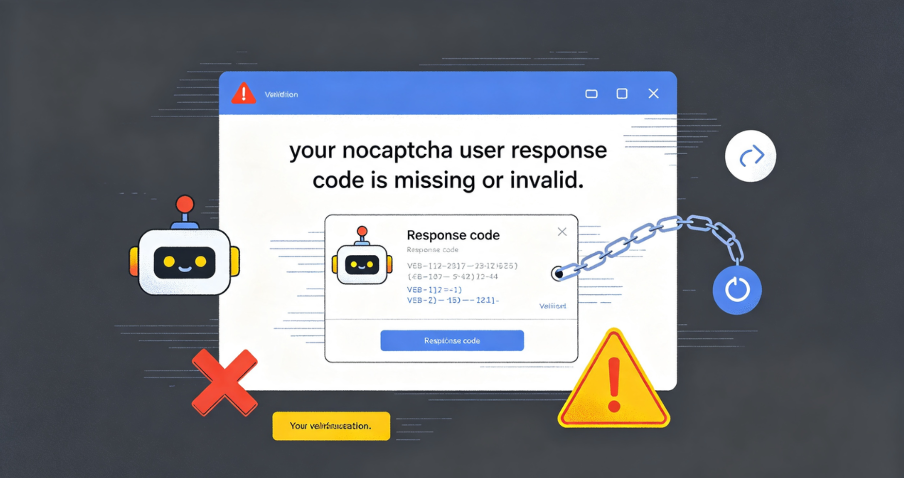
You are trying to log in to LinkedIn, Facebook, or another major platform. You enter your credentials. You complete the “I am not a robot” challenge—maybe you click the checkbox, or you spend 30 seconds identifying traffic lights and bicycles. You click submit. And then you see it:
“Your noCAPTCHA user response code is missing or invalid.”
This error is one of the most frustrating verification failures on the internet today. You have done everything correctly—or so you thought—yet the platform refuses to let you proceed. The problem is not with your password or your username. It is with the CAPTCHA verification process itself.
This comprehensive guide explains what this error means, why it happens, and exactly how to fix it. Whether you are encountering this error on LinkedIn, Facebook, or another platform, the solutions in this guide will help you get back to your account.
What Does “Your noCAPTCHA User Response Code Is Missing or Invalid” Mean?
This error message appears when a platform attempts to verify that you are a human user through a CAPTCHA challenge, but the verification process fails to complete successfully.
The “noCAPTCHA” system—most commonly Google’s reCAPTCHA—works by generating a unique token or response code after you complete the challenge. This code is then sent to the platform’s servers for validation. When the platform returns the error, it means one of three things:
- Missing – The authentication field remained empty during data transmission. This often happens if the verification widget fails to load due to network instability.
- Invalid – The digital certificate was provided, but it was expired or corrupted. This can occur if the verification process took too long or if the user’s digital environment seems inconsistent with standard human behavior.
- Suspicious Network Activity – The system suspects unusual activity from your IP address.
In many cases, the error is not about whether you solved the CAPTCHA correctly—it is about whether the verification process completed properly on the technical level. As one analysis explains, when this error appears, it typically means that behavioral data collection was incomplete (such as JavaScript being blocked) or that the backend determined the request was risky and refused to issue a verification token.

Where Does This Error Appear?
This error is most commonly associated with LinkedIn and Facebook, but it can appear on any platform that uses reCAPTCHA or similar verification systems.
LinkedIn users frequently encounter this error during login or registration. The platform uses a CAPTCHA system—sometimes called FunCaptcha—to verify that login attempts come from real users rather than automated scripts.
Facebook users may encounter this error during registration, login, or when performing actions that trigger additional security verification. The error can appear even after successfully completing the visual CAPTCHA challenge.
Other Platforms – Any website that uses Google’s reCAPTCHA or similar services can potentially display this error. Common scenarios include:
- Account registration forms
- Login pages with CAPTCHA protection
- Password reset flows
- Comment submission forms
- Contact forms
Why Does This Error Happen? 7 Common Causes
Understanding the root cause of the error is essential for fixing it. Here are the most common reasons why you might see “your noCAPTCHA user response code is missing or invalid.”
1. JavaScript Is Disabled or Blocked
Google’s reCAPTCHA and similar systems rely heavily on JavaScript to function. The CAPTCHA widget loads, tracks mouse movements, and generates the response token all through JavaScript. If JavaScript is disabled in your browser, or if an extension is blocking it, the CAPTCHA cannot generate the necessary response code.
Common culprits:
- Browser settings that disable JavaScript
- Ad blockers that interfere with CAPTCHA scripts
- Privacy-focused browser extensions that block tracking scripts
- Corporate network firewalls that restrict JavaScript execution
2. Incomplete CAPTCHA Submission
You may have clicked submit without fully completing the CAPTCHA challenge. Even if you think you completed it, a partial completion can still trigger the error.
3. Expired Token
reCAPTCHA tokens are time-sensitive. Taking too long to submit the form or verification can make the token expire and become invalid.
4. Browser Extensions Blocking Scripts
Ad-blockers, privacy tools, or other browser extensions can interfere with the loading of reCAPTCHA frames and scripts.
5. Browser Cache and Cookie Issues
Corrupted cache files or cookies can interfere with the CAPTCHA verification process. When your browser stores outdated or conflicting data, the CAPTCHA system may fail to generate or transmit the response code properly.
6. Suspicious IP Address or Network Activity
CAPTCHA systems like reCAPTCHA don’t just rely on what you type—they also track IP address reputation, browser fingerprinting, and behavioral patterns. If your IP address has been associated with automation, data scraping, or mass form submissions (even from previous users of that IP), you may be flagged instantly.
Key risk factors include:
- Low-quality residential IPs or datacenter IPs marked as suspicious
- IPs with excessive sharing (e.g., single IP used by many users)
- IP reputation issues causing even correct verification codes to be rejected
7. Server-Side Misconfiguration
For website owners, incorrect site keys, secret keys, or validation logic on the backend can trigger this error. Using a Site Key without its paired Secret Key will cause verification to fail.
How to Fix “Your noCAPTCHA User Response Code Is Missing or Invalid”
Now that we understand the causes, let us walk through the solutions—starting with the simplest fixes and moving toward more advanced troubleshooting.
Fix 1: Hard Refresh the Page
A hard refresh forces the browser to re-establish a clean connection and load a fresh verification token.
- Windows: Press
Ctrl + F5 - Mac: Press
Cmd + Shift + R
After the refresh, complete the CAPTCHA again and submit.
Fix 2: Complete the CAPTCHA Carefully
Ensure you finish all image or checkbox steps completely. Do not rush through the verification. Verify that the CAPTCHA widget has fully loaded before attempting to submit.
Fix 3: Temporarily Disable Browser Extensions
Ad-blockers, privacy tools, and other extensions can interfere with reCAPTCHA.
Steps:
- Disable all non-essential browser extensions
- Refresh the page
- Complete the CAPTCHA again
- If the error disappears, re-enable extensions one by one to identify the culprit
Fix 4: Clear Browser Cache and Cookies
Clearing your browser’s cache and cookies can resolve issues caused by corrupted or outdated data.
For most browsers:
- Open your browser settings
- Navigate to privacy or history settings
- Clear browsing data, including cookies and cached images/files
- Restart your browser and try again
Fix 5: Use Incognito or Private Mode
Testing in a private window is the fastest way to see if your primary browser profile is compromised by cookies or conflicting data. If the verification proceeds without error in Incognito mode, you know the issue lies in your stored browser data.
Fix 6: Ensure JavaScript Is Enabled
Verify that JavaScript is enabled in your browser settings.
Google Chrome:
- Go to Settings > Privacy and Security > Site Settings
- Click on JavaScript
- Ensure it is set to “Allowed”
Mozilla Firefox:
- Type
about:configin the address bar - Search for
javascript.enabled - Ensure the value is set to
true
Fix 7: Try a Different Browser or Device
If the error persists, try using a different browser or a different device. For example, if you are encountering the error on Chrome, try Firefox or Safari. If you are on a desktop, try using your smartphone.
Fix 8: Use the LinkedIn Password Reset Workaround
For LinkedIn users, a commonly recommended workaround involves using the password reset flow:
- Go to the login page and complete the CAPTCHA verification
- When the error appears, do not close the page
- Click the “Forgot Password” link
- Request a password reset email
- Enter the verification code from the email
- Reset your password
- Log in with the new password
This workaround bypasses the problematic CAPTCHA verification on the login page.
Fix 9: Optimize Your IP Address and Network Environment
If you have tried all the above solutions and the error persists, the problem is likely related to your IP address or network environment.
CAPTCHA systems evaluate the trustworthiness of your IP address as part of the verification process. When you use a low-quality or shared IP—such as a datacenter IP or an IP with a poor reputation—the platform may determine that the request is risky and refuse to issue a verification token.
The Solution: Use a Clean Residential IP
Residential IPs come from real Internet Service Providers (ISPs) and appear as genuine consumer connections. They are far less likely to be flagged by CAPTCHA systems.
Key advantages of residential IPs for CAPTCHA verification:
- Higher trust scores – Residential IPs are associated with real households, not datacenters
- Lower blocking rates – Less likely to be flagged by reCAPTCHA systems
- Clean reputation – No history of spam or automated activity
Switching to a different network or using a residential IP can help if your IP is flagged. IPFLY provides clean, verified residential IPs that help ensure network requests are more likely to pass verification.
Clear Step-by-Step Proxy IP Tutorials
Master proxy setup, integration and performance optimization quickly with IPFLY guides
How IPFLY Powers Reliable CAPTCHA Verification
IPFLY provides the residential proxy infrastructure that enables clean, trusted network environments for CAPTCHA verification.
Why Network Reputation Matters
CAPTCHA systems like reCAPTCHA don’t just rely on what you type—they also track IP address reputation, browser fingerprinting, and behavioral patterns. If your IP address has been associated with automation, data scraping, or mass form submissions (even from previous users of that IP), you may be flagged instantly.
This is where clean, high-quality proxy IPs become invaluable. When network reputation is the culprit, rotating through trusted, verified IP addresses is a proven solution.
IPFLY Residential Proxy Solutions
IPFLY Static Residential Proxies
IPFLY’s static residential proxies are 100% dedicated, ISP-registered IP addresses that remain fixed over time. Each IP is used exclusively by a single user, ensuring a clean reputation and preventing association with other users’ activity.
Key advantages for CAPTCHA verification:
- ISP-registered authenticity – Each IP is formally assigned by an Internet Service Provider and appears as a residential broadband connection
- 100% dedicated IP – Exclusive use with no sharing; no risk of inheriting poor reputation from other users
- Stable and consistent – The IP remains unchanged, providing consistent identity for ongoing platform access
- Geographic targeting – Choose IPs from specific countries and cities to match your needs
- Full protocol support – HTTP, HTTPS, and SOCKS5
- Low latency – Delays as low as 50ms for fast, responsive browsing
Static residential proxies are ideal for users who need consistent, reliable verification without the risk of IP-based blocks.
👉 Explore IPFLY Static Residential Proxies
IPFLY Dynamic Residential Proxies
For users who need geographic flexibility or IP rotation, IPFLY’s dynamic residential proxies offer real residential IPs with automatic rotation capabilities from a pool of over 90 million addresses covering 190+ countries.
Key advantages:
- Real residential IPs – From a pool of residential addresses, ensuring high availability and low detection risk
- Automatic rotation – Distribute access across diverse IPs to avoid pattern detection
- Sticky session support – Maintain a consistent IP for hours or days when needed
- Geographic flexibility – Access content from virtually any region
- Full protocol support – HTTP, HTTPS, and SOCKS5
- High success rate – Over 99% connection stability
Dynamic residential proxies are ideal for users who need geographic diversity or who prefer to rotate IPs for additional privacy.
👉 Explore IPFLY Dynamic Residential Proxies
How IPFLY Addresses CAPTCHA Verification Challenges
| Challenge | IPFLY Solution |
| Low IP trust score | Residential IPs from real ISPs receive higher trust scores |
| IP blacklisting | Clean, dedicated IPs maintained off major blacklists |
| Shared IP reputation | Dedicated IPs used exclusively by a single user |
| Geographic inconsistency | Geographic targeting ensures location alignment |
| Automation flagging | Residential IPs appear as genuine consumer connections |
Preventing Future noCAPTCHA Errors
Once you have resolved the immediate error, here are best practices to prevent it from recurring.
1. Use a Clean Residential IP
The single most important prevention step is to ensure your IP address has a clean reputation. Residential IPs from trusted providers like IPFLY maintain high trust scores and are far less likely to trigger CAPTCHA failures.
2. Maintain Geographic Consistency
Your IP location should match your browser’s timezone, language, and other system settings. Geographic inconsistencies can trigger additional scrutiny.
3. Keep Your Browser Updated
reCAPTCHA requires a modern JavaScript environment. Ensure your browser is updated to the latest version to support Google’s advanced security protocols.
4. Avoid Rapid-Fire Requests
If you are performing automated tasks, implement reasonable delays between requests. Rapid-fire requests from a single IP can trigger CAPTCHA systems.
5. Monitor IP Reputation
Regularly check whether your IP addresses have been flagged. Early detection allows for faster remediation.
6. Use Incognito Mode for Sensitive Actions
For critical actions like account registration or login, consider using Incognito mode to avoid cached data conflicts.
Frequently Asked Questions
Why does LinkedIn keep saying “Your noCAPTCHA user response code is missing or invalid”?
This error occurs when LinkedIn’s CAPTCHA verification process fails to complete successfully. Common causes include JavaScript being blocked, expired tokens, or suspicious IP address activity.
Can browser extensions cause this error?
Yes. Ad-blockers, privacy tools, and other browser extensions can interfere with reCAPTCHA scripts, preventing the verification token from being generated or transmitted.
How do I fix this error on LinkedIn?
Start by refreshing the page and completing the CAPTCHA carefully. If that doesn’t work, clear your browser cache, disable extensions, or try a different browser. The LinkedIn password reset workaround is also effective.
Does my IP address affect CAPTCHA verification?
Yes. CAPTCHA systems track IP address reputation. If your IP has been associated with suspicious activity, your verification may be flagged.
Can residential proxies help with CAPTCHA errors?
Yes. Residential proxies provide clean, ISP-registered IP addresses that appear as genuine consumer connections, reducing the likelihood of being flagged by CAPTCHA systems.
Is this error the same as a regular CAPTCHA failure?
Not exactly. This error means the verification process failed at a technical level—the token was missing, invalid, or rejected—rather than you failing the visual challenge.
Overcoming the noCAPTCHA Verification Error
The “your noCAPTCHA user response code is missing or invalid” error is frustrating, but it is almost always fixable. By systematically working through the solutions in this guide—from simple fixes like refreshing the page and clearing your cache to more advanced solutions like using a clean residential IP—you can overcome this obstacle and access your accounts.
Key Takeaways:
- The error is technical, not personal – It does not mean you failed the CAPTCHA. It means the verification process did not complete properly.
- Start with the simple fixes – Hard refresh, complete the CAPTCHA carefully, disable extensions, clear cache.
- Try a different browser or device – This helps identify whether the issue is specific to your current environment.
- Use the password reset workaround for LinkedIn – This can bypass the problematic verification.
- Use a clean residential IP – For the most reliable results, ensure your IP address has a clean reputation.
By following these steps, you can move past the verification error and access your accounts with confidence.
Ready to Fix Your noCAPTCHA Errors with a Clean Network Environment?
noCAPTCHA verification errors are often caused by low-trust network environments—IP addresses that trigger security flags. The most reliable way to avoid these errors is to use a clean, residential IP that appears as genuine consumer traffic.
IPFLY provides the network infrastructure you need for reliable platform access and verification:
- Static Residential Proxies – Dedicated, ISP-registered IPs with high trust scores. Perfect for reliable LinkedIn and Facebook access.
- Dynamic Residential Proxies – Real residential IPs with automatic rotation capabilities. Ideal for users who need geographic flexibility.
- Datacenter Proxies – High-performance IPs for speed-critical operations.
Get started today: Register for an IPFLY account and explore the full product lineup on the IPFLY homepage. Equip your platform access with the clean, trusted network environment that successful verification requires.