Why Won’t Discord Open?
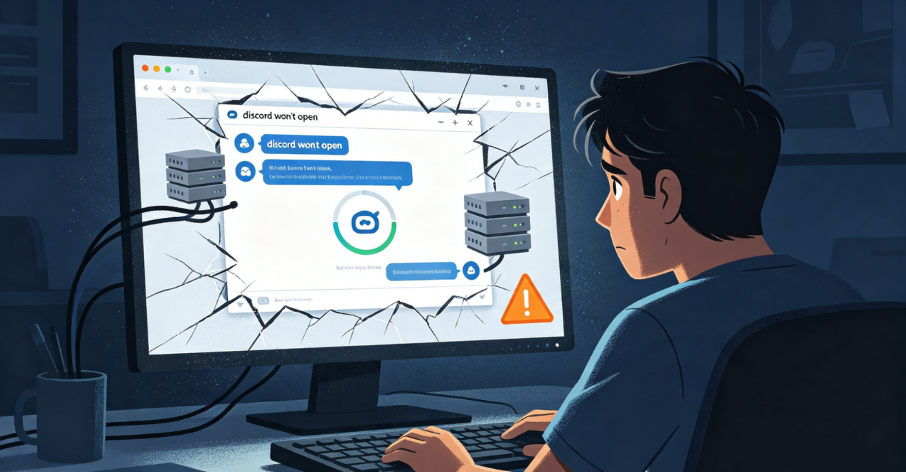
The Discord window stays gray. The loading spinner spins endlessly. A “Connecting” message hangs for minutes before timing out. For the millions who rely on Discord for community management, gaming coordination, or remote work, “why won’t Discord open” is more than a minor annoyance—it’s a productivity blocker.
Most troubleshooting guides start with the same advice: clear the cache, flush the DNS, disable hardware acceleration, or reinstall the app. These steps address client-side issues—corrupted local storage, GPU driver mismatches, or stuck updates. But when those steps fail, the real culprit often hides deeper, in the network layer connecting your device to Discord’s servers.
This guide walks through the full spectrum of fixes for Discord that won’t open—starting with quick client-side solutions and moving into the network-level issues that often go overlooked.

The Two Types of Discord Startup Problems
Understanding the type of failure you’re experiencing makes troubleshooting much more efficient.
Client-side failures usually show error messages or cause the app to crash outright. These are problems with the application itself: corrupted installation files, outdated drivers, or permission conflicts. Standard fixes like reinstalling or clearing cache typically resolve them.
Network-side blocks, by contrast, cause silent failures. The app hangs on the loading screen, the login page never fully renders, or voice channels get stuck on “RTC Connecting.” These symptoms indicate the issue isn’t with your device—it’s with the IP address Discord recognizes.
When the problem is network-level, reinstalling the app achieves nothing. The application still tries to connect, and the server still refuses the connection. Recognizing this distinction is the first step toward a lasting fix.
Quick Client-Side Fixes to Try First
Before diving into network solutions, run through these straightforward fixes. They resolve the majority of local issues.
1. Restart Discord Completely
Discord often doesn’t close fully, leaving background processes running with cached memory. Open Task Manager (Ctrl + Shift + Esc), look for any Discord processes, and end them. Then relaunch the app.
2. Try the Web Version
Logging in via the Discord web version resets your session. If the web version works but the desktop app doesn’t, the issue is likely with the app’s local data.
3. Run as Administrator
Right-click the Discord shortcut and select “Run as administrator”. This helps if Discord needs extra permissions to finish updating or access certain system resources.
4. Refresh the App
Press Ctrl + R while Discord is open. This shortcut refreshes the interface and can clear out temporary UI glitches.
5. Clear Cache and App Data
Press Windows + R, type %appdata%, and delete the Discord folder. Then repeat with %localappdata% and remove the Discord folder there as well. This removes corrupted temporary files that may be causing startup issues.
6. Reinstall Discord
Uninstall Discord through Settings → Apps, then download the latest version from the official website. A fresh installation often resolves issues caused by incomplete updates.
7. Restart Your System
A simple system restart terminates every process and gives your machine a clean startup.
8. Check Discord’s Server Status
Sometimes the problem isn’t on your end at all. Check if Discord is currently experiencing an outage by searching for recent news or visiting Discord’s status page.
Network-Level Issues That Keep Discord from Opening
When the client-side fixes fail, the issue is almost always in the network layer. Discord’s infrastructure checks every incoming IP address, evaluates its reputation, and then decides whether to allow the connection. Here are the most common network-level reasons Discord won’t open.
Your IP Address Has Been Flagged or Banned
Discord actively bans IP addresses associated with spam, abuse, or Terms of Service violations. If an account on your network was flagged, the IP address used at that time—sometimes even the entire subnet—may be added to a ban list.
This ban affects any account trying to connect from that IP. That’s why a borrowed laptop or shared Wi-Fi network might suddenly fail to open Discord, even with a brand-new account. The problem is the IP itself.
Restarting your router to get a new public IP only works if your ISP actually assigns a new one. Many ISPs now provide semi-static IPs that can remain unchanged for weeks. When an IP is truly banned, you need a fresh address Discord has never flagged.
DNS Resolvers Returning Stale or Blocked Records
Your device uses DNS to translate “discord.com” into an IP address. If your ISP’s DNS resolver blocks Discord domains or returns outdated records, the app simply can’t find the server. Switching to a public DNS like Google (8.8.8.8) or Cloudflare (1.1.1.1) often resolves this.
ISP Throttling or Restricting Discord Traffic
Some ISPs throttle or restrict traffic to gaming and communication platforms. This can manifest as Discord loading slowly, failing to connect, or dropping voice calls. Using a different network—like switching from Wi-Fi to mobile data—can help identify if your ISP is the culprit.
Network Firewall Blocking Necessary Ports
Corporate, school, or even home firewalls may block the ports Discord requires. Discord uses UDP ports 50,000–65,535 for voice and TCP ports 443 and 80 for general traffic. If these are blocked, the app may hang on startup or fail to connect to voice channels.
WebRTC and RTC Connection Failures
When voice channels get stuck on “RTC Connecting,” it’s often a WebRTC issue. Restarting Discord or your PC can help recover from these connection problems. Temporary disabling of the firewall can also resolve “Discord stuck on RTC connecting”.
Proxy Interference
If you’re using a proxy, Discord may struggle to establish a stable connection. Some proxies don’t handle WebRTC traffic properly, causing voice features to fail. Switching to a residential proxy with proper SOCKS5 support can resolve these issues.
Cross-Border Link Instability
For users outside major Western markets, cross-border network links can be unstable. Discord’s infrastructure may route traffic through congested international paths, leading to slow loads or complete connection failures.
Clear Step-by-Step Proxy IP Tutorials
Master proxy setup, integration and performance optimization quickly with IPFLY guides
How a Clean Residential IP Solves Discord Access Issues
When the root cause is a flagged or restricted IP address, the most effective solution is to replace that IP with a clean, trusted one. Residential proxies provide exactly this—real IP addresses assigned by Internet Service Providers to actual households.
Why Residential Proxies Work
Unlike datacenter IPs (which are easily flagged as non-consumer traffic), residential IPs appear as genuine home connections. Discord’s infrastructure treats them as legitimate user traffic, dramatically reducing the likelihood of blocks.
IPFLY’s Residential Proxy Solutions
IPFLY’s residential proxies offer clean, ISP-registered IP addresses that help bypass Discord’s IP-based blocks without modifying the application or violating Terms of Service.
IPFLY Static Residential Proxies provide dedicated, ISP-registered IPs that remain fixed over time—ideal for users who need consistent, long-term Discord access.
IPFLY Dynamic Residential Proxies offer real residential IPs with automatic rotation, useful for users who need geographic flexibility or want to distribute traffic across multiple addresses.
For users experiencing Discord access issues on restricted networks—schools, workplaces, or regions with heavy censorship—IPFLY’s residential network can provide a clean path to Discord’s servers.
👉 Explore IPFLY Residential Proxies
Step-by-Step: Fixing Discord That Won’t Open
Step 1: Quick Local Fixes (5 minutes)
- End all Discord processes in Task Manager and relaunch
- Try the Discord web version (discord.com)
- Run Discord as administrator
- Press Ctrl + R to refresh the app
- Restart your computer
Step 2: Clear Discord Data (10 minutes)
- Press Windows + R, type
%appdata%, delete the Discord folder - Press Windows + R, type
%localappdata%, delete the Discord folder there too - Reinstall Discord from the official website
Step 3: Check Network Configuration (5 minutes)
- Change your DNS to Google (8.8.8.8) or Cloudflare (1.1.1.1)
- Temporarily disable your firewall or antivirus to test
- Switch from Wi-Fi to mobile data to see if the issue is ISP-related
Step 4: Verify Discord Server Status
Check if Discord is experiencing an outage. If the servers are down, waiting is the only solution.
Step 5: Address IP-Level Issues
If the above steps fail, the problem is almost certainly your IP address. A clean residential IP from IPFLY provides a fresh, trusted address that Discord hasn’t flagged.
Step 6: Reset Network Settings (Last Resort)
If all else fails, reset your network settings: Settings → Network & Internet → Status → Network Reset.
Frequently Asked Questions
Why is Discord stuck on the loading screen?
This usually indicates either corrupted local app data or a network-level block. Clear your Discord cache and app data first. If that doesn’t work, the issue is likely your IP address being flagged or restricted.
Why does Discord show a grey screen on startup?
A grey screen often means Discord is failing to render its interface. Try pressing Ctrl + R to refresh. If that doesn’t work, reinstall the app after deleting the Discord folders from %appdata% and %localappdata%.
Can my IP address be banned from Discord?
Yes. Discord actively bans IP addresses associated with Terms of Service violations. A banned IP prevents any account from connecting from that address.
Why does Discord work on my phone but not my computer?
If Discord works on mobile data but not on your computer’s Wi-Fi, the issue is likely with your home network or ISP. Try restarting your router or using a residential proxy to get a clean IP.
How do I fix “RTC Connecting” in Discord?
Restart Discord and your computer first. If the issue persists, temporarily disable your firewall to test. For persistent issues, a clean residential IP often resolves WebRTC connection problems.
Will reinstalling Discord fix a banned IP?
No. Reinstalling only addresses local app issues. If your IP is banned or flagged, reinstalling will not help—Discord’s servers will still refuse the connection. You need a clean, unflagged IP address.
When Local Fixes Aren’t Enough
Discord won’t open for two fundamental reasons: something is wrong with the app itself, or something is wrong with your network connection to Discord’s servers.
Client-side issues—corrupted cache, outdated drivers, stuck updates—respond to the standard fixes: clearing app data, reinstalling, and restarting. But when those steps fail, the problem is almost always network-level: a flagged IP address, DNS blocking, ISP throttling, or firewall restrictions.
Key takeaways:
- Start with local fixes – Clear cache, reinstall, restart. These resolve the majority of Discord startup issues.
- Check the network – If local fixes fail, the issue is likely your IP or network configuration.
- IP bans affect everyone on that address – A banned IP prevents any account from connecting.
- Residential proxies provide clean IPs – ISP-registered residential addresses bypass IP-based blocks.
- Test across networks – Switching from Wi-Fi to mobile data can reveal whether your ISP is the problem.
By systematically working through these solutions, you can resolve even the most stubborn Discord startup issues and get back to your communities.
Reliable Discord Access with IPFLY
When Discord won’t open because of IP blocks or network restrictions, a clean residential IP provides the solution. IPFLY’s residential proxy network offers ISP-registered IP addresses that appear as genuine consumer traffic, bypassing Discord’s IP-based blocks.
IPFLY offers flexible solutions for every use case:
- Static Residential Proxies – Dedicated, ISP-registered IPs ideal for consistent, long-term Discord access.
- Dynamic Residential Proxies – Real residential IPs with automatic rotation for geographic flexibility.
- Datacenter Proxies – High-performance IPs for speed-critical operations.
Get started today: Register for an IPFLY account and explore the full product lineup on the IPFLY homepage.