OnlyFans won’t open on your Wi-Fi, keeps loading, or suddenly becomes inaccessible? Whether you want to view content you’ve subscribed to or access your creator account, an unexpected restriction can leave you unsure whether the problem is your location, network, or connection.
Getting OnlyFans unblocked starts with identifying what’s preventing access. This guide explains common causes, when an OnlyFans bypass using a different network route may help, and how to set up an IPFLY proxy.

Why Is OnlyFans Blocked?
OnlyFans may be blocked for several reasons, including geographic restrictions, network filters, and IP-related issues.
Geographic Restrictions
OnlyFans may be unavailable in certain countries or regions because of local regulations or location-based access restrictions. These restrictions apply at a broader geographic level, so changing browsers or switching to another local Wi-Fi network may not restore access.
OnlyFans may also be blocked on a particular network, even where the platform is otherwise accessible. Workplaces, campuses, hotels, and public Wi-Fi providers may use firewalls or content filters to restrict adult websites. These rules apply to that network, which explains why OnlyFans might load on your personal connection but remain inaccessible on office or campus Wi-Fi.
IP Reputation and Proxy Connection Issues
The IP address you use may have a history of spam, automated requests, or other abusive activity, particularly if it is shared by many users. Poor IP reputation can contribute to security checks or access restrictions, although an error message alone does not confirm that your IP has been blocked.
If you use a VPN or proxy, an unavailable server, incorrect authentication details, or an unstable connection may also prevent OnlyFans from loading. These are problems with the connection service itself, rather than restrictions tied to your country or Wi-Fi network.
Is OnlyFans Blocked or Just Not Loading?
Some access problems may not be caused by OnlyFans being blocked. Browser issues, connection failures, or account requirements could be responsible. Check the following to identify what’s preventing access.
Check Your Browser
Outdated browser software, stored site data, or extensions may cause blank pages, login loops, or missing elements.
Open the same URL in another updated browser using the same connection. If it works there, check the original browser’s extensions and clear the site’s cache or Cookies if needed. Clearing Cookies will sign you out, so make sure you can log back in.
Check for Account or Payment Messages
If OnlyFans displays a specific message about verification, payment, or your account status, follow the instructions provided. Changing your connection will not complete verification or restore an expired subscription.
When only one creator page is unavailable, check the URL and your access permissions before assuming the entire platform is blocked.
Compare the Symptoms
Use the following observations to narrow down the problem:
| What you notice | What to check first |
| OnlyFans fails on Wi-Fi but works on mobile data | Wi-Fi filtering, DNS settings, or routing |
| One browser fails while another works | Browser updates, extensions, Cookies, and cache |
| The homepage works, but one creator page does not | The link, page availability, and your access permissions |
| All websites fail after you enable a proxy | Proxy credentials, protocol, endpoint, and client settings |
| Pages open, but videos keep buffering | Bandwidth, connection stability, and media loading |
These results are clues, rather than proof of a particular restriction. Identifying the likely cause helps you choose an appropriate way to get OnlyFans unblocked—or resolve a loading issue without changing your IP.
How to Bypass OnlyFans Restrictions
If you’ve ruled out browser and account issues and confirmed that OnlyFans is restricted by your location or network, the following methods may help you restore access.
Test a Different Connection First
Open the same page using personal mobile data instead of Wi-Fi. If it loads, the issue may involve filtering, DNS, or routing on the original network. This quick check can help you identify a network-specific problem without purchasing another service, although it may not resolve restrictions that apply across your region.
Use a VPN to Change Your Network Route
A VPN changes your exit IP by routing traffic through a server in another location. It is convenient for covering multiple applications and encrypts traffic between your device and the VPN server.
However, shared exit IPs may encounter access restrictions, while crowded servers can slow video playback. You also need to trust the provider’s data handling, so avoid unfamiliar services with unclear privacy practices.
Use a Proxy for a Specific Browser or Application
A proxy routes configured browser or application traffic through another IP address. It offers more control over which traffic uses the connection and lets you choose a static IP or sticky session for consistent browsing.
Use a trusted provider and check that the intended browser traffic passes through the proxy. Keep HTTPS enabled: SOCKS5 itself does not encrypt traffic.
Choose a Location and Keep the Session Consistent
Select a location where access is permitted and the connection performs well. A nearby endpoint may reduce latency, but there is no single best country for every user.
Keep the same exit IP during login and playback to reduce connection changes and make troubleshooting easier. If OnlyFans remains unavailable, check the error before switching again—changing location will not resolve account or content-permission issues.
Full-Industry Proxy IP Application Solutions
Power scalable growth for every cross-border business scenario with IPFLY’s reliable global proxy network
How to Bypass OnlyFans Geo-Restrictions With IPFLY
An IPFLY proxy routes your configured browser traffic through an IP address in your selected location. Follow these steps to configure the connection and check whether it works.
Step 1 — Choose an IPFLY Proxy Plan
Choose a proxy based on how long you need to keep the same exit IP and how much traffic you expect to use.
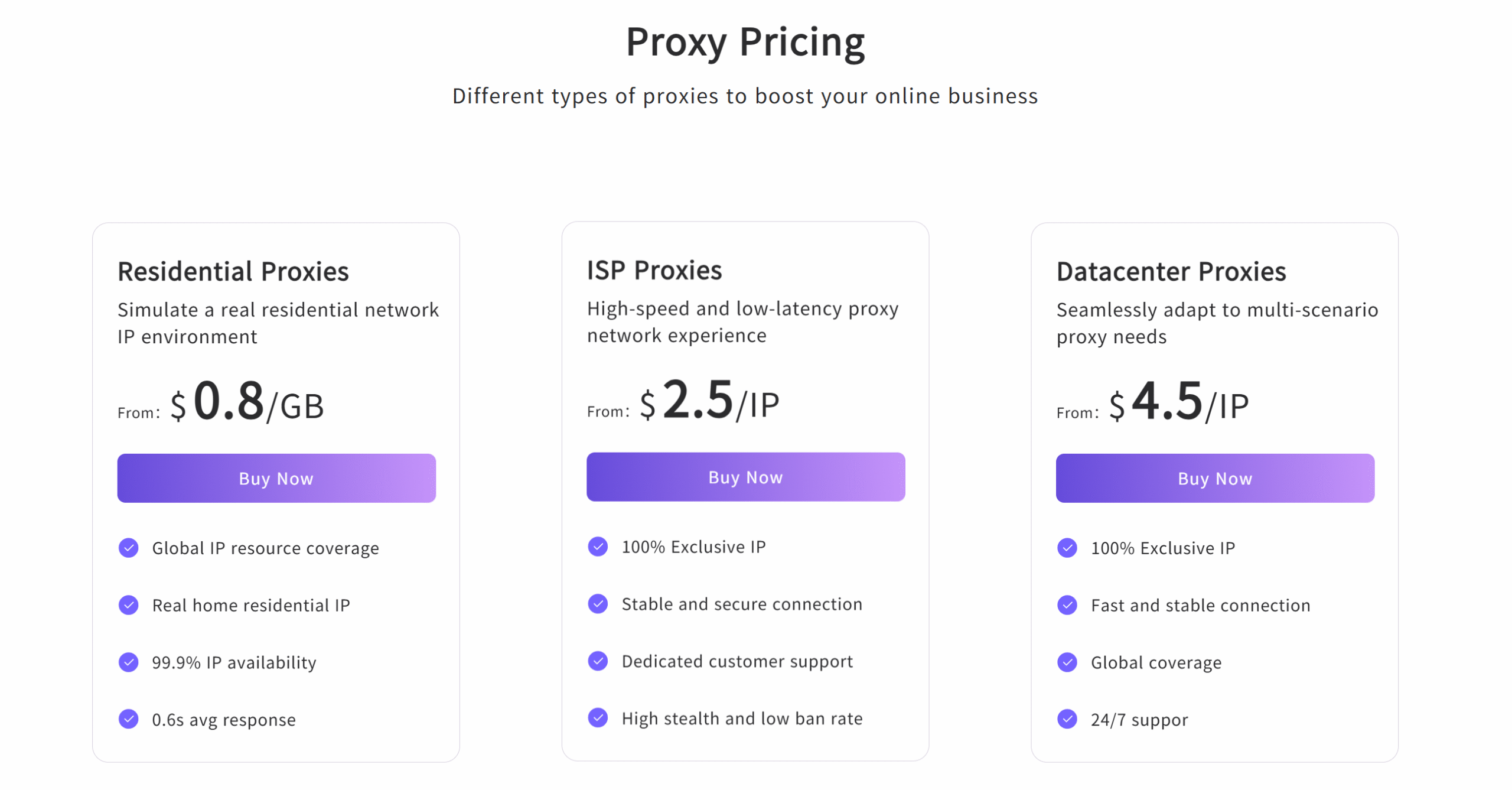
- IPFLY ISP proxies: A dedicated static IP is suitable when you want a consistent exit address across browsing sessions.
- IPFLY residential proxies: These offer residential exit IPs and location options, with sticky sessions for temporarily maintaining the same IP.
For logged-in browsing, prioritize a consistent connection rather than frequent IP rotation. Before purchasing, check the available locations, session settings, billing method, and plan duration.
Step 2 — Select Your Location and Session Settings
Once you’ve selected a location where OnlyFans access is permitted, the session settings depend on your proxy type. An ISP proxy provides a static IP, while a residential proxy can retain the same exit IP through a sticky session for a limited duration. Either option helps keep your connection consistent during login and playback.
Step 3 — Get Your Proxy Credentials
Retrieve the connection details from your IPFLY account. Depending on the product and authentication method, these may include:
- Proxy hostname or IP address
- Port number
- Username and password
- Supported protocol
- Any required location or session parameters
Your proxy credentials authenticate your connection to IPFLY. They are separate from your OnlyFans username and password.
Follow the relevant instructions in the IPFLY documentation for your product. Keep credentials private and hide them in screenshots or support requests.
Step 4 — Configure Your Browser or Proxy Client
Enter the connection details into a trusted proxy client or your browser’s supported proxy settings. Select HTTP(S) or SOCKS5 according to the endpoint instructions and your client’s compatibility.
Check which traffic the configuration covers. A browser-specific setup may affect only that browser, while system-level settings may apply to applications that follow those settings. Other applications may continue using your original connection.
Step 5 — Verify the Exit IP and Open OnlyFans
An IP-checking tool in the configured browser can confirm whether your exit IP and reported location match your selection. Once the proxy is working, open OnlyFans and check whether the homepage loads, you can sign in, and content you have access to—including videos—loads normally.
Why Choose IPFLY for OnlyFans Bypass?
IPFLY combines location options, consistent sessions, and flexible pricing for users who need an alternative connection to OnlyFans.
Location Options for Geographic Access
IPFLY’s residential proxies support location targeting across 190+ countries and regions. Country, state, and city-level options in supported locations let you test a different route and compare connection performance.
Dedicated IPs and Session Stability
A dedicated ISP proxy gives you an exit IP reserved for your use, reducing exposure to other users’ activity on a shared address. Residential sticky sessions offer temporary IP consistency instead. Understanding static vs. rotating proxies helps you choose the right approach for regular logins or shorter browsing sessions.
Security and Configuration Control
IPFLY supports authenticated proxy connections, allowing compatible clients to connect using your assigned credentials. A trusted local client also avoids entering your OnlyFans password into a third-party web proxy page.
Support for HTTP and SOCKS5 proxies provides configuration flexibility, but SOCKS5 itself does not encrypt traffic. Accessing the official OnlyFans website over HTTPS remains essential for protecting data in transit.
Pricing That Fits Your Usage
IPFLY lists residential proxies from $1/GB and ISP proxies from $2.50/IP, with actual costs depending on the selected package. Traffic-based residential plans may suit occasional browsing, while regular users can compare ISP plans for a fixed address and the included bandwidth.
For video viewing, the total traffic allowance matters more than the starting price alone. Comparing usage limits, plan duration, and location availability helps keep costs predictable.
Conclusion
Getting OnlyFans unblocked starts with identifying the cause. If geographic or network restrictions are responsible, IPFLY residential proxies offer location options, while ISP proxies provide a consistent static IP. Choose according to your browsing needs and test the connection before relying on it.
FAQs About OnlyFans Bypass
What Does OnlyFans Bypass Mean?
OnlyFans Bypass means using an alternative connection route to address geographic or network restrictions—not unlocking paid content or skipping verification.
Can a Proxy Help Get OnlyFans Unblocked?
It may help when access is restricted by your network route or IP location. It will not resolve browser errors or account requirements.
Which Proxy Location Should I Choose?
Choose a location where access is permitted and the connection performs well. No single country is best for every user.
Should I Use a Static or Rotating IP?
A static IP or residential sticky session is more suitable for consistent logged-in browsing than frequent IP rotation.
Check the proxy configuration and exit IP first. If both work, the issue may involve the endpoint, browser, service availability, or account permissions.