What Is Git Bash? A Complete Guide to Git on Windows in 2026
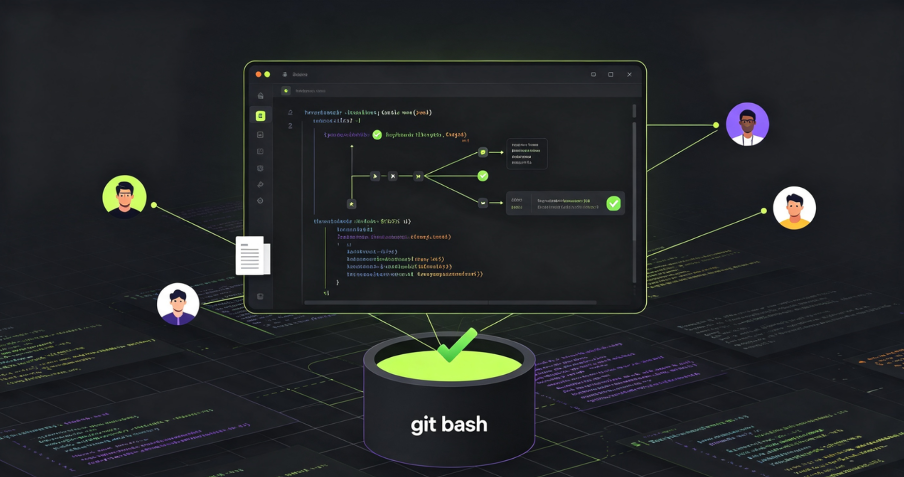
If you are a developer working on Windows, you have likely encountered the term “Git Bash” at some point. Perhaps you have seen it mentioned in tutorials, installation guides, or team documentation. But what exactly is Git Bash, and why is it so important for Windows developers?
At its core, Git is a collection of command-line utility programs designed to execute on a Unix-style command-line environment. Modern operating systems like Linux and macOS both include built-in Unix command-line terminals, making them complementary to Git. Microsoft Windows, however, does not include such a Unix-style command line and instead uses the Windows command prompt. Git, on its own, cannot run in this environment.
This is where Git Bash comes in. Git Bash is an application for Microsoft Windows that emulates the “original” Git version control system as it was built for Unix-style environments. It provides an emulation layer for Git command operations in a Windows environment, combining the functionalities of Git with Bash, a Unix shell. This enables Windows users to use Git commands as if they were in a Unix-like environment.
This guide explains everything you need to know about Git Bash in 2026—what it is, how it works, how to install and use it, and why it remains an essential tool for Windows developers.
What Is Git Bash?
Git Bash is a command-line interface that provides an emulation layer for Git command operations in a Windows environment. It combines two main components:
- Git – The collection of command-line programs that make up the Git version control system.
- Bash – The Bourne Again Shell, a popular default shell on Linux and macOS.
The name “Git Bash” reflects this combination: it provides a Bash shell environment that includes Git and important Bash utilities. The Git Bash package not only installs Git but also the Bash shell and some important utilities for Bash.
Git Bash is also known as Git Shell, Git command-line interface for Windows, Bash terminal for Git, and Git command prompt.

Why Windows Needs Git Bash
Git was originally developed for Unix-like systems, so Windows does not come with a native shell that supports all the commands and utilities commonly used with Git. Git Bash bridges this gap by providing a Unix-like environment on Windows, making it easier for developers accustomed to Unix/Linux systems to work with Git.
Without Git Bash, Windows users would have limited options for running Git commands. GUIs for Git can abstract the underlying version control system primitives, which is helpful for beginners. However, once a project’s collaboration requirements grow, it becomes critical to understand how the actual raw Git methods work. Git Bash provides a terminal Git experience that allows developers to work directly with Git commands.
Key Features and Capabilities of Git Bash
Git Bash offers several features that make it a powerful tool for Windows developers.
Unix Compatibility
Git Bash offers a Unix-like environment on Windows, making it easier for developers accustomed to Unix/Linux systems to work with Git. This means that commands and workflows that are standard on Linux and macOS work the same way on Windows.
Rich Command Set
Git Bash includes Unix tools and commands, enabling a more powerful and flexible command-line experience compared to the default Windows command prompt. It comes packaged with shell commands like SSH, SCP, CAT, and FIND.
Git Integration
Git Bash seamlessly integrates Git with Bash, allowing developers to use familiar Git commands in a consistent environment. All Git core commands—including git clone, git commit, git checkout, and git push—are available.
Git Bash adopts a Unix-like filesystem convention, using / as the path separator and absolute paths starting with /c/, /d/, etc. For example, C:\Users\YourName becomes /c/Users/YourName in Git Bash.
Git Bash vs. PowerShell: What’s the Difference?
One of the most common points of confusion is the difference between Git Bash and PowerShell. While both are command-line interfaces for Windows, they serve different purposes and have different origins.
Git Bash
Git Bash provides a Unix-like command-line experience. It emulates a Bash environment on Windows, allowing users to use most standard Unix commands. Git Bash is specifically designed for Git workflows and includes Unix tools and utilities.
Best for: Developers who are familiar with Unix/Linux environments and want to use Git commands in a consistent, familiar way.
PowerShell
PowerShell is a task automation and configuration management framework designed for Windows, with different syntax and command sets. It is a powerful scripting environment that integrates deeply with Windows systems.
Best for: System administrators and developers who need to automate Windows tasks, manage system configurations, or work primarily in Windows environments.
When to Use Which
- Use Git Bash when you need to run Git commands on Windows in a Unix-like environment.
- Use PowerShell when you need to automate Windows tasks, manage system configurations, or work with Windows-specific tools.
Many developers use both: Git Bash for version control workflows and PowerShell for system automation and management.
Git Bash vs. Git CLI: Understanding the Difference
Git Bash is often confused with the Git CLI (Command Line Interface), but they are not the same thing.
Git CLI is a general tool available on all platforms (Windows, macOS, Linux) without the Unix shell environment. It refers to the core Git command-line programs that can be run on any operating system.
Git Bash is specifically designed for Windows and includes a Bash emulation layer. It provides the Git CLI within a Unix-like shell environment, making it the preferred way to run Git commands on Windows.
In practice, when developers say “using Git from the command line on Windows,” they are usually referring to Git Bash.
Git Bash vs. Windows Command Prompt
The Windows Command Prompt (cmd.exe) is the default command-line interface on Windows. It uses DOS-style commands and does not support Unix-style commands or Git natively.
| Feature | Git Bash | Windows Command Prompt |
| Environment | Unix-like Bash shell | Windows DOS-style shell |
| Git Support | Native Git commands | Requires full path to Git executables |
| Command Set | Unix commands (ls, cat, grep, etc.) | DOS commands (dir, type, find, etc.) |
| Path Separator | / (forward slash) |
\ (backslash) |
| Case Sensitivity | Case-sensitive | Case-insensitive |
Git Bash provides a much richer and more powerful command-line experience for developers than the default Windows Command Prompt.
How to Install Git Bash
Installing Git Bash is straightforward. Git Bash comes included as part of the Git for Windows package.
Step 1: Download Git for Windows
Visit the Git for Windows website and download the latest installer.
Step 2: Run the Installer
Run the downloaded .exe file and follow the installation wizard.
Step 3: Select Components
During installation, you can choose which components to install. The default options are usually sufficient for most users.
Step 4: Adjust PATH Environment
You will be asked how you want to use Git from the command line:
- Git from the command line and also from 3rd-party software – Recommended. This adds Git to your system PATH, allowing you to run Git commands from any terminal.
- Use Git from Git Bash only – Leaves PATH unchanged, meaning you can only run Git in Git Bash, not in cmd.exe or PowerShell.
Step 5: Choose Default Editor
You can select your preferred text editor for Git. The default is Vim, but you can choose others like Nano or Notepad++.
Step 6: Complete Installation
Follow the remaining prompts to complete the installation. Once finished, you can launch Git Bash from the Start menu or by right-clicking in a folder and selecting “Git Bash Here.”
How to Use Git Bash
Git Bash has the same operations as a standard Bash experience. Once installed, you can start using Git commands immediately.
| Command | Purpose |
pwd |
Print the present working directory – shows the current folder path |
ls |
List the contents of the current working directory |
cd <directory> |
Change directory to the specified folder |
Clear Step-by-Step Proxy IP Tutorials
Master proxy setup, integration and performance optimization quickly with IPFLY guides
Basic Git Commands
Once you are in Git Bash, you can use all standard Git commands:
# Clone a repository
git clone https://github.com/username/repository.git

# Check the status of your working directory
git status

# Add changes to the staging area
git add .

# Commit changes with a message
git commit -m "Your commit message"

# Push changes to a remote repository
git push origin main

# Pull changes from a remote repository
git pull origin main

# Create and switch to a new branch
git checkout -b feature-branch

# Switch between branches
git checkout main
Unix-Style Commands
Git Bash also includes useful Unix-style commands that are not available in the Windows Command Prompt:
# Search for text in files
grep "search-term" *.txt

# View file contents
cat filename.txt

# Copy files
cp source.txt destination.txt

# Move or rename files
mv oldname.txt newname.txt

# Create a directory
mkdir new-directory

# Remove a directory
rm -rf directory-name
These Unix commands make Git Bash a much more powerful tool than the default Windows command prompt.
Pros and Cons of Git Bash
Like any tool, Git Bash has its strengths and limitations.
Pros
Unix Compatibility – Offers a Unix-like environment on Windows, making it easier for developers accustomed to Unix/Linux systems to work with Git.
Rich Command Set – Includes Unix tools and commands, enabling a more powerful and flexible command-line experience compared to the default Windows command prompt.
Git Integration – Seamlessly integrates Git with Bash, allowing developers to use familiar Git commands in a consistent environment.
Consistent Experience – Provides the same Git commands and workflows as on Linux and macOS, reducing context switching for developers who work across multiple platforms.
Cons
Learning Curve – Windows users unfamiliar with Unix/Linux may find Git Bash’s command-line interface challenging to learn.
Performance – May run slower than native Windows command-line tools due to the emulation layer.
Limited Windows Integration – Some Windows-specific features and commands may not be fully supported or accessible within Git Bash.
Missing Commands – Git Bash is missing some commands that are included in regular Bash, such as nano, sudo, and man.
Common Use Cases for Git Bash
Git Bash is used across a wide range of development scenarios.
Version Control
The primary use case for Git Bash is version control. Developers use Git Bash to clone repositories, commit changes, push updates, and manage branches—all from a command-line interface that mimics Linux.
Running Shell Scripts
Git Bash can run shell scripts that are designed for Unix-like environments, making it easier to use cross-platform build tools and automation scripts on Windows.
Development Workflows
Many modern development workflows rely on command-line tools. Git Bash provides the environment needed to run these tools on Windows, including package managers, build systems, and testing frameworks.
Learning Git
For developers who are learning Git, the command line provides a deeper understanding of how Git works than GUI clients. Git Bash is the standard way to learn Git on Windows.
How IPFLY Supports Development Workflows
For developers and development teams, reliable network infrastructure is essential for version control, collaboration, and deployment workflows. IPFLY provides the residential proxy solutions that support these operations.
Why Network Quality Matters for Development
Development workflows depend on consistent, reliable connections to remote repositories, CI/CD pipelines, and cloud services. Network issues can disrupt git clone, git push, and git pull operations, slowing down development and causing frustration.
How IPFLY Helps
IPFLY’s residential proxies provide clean, ISP-registered IP addresses that ensure reliable connectivity for:
- Accessing remote repositories – Ensuring consistent connections to GitHub, GitLab, and other hosting platforms
- CI/CD pipelines – Maintaining stable connections for automated builds and deployments
- Cross-region development – Enabling teams in different geographic locations to work together seamlessly
- Web scraping and data collection – Supporting development projects that require data extraction
IPFLY Static Residential Proxies offer dedicated, ISP-registered IP addresses that remain consistent over time—ideal for long-term development infrastructure and team workflows.
IPFLY Dynamic Residential Proxies provide real residential IPs with automatic rotation, adding flexibility for testing and monitoring scenarios.
👉 Explore IPFLY Residential Proxies
Frequently Asked Questions
What is Git Bash?
Git Bash is a command-line interface that provides an emulation layer for Git command operations in a Windows environment. It combines Git with Bash, a Unix shell, enabling Windows users to use Git commands as if they were in a Unix-like environment.
Why do I need Git Bash on Windows?
Windows does not include a native Unix-style command line that supports Git commands. Git Bash provides this environment, allowing Windows developers to use Git and Unix-style commands.
What is the difference between Git Bash and PowerShell?
Git Bash provides a Unix-like command-line experience, while PowerShell is a task automation and configuration management framework designed for Windows, with different syntax and command sets.
Is Git Bash the same as Git CLI?
No. Git CLI is the general Git command-line tool available on all platforms. Git Bash is specifically designed for Windows and includes a Bash emulation layer.
How do I install Git Bash?
Git Bash comes included as part of the Git for Windows package. Download it from gitforwindows.org and run the installer.
What commands are available in Git Bash?
Git Bash includes all Git commands, Unix-style commands (ls, cat, grep, etc.), and utilities like SSH and SCP.
Can I use Git Bash on Linux or macOS?
No. Git Bash is specifically designed for Windows. On Linux and macOS, you can use the native terminal with Git installed directly.
Git Bash as an Essential Developer Tool
Git Bash is an essential tool for Windows developers who work with Git. By providing a Unix-like environment on Windows, it enables developers to use Git commands and Unix-style tools in a familiar, consistent way.
Key takeaways:
- Git Bash combines Git and Bash – It provides a Unix-like shell environment with Git on Windows
- Git Bash is essential for Windows developers – Windows does not natively support Git or Unix-style commands
- Git Bash offers Unix compatibility – It includes Unix tools and commands for a powerful command-line experience
- Git Bash differs from PowerShell – Git Bash provides a Unix-like experience; PowerShell is a Windows automation framework
- Git Bash has a learning curve – Windows users unfamiliar with Unix/Linux may find it challenging
- Git Bash is free and easy to install – It comes as part of the Git for Windows package
- Reliable network infrastructure supports Git workflows – Residential proxies ensure consistent connections to remote repositories
Whether you are a beginner learning Git for the first time or an experienced developer working on complex projects, Git Bash provides the command-line environment you need to work efficiently on Windows.
Optimize Your Development Workflow with IPFLY
Development workflows depend on reliable, consistent network connections. IPFLY provides the residential proxy infrastructure that supports seamless Git operations, CI/CD pipelines, and cross-region collaboration.
IPFLY offers flexible proxy solutions for every use case:
- Static Residential Proxies – Dedicated, ISP-registered IPs for consistent, long-term development infrastructure.
- Dynamic Residential Proxies – Real residential IPs with automatic rotation for testing and monitoring.
- Datacenter Proxies – High-performance IPs for speed-critical operations.
Get started today: Register for an IPFLY account and explore the full product lineup on the IPFLY homepage. Build, collaborate, and deploy with confidence.