

A login page asks for a checkbox. A registration form displays a grid of traffic lights. These checks are familiar, but the phrase “CAPTCHA challenge response” can be less clear.
The answer involves more than clicking a box or choosing an image. After a check, the website may receive data that it uses to confirm the result before processing a request.
This guide explains what a CAPTCHA challenge response means, how verification works, and what can cause a check to fail. It also covers practical steps for visitors and authorized automation workflows.
What Is a CAPTCHA Challenge Response?
A CAPTCHA challenge response is the data submitted for verification after a CAPTCHA check. The challenge is the check presented by the system; the response is the information sent back so the result can be evaluated.
For example, a website may display a set of images and ask for all the pictures containing a bicycle. The image task is the challenge. The selected images are the user’s answer, while the response submitted to the website may take a different form.
In some systems, that response is a token: a short value generated by the CAPTCHA service and passed to the website. The website then sends the token to the service for verification. Google reCAPTCHA, for example, uses a response token that the website’s backend must verify.
The exact process depends on the service. Some checks involve a visible puzzle, while others can assess a request without displaying an image or text challenge.
Why Do Websites Ask for CAPTCHA Verification?
Websites use CAPTCHA checks to reduce automated abuse. A bot can submit forms or try account credentials much faster than a person, so a site may add a check before accepting certain requests.
Common uses include limiting spam submissions, fake account registrations, and repeated login attempts. A CAPTCHA can also appear during searches, purchases, or other actions that a website wants to protect.
Not every automated request is harmful. Price-monitoring tools, market research applications, and AI agents may also encounter a check when they interact with a website. The site decides when to request verification based on its own security settings and the service it uses.
A CAPTCHA is one part of a broader security system. It helps a website assess a request, but passing a check does not establish a visitor’s identity or replace protections such as passwords and account security controls.
How Does a CAPTCHA Response Get Verified?
A CAPTCHA check usually involves the browser, the website, and a verification service. The exact process varies, but it often follows these steps:
A Website Starts a Check
A website may request verification during login, registration, or form submission. The check may appear as a checkbox or puzzle, or it may run in the background.
The Browser Sends a Response
The visitor completes any visible challenge. The CAPTCHA service then provides a response, often called a token, which is sent with the request.
The Website Verifies the Response
The website sends the token to the verification service. The service returns a result, and the website decides whether the request can continue.
For Google reCAPTCHA, a response token expires after two minutes and can be verified only once.
The Proxy Connection Can Affect Verification
If a proxy connection drops while the challenge is being completed, the response may not reach the website. An IP change during the session can also affect how some websites handle the request.
If verification keeps failing, check the proxy connection and session settings.
What Kinds of CAPTCHA Checks Might You See?
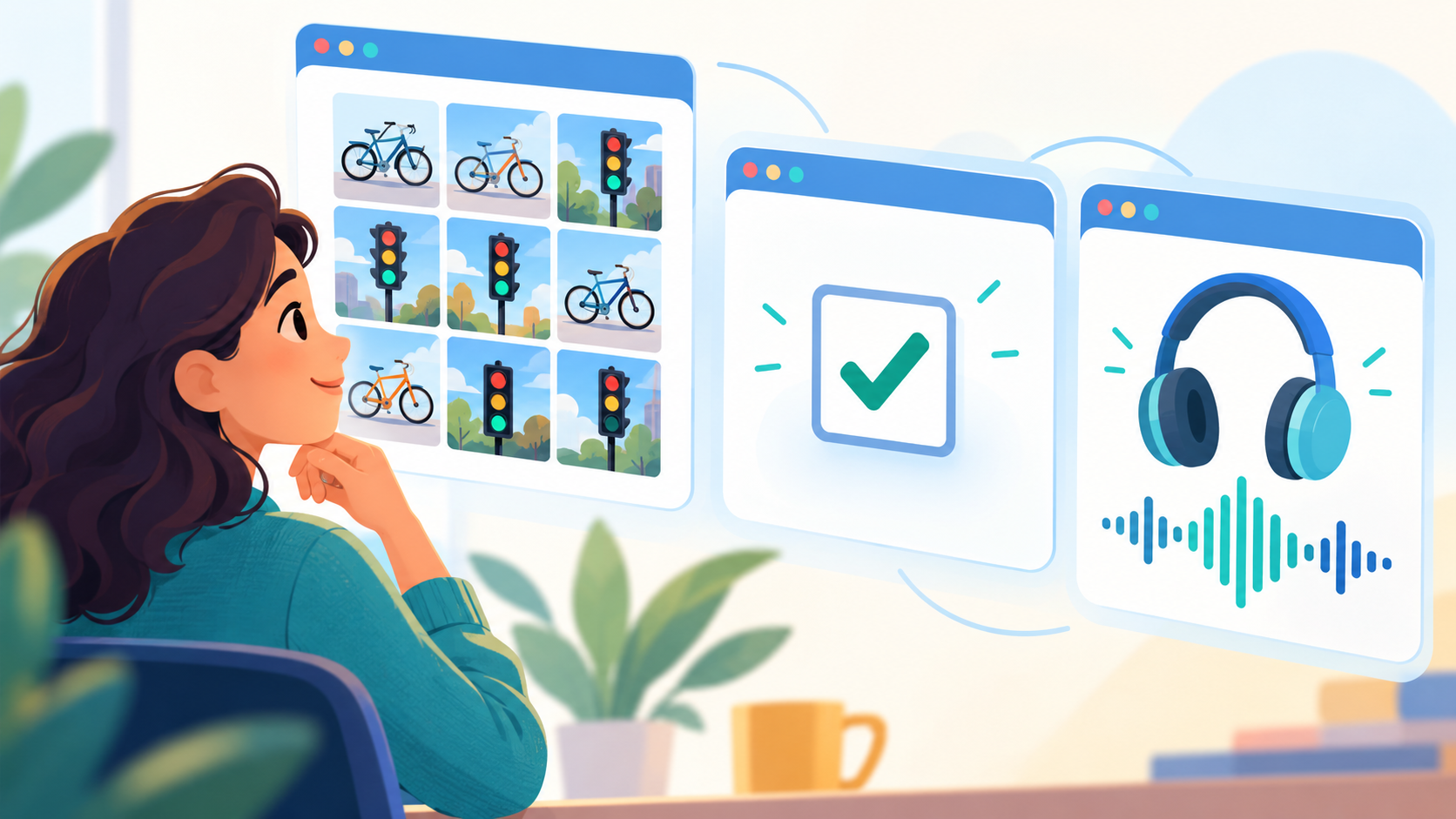
CAPTCHA checks can appear as puzzles, checkboxes, or background checks. The format depends on the service and how the website has set it up.
Text and Image Challenges
A text challenge asks visitors to enter characters shown on the screen. An image challenge asks them to select pictures that match a prompt, such as images containing a bicycle.
Checkbox and Background Checks
A checkbox check may verify a visitor immediately or lead to another challenge. Other checks run in the background and assess available signals without displaying a puzzle.
Audio and Accessible Alternatives
Some CAPTCHA services offer audio challenges and support screen readers or keyboard navigation. The options available depend on the website and its CAPTCHA service.
What Can Cause Repeated or Failed CAPTCHA Checks?
A CAPTCHA can fail because the challenge did not load correctly, the response is no longer valid, or the website requested another check. The message on the page may not identify the exact cause, so it helps to consider where the process stopped.
Browser or Connection Problems
A CAPTCHA may not load or respond as expected if the browser is outdated, JavaScript is disabled, or an extension interferes with the page. An interrupted connection can also prevent the browser from sending the response.
For example, a visitor might complete an image task but lose the connection before submitting the form. The website may then ask for a new check.
Expired or Invalid Responses
Some CAPTCHA responses are valid for a limited time and can be verified only once. A visitor who completes a check and leaves the form open for too long may need to start again.
An error can also occur on the website’s side. For example, the response may be missing when the form is submitted, or the site may have a problem with its verification setup.
If a page specifically reports a missing or invalid noCAPTCHA response, the error may involve an incomplete, expired, or incorrectly submitted response. Checking when the message appears can help narrow down the issue.
IP Address and Network Activity
An IP address identifies the network connection a website sees when a request arrives. Websites may consider that address alongside request patterns when deciding whether to display a CAPTCHA.
Several IP-related factors can contribute to extra checks:
- High request volume: A large number of requests from one IP in a short time can attract attention, especially during automated tasks.
- Concurrent requests: Multiple requests arriving at the same time from one address may prompt additional checks, depending on the website’s rules.
- Shared network activity: When several people or applications use the same public IP, their combined traffic may affect how the connection is assessed.
- IP type and history: Some websites consider whether an address belongs to a data center or has been associated with unwanted activity.
For example, Google Search may display an unusual traffic message when it detects what appears to be automated traffic from a network. Google notes that the activity may come from another device using the same network.
For authorized data-collection projects, these factors make the choice and management of IP connections an important part of the workflow. Request volume, session length, and the type of IP used are all relevant when planning how a project connects to a website.
How to Resolve a CAPTCHA That Is Not Working
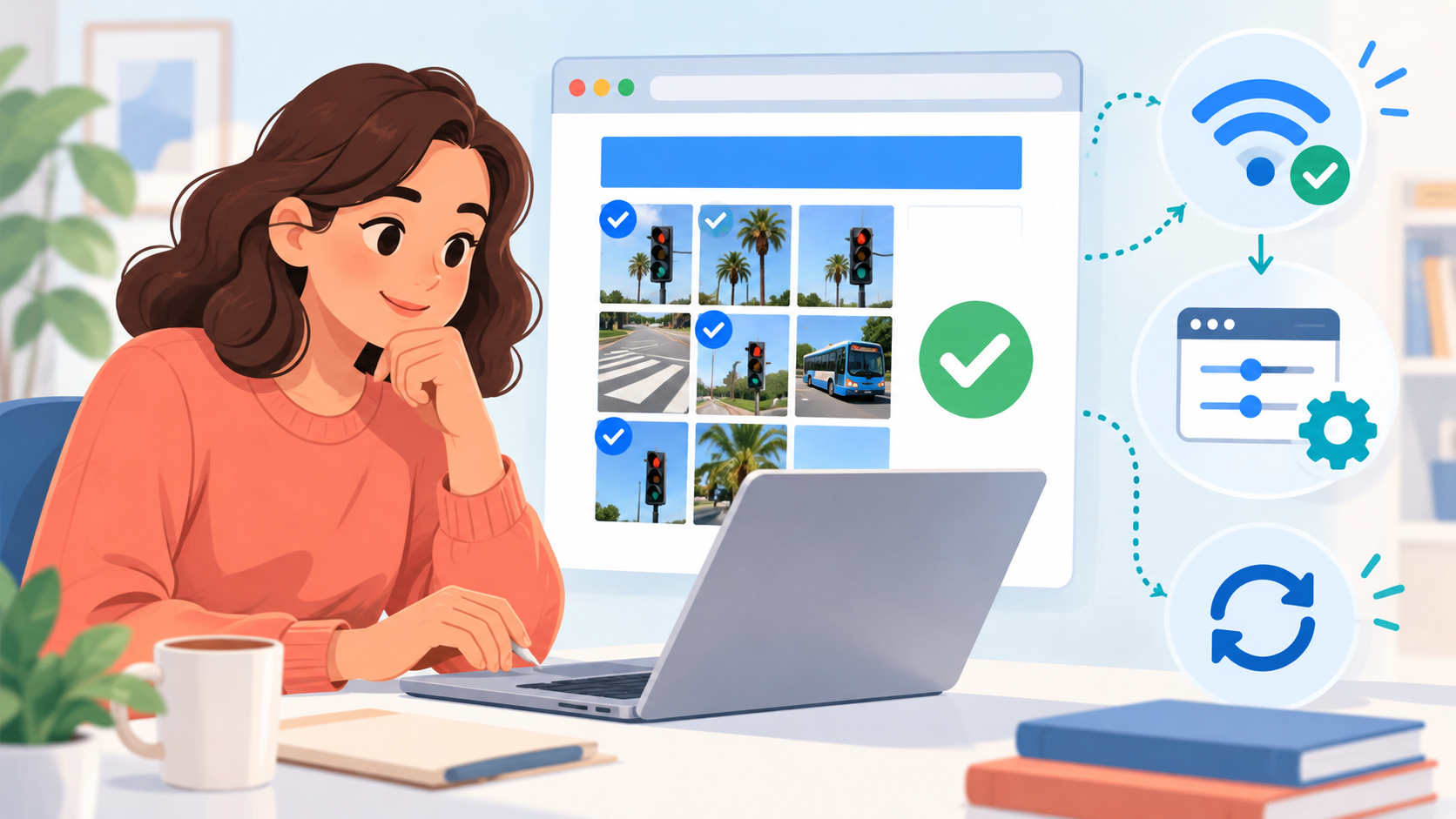
The right fix depends on whether the challenge fails to load, cannot be completed, or expires before submission. Start with the page itself, then check the browser and connection if the problem continues.
Complete Proxy IP Fundamentals
Build a full proxy knowledge framework — from core principles to protocol selection
Refresh the Challenge and Submit It Promptly
If a puzzle is unclear or has expired, use its refresh control to request a new one. If that does not work, reload the page and try again.
For a long form, complete the other fields first when possible, then finish the CAPTCHA shortly before submitting. This reduces the chance that the verification will expire while the form remains open.
Check the Browser and Connection
Make sure the browser is up to date and JavaScript is enabled. If the CAPTCHA still does not load, temporarily disable extensions that may interfere with the page and try again. A stable internet connection also helps ensure that the completed response reaches the website.
If the problem occurs in one browser but not another, compare their settings and extensions. That can help narrow down where the problem is happening.
Review the IP Address and Proxy Connection
If the CAPTCHA keeps appearing across browsers, check the network connection and IP address. Multiple users or applications may share one public IP, so activity elsewhere on the network can contribute to repeated checks.
For an authorized workflow that uses a proxy, review the proxy’s location, session settings, and request volume. A sticky session can keep the same IP during a sequence of related actions, while a static IP can provide a fixed connection for recurring work. Choosing between static IPs and sticky sessions depends on how long the workflow needs the same address.
It can also help to test the page on another permitted connection. If the result differs, record the settings and check whether a shared network or proxy configuration is contributing to the issue.
Try an Accessible Alternative
If a visual challenge is difficult to complete, look for an audio button or another option within the CAPTCHA. Some checks also support screen readers and keyboard navigation.
If the audio is unclear, the challenge may provide a way to replay it or request a new one. Available options depend on the website and the service it uses.
Contact the Website if the Problem Persists
If the check repeatedly fails across browsers or devices, contact the website’s support team. Include the page address, the error message, the browser and device used, and the steps taken before the error appeared.
Those details can help the site investigate whether the issue is related to its CAPTCHA setup or the request being submitted.
How Should Authorized Automation Handle a CAPTCHA?
Automated tools can encounter CAPTCHA checks during tasks such as price monitoring or market research. A workflow should account for verification before it starts collecting data, so a check does not leave the task running without a useful result.
Check the Website’s Available Access Options
Start by reviewing the website’s terms and available access methods. An official API, licensed data feed, or permission from the site owner may provide a suitable way to obtain the required information.
Check what each option covers. An API, for example, may provide the needed product details but impose limits on request volume or the data available. For permitted collection, responsible scraping practices include respecting stated restrictions and limiting unnecessary requests.
Manage Request Volume and Sessions
Configure the workflow around the website’s published limits and any conditions agreed with the site owner. Control how many requests run at once, allow time between requests when required, and monitor responses for errors or requests to slow down.
A proxy can help organize the network connections used for an authorized task. For example, location targeting can support checks across selected markets, while a sticky session can keep the same IP during a sequence of related requests.
A retry policy should also have a limit. If a request repeatedly returns a verification page, continuing to send the same request is unlikely to produce the intended data. The workflow can record the event and pause for review.
Plan for Human Verification When Required
When a website asks for a CAPTCHA, the workflow can stop and notify an authorized person. That person can review the request and complete the check when the website permits it.
If verification cannot be completed or the website does not allow the intended automated access, the next step is to contact the site owner or use an available authorized access method.
How IPFLY Helps Manage IP Connections for Different Tasks
Different online tasks have different connection requirements. A research project may need IP addresses in selected locations, while a recurring workflow may need the same IP address over time. IPFLY offers proxy options for these different needs.
IPFLY Rotating Residential Proxy supports authorized web scraping and other data-collection tasks with location targeting and rotating or sticky sessions. For example, a price-monitoring workflow can check publicly available product pages in selected markets, while a sticky session can keep the same IP during a sequence of related steps.
For recurring tasks that call for a fixed connection, IPFLY ISP Proxy provides a static IP option. The choice between static IPs and sticky sessions depends in part on how long the workflow needs the same address.
Frequently Asked Questions
Is CAPTCHA the Same as reCAPTCHA?
No. CAPTCHA is a general term for checks designed to distinguish people from automated activity. reCAPTCHA is a service from Google that websites can use to help protect against spam and abuse.
Is a CAPTCHA Response Token the Same as a Password?
No. A password is a credential used to access an account. A CAPTCHA response token is generated for a verification check and submitted so the website can validate the result.
Can CAPTCHA Collect Information About My Browser?
Some CAPTCHA services use browser and interaction signals as part of their assessment. The information collected depends on the service and the website’s configuration. The site’s privacy policy can provide more detail about its use of the service.
What Is a CAPTCHA Unblocker, and Does Every Project Need One?
An unblocker is a service that may combine tools for managing connections, browser requests, and access checks. Not every project needs one. The right approach depends on the data required and the access methods the website permits.
Does Completing a CAPTCHA Guarantee Access to a Website?
No. After a CAPTCHA is completed, the website still applies its own rules. It may require an account, additional verification, or permission to access the requested content.
Conclusion
A CAPTCHA challenge response is the data a website uses to verify a CAPTCHA check. Understanding how the response is generated and validated makes it easier to diagnose a failed check and plan for verification in an authorized workflow. For location-based research and other permitted data-collection tasks, explore IPFLY Residential Proxy to choose a connection setup for the project.


