Sharing a computer with family members, roommates or colleagues is common. But it also creates unique privacy risks. When multiple people use the same device, it’s easy for your personal browsing history, passwords and sensitive information to fall into the wrong hands.
Have you ever sat down at the family computer and seen your partner’s search suggestions pop up? Or accidentally stayed logged into your email on an office computer, leaving your messages accessible to everyone? These are just the most obvious privacy risks of shared devices.
In this guide, we’ll show you how to implement good digital hygiene on shared computers. We’ll cover everything from basic browser settings to advanced proxy configurations, so you can keep your personal browsing private even when you’re not the only one using the computer.
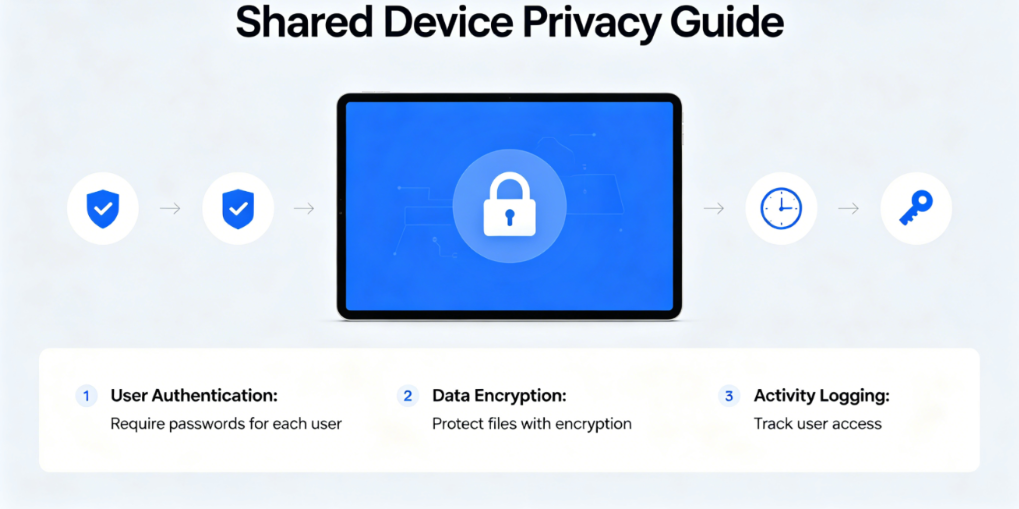
Shared devices pose several privacy risks that you don’t face on a personal computer:
- Accidental exposure: Your browsing history, saved passwords and form data can be seen by anyone who uses the computer after you.
- Cross-contamination: Cookies and tracking data from one user’s browsing can follow another user around the internet.
- Malware and viruses: One user’s risky browsing can infect the entire computer with malware.
- Account hijacking: If you forget to log out of an account, anyone who uses the computer after you can access it.
- Lack of control: You can’t control what other users do on the computer, which can put your data at risk.
But with the right digital hygiene practices, you can mitigate all these risks and keep your personal information safe, even on a shared device.
Rule #1: Never Use the Main Browser Profile
The single most important rule for shared devices is: never use the default browser profile for personal browsing.
The default profile is where everyone logs into their accounts, saves their passwords and does their browsing. If you use this profile, all your personal data will be mixed in with everyone else’s, and anyone who uses the computer after you will be able to see everything you’ve done.
Instead, create a separate, password-protected browser profile just for yourself. This profile will be completely isolated from all other users’ profiles, and no one else will be able to access your browsing data.
How to Create a Password-Protected Browser Profile
In Chrome and Edge, you can create a password-protected profile by adding a Google or Microsoft account to the profile. When you’re done browsing, you can lock the profile, and no one else will be able to access it without your password.
In Firefox, you can create a master password that protects all your saved passwords and logins. You can also use separate profiles for different users, each with their own settings and data.
Always log out of your profile when you’re done browsing. Never leave your profile open and unattended on a shared computer.
Rule #2: Use Incognito Mode for All One-Off Tasks
For quick, one-off tasks that you don’t want saved anywhere, always use incognito mode. Incognito mode creates a temporary session that is completely erased when you close the window.
Perfect use cases for incognito on shared devices:
- Checking your personal email quickly
- Looking up a sensitive topic
- Logging into a temporary account
- Shopping for a surprise gift
- Browsing websites you don’t want saved in any profile
When using incognito mode on a shared device:
- Never save any passwords or form data
- Always log out of all accounts before closing the window
- Close all incognito windows when you’re done
- Don’t download any files to the computer unless absolutely necessary
This should go without saying, but it bears repeating: never save your passwords in a browser on a shared computer.
Even if you’re using your own separate profile, saving passwords on a shared computer is a huge security risk. If the computer is ever infected with malware, all your saved passwords could be stolen. And if someone gains access to your profile, they’ll have access to all your accounts.
Instead, use a reputable password manager like 1Password or Bitwarden. Password managers store your passwords in an encrypted vault that is protected by a master password. You can access your passwords from any device, and you never have to save them in the browser.
Complete Proxy IP Fundamentals
Build a full proxy knowledge framework — from core principles to protocol selection
Rule #4: Use Proxies for Sensitive Browsing
If you need to browse something extremely sensitive on a shared computer, using a proxy adds an extra layer of security and privacy.
A proxy masks your real IP address from the websites you visit, and it prevents your browsing activity from being linked to the shared computer’s network. This is especially important if you’re using an office computer, where your employer may be monitoring all network traffic.
1.Create a separate browser profile just for proxy use
2.Configure your IPFLY proxy settings only in this profile
3.Never log into any personal accounts in this profile
4.Always use incognito mode inside this profile
5.Clear all site data and cookies when you’re done
6.Log out of the profile completely when you’re finished
IPFLY’s proxies are perfect for shared device use. You can access your proxy settings from any computer, and you don’t need to install any software. Just enter the connection details into your browser profile, and you’re ready to go. When you’re done, you can simply log out of the profile, and no trace of your proxy session will remain on the computer.
Rule #5: Clear Your Traces When You’re Done
Even if you follow all the previous rules, it’s still a good idea to clear your traces when you’re finished using a shared computer.
At a minimum, you should:
- Close all open browser windows and tabs
- Log out of all accounts
- Clear your browsing history, cookies and cache
- Delete any files you downloaded
- Empty the recycle bin or trash
For extra security, you can use a tool like CCleaner to automatically clean up all temporary files and traces of your activity.
Family Digital Hygiene: Protecting Kids Online
If you have children who use the family computer, digital hygiene is even more important. In addition to the rules above, follow these tips to protect your kids online:
- Create separate profiles for each child
- Enable parental controls to block inappropriate content
- Use a family-friendly DNS service like Cloudflare Families or Google Family DNS
- Talk to your kids about online safety and privacy
- Regularly review their browsing history and online activity
- Keep the computer in a common area of the house, not in their bedrooms
Office Computer Digital Hygiene
Using an office computer for personal browsing is always a risk. Most employers monitor all activity on company-owned devices, and they can see everything you do online.
If you must use an office computer for personal tasks:
- Never use it for sensitive personal activities like banking, healthcare or legal matters
- Always use incognito mode for personal browsing
- Never save any personal passwords or files on the computer
- Never connect your personal accounts to the office computer
- Assume that everything you do is being monitored
- Use a proxy to mask your IP address and keep your personal browsing separate from your work identity
IPFLY’s proxies are ideal for office use. They allow you to browse the internet privately without your employer seeing what you’re doing, and they don’t require any software installation that might be blocked by your IT department.
✅ Always use a separate, password-protected browser profile
✅ Use incognito mode for all one-off personal tasks
✅ Never save passwords in the browser
✅ Use a proxy for sensitive browsing
✅ Clear all your traces when you’re done
✅ Log out of your profile completely
✅ Never leave the computer unattended while logged in

Sharing a computer doesn’t have to mean sacrificing your privacy. By following these simple digital hygiene rules – using separate browser profiles, using incognito mode for one-off tasks, never saving passwords, using proxies for sensitive browsing, and clearing your traces when you’re done – you can keep your personal information safe and secure, even on a shared device.
The key is to be intentional about your browsing habits. Don’t just use the computer mindlessly – think about what information you’re leaving behind, and take steps to protect it.
IPFLY’s secure, easy-to-use proxies are the perfect addition to your shared device digital hygiene routine. With our global network of residential and mobile proxies, you can browse privately and securely from any computer, anywhere in the world.