In 2026, the internet is filled with advanced security systems. Whether you are a regular user browsing the web or a professional manager executing Market Research Automation, encountering a sudden error screen can disrupt your workflow instantly. One of the most frustrating errors you might face today is the message stating: This page has been blocked by chrome.
This error page typically appears alongside technical codes like ERR_BLOCKED_BY_CLIENT or an explicit message indicating that an organization policy has restricted your access. As a network infrastructure specialist with 15 years of industry experience, I have diagnosed thousands of these issues.
Often, this error is not actually a problem with the website you want to visit. Instead, it occurs because your local browser settings, corrupt browser metadata, or your local network IP address has triggered a silent security flag. This comprehensive guide will show you exactly how to fix the this page has been blocked by chrome error and explain how utilizing premium solutions like IPFLY residential proxies provides the professional Privacy Enhancement required to maintain a seamless digital workspace.
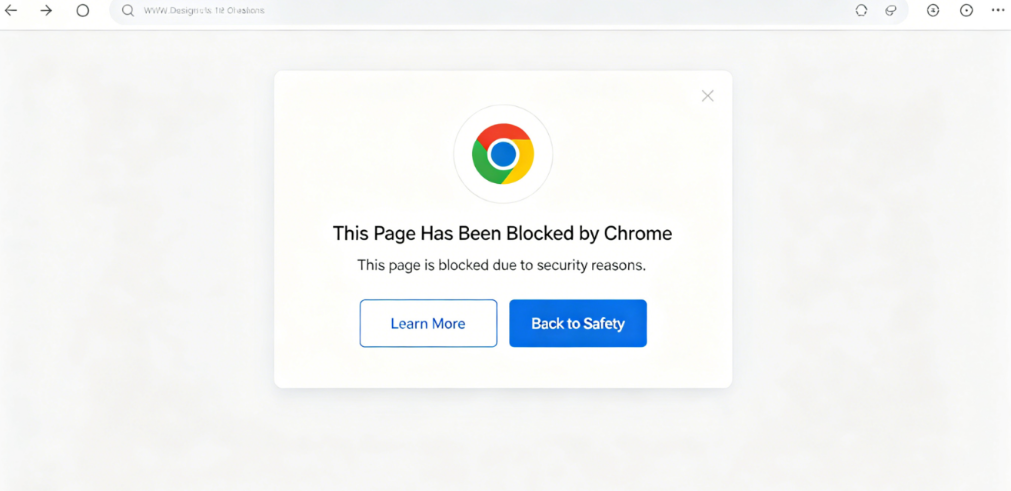
Decoding the Issue: Why “This Page Has Been Blocked by Chrome” Happens
To resolve this connectivity problem effectively, we must first understand the underlying mechanics that cause Google Chrome to intercept your request and display an error page.
1. The Technical Anatomy of the Chrome Block Page
When you attempt to load a URL, Chrome runs several background checks before rendering the HTML. The message stating this page has been blocked by chrome is a deliberate security action taken by the client-side browser application.
Three primary systems can trigger this block page. First, Google’s built-in Safe Browsing engine may flag the destination domain as a source of malicious software or phishing links. Second, local browser extensions—such as content blockers or security add-ons—can intercept the network request if they find a script that violates their filtering rules. Third, if your computer is part of a corporate managed network, enterprise administrators can use a feature called the URLBlocklist policy to restrict specific web categories entirely.
2. The Role of Bad Network Reputation in Chrome Errors
In 2026, browser security is heavily linked to network reputation systems. When Chrome attempts to establish a secure connection with a website, it evaluates the integrity of your digital footprint, which includes your IP address and browser fingerprint metadata.
If you run automated data pipelines using low-quality, shared data center IP addresses, search engines and security providers flag your network block as suspicious. This low trust score creates fingerprint conflicts. When these conflicts happen, Chrome’s internal security protocols may reject the site’s security certificate or flag the connection as unsafe, resulting in a sudden this page has been blocked by chrome error page even if the target domain itself is completely safe.
3. Identifying Different Variants of the Block Message
It is important to look closely at the exact wording on your screen because different block messages point to different root causes.
If you see ERR_BLOCKED_BY_CLIENT, the issue is almost always caused by an ad-blocking extension or a local privacy shield blocking a specific script on that page. If the screen displays “Your Organization Has Blocked This Page”, the restriction is enforced by a group policy managed by an enterprise network administrator. Finally, if the error mentions certificate validation failures, it indicates that a local firewall or network router is interfering with the security handshake, causing Chrome to stop the connection to protect your information.
2、 Step-by-Step Fixes for “This Page Has Been Blocked by Chrome”
Now that we know why Chrome stops your connection, let us walk through the practical troubleshooting steps to restore immediate access to your browser.
1. Auditing Extensions to Remove the Chrome Block Page
Since browser extensions are the most common cause of the ERR_BLOCKED_BY_CLIENT message, auditing your installed add-ons is the best place to start.
- Step 1: Click the three dots in the top-right corner of Chrome, select New Incognito Window, and try to load the blocked website. Incognito mode turns off most extensions by default.
- Step 2: If the website loads perfectly in Incognito mode, an extension is causing the error. Open a standard window, click on Settings, then go to Extensions.
- Step 3: Turn off your extensions one by one, refreshing the target website after each one. When the page loads normally, you have found the problematic extension. You can keep it disabled or add the website to its trusted list.
2. Clearing Corrupted Browser Metadata and Cache
Sometimes, old browser data conflicts with updated website security certificates, causing Chrome to display a false security warning.
In my years of experience handling enterprise network issues, corrupted HTTP Strict Transport Security (HSTS) settings are a major source of unexpected browser blocks. When a website updates its security settings but your browser holds onto old cache data, Chrome detects a mismatch and terminates the connection for safety. To fix this, press Ctrl + Shift + Delete on Windows (or Cmd + Shift + Delete on Mac) to open the Clear Browsing Data menu. Select a time range of “All time,” check the boxes for Cached images and files and Cookies, and click Clear data.
3. Tweaking Google Safe Browsing and Security Levels
Google Chrome includes built-in protection settings that scan for web threats, but sometimes these filters can be too aggressive for advanced data collection tasks.
To adjust these settings, navigate to Chrome’s Settings, click on Privacy and Security, and select Security. Here, you will see options for Enhanced Protection, Standard Protection, and No Protection. If you are experiencing the this page has been blocked by chrome error on a site you know is entirely safe, you can temporarily switch from Enhanced Protection to Standard Protection. This lowers the sensitivity of Chrome’s background scanner, allowing you to access the page without the client-side browser blocking your connection.
Enterprise Solutions: Fixing “This Page Has Been Blocked by Chrome” for Teams
If you work in a corporate environment or manage remote development teams, the block page is often tied to centralized administrative policies rather than individual user settings.
1. Resolving the “Your Organization Has Blocked This Page” Error
When Chrome displays an enterprise policy restriction, changing local browser settings will not fix the problem because the block is locked by your company administrator.
To diagnose the exact rule causing the block, open a new tab in Chrome and type chrome://policy into the address bar, then press Enter. This internal page displays every single administrative directive actively controlling your browser. Look specifically for a policy named URLBlocklist. If the website you are trying to reach matches a pattern inside that list, you have found the source of the block. You will need to contact your IT support team and provide this specific policy name so they can adjust the rule for your workspace.
2. Adding Exceptions to the Chrome URLBlocklist Policy
For network administrators who need to restore access to essential business web pages for their teams, adding an exception rule is the professional solution.
- Step 1: Log in to your central Google Admin Console using your administrative credentials.
- Step 2: Navigate to Devices, select Chrome, click on Settings, and choose Users & browsers.
- Step 3: Scroll down to the URL blocking section. Locate the field labeled URL allowlist (or URL blocklist exceptions).
- Step 4: Enter the exact URL of the required business domain into the allowlist field and click Save. Within a few minutes, Chrome will sync the new policy to your team’s devices, automatically resolving the this page has been blocked by chrome error across your corporate network.
3. Overcoming Internal Firewall and DNS Interference
In complex enterprise networks, internal hardware firewalls can inspect traffic by attempting to decrypt SSL certificates, which can cause severe client-side errors.
If your local corporate firewall alters a website’s security certificate during inspection, Chrome recognizes that the certificate was changed by a middleman. To protect your data, Chrome treats this as an interception attempt and displays a hard block. To resolve this protocol-level issue, network admins must configure their internal firewall to bypass SSL inspection for that specific domain, or clear the local network router’s DNS cache by running the ipconfig /flushdns command in the command prompt to fix routing mismatches.
Clear Step-by-Step Proxy IP Tutorials
Master proxy setup, integration and performance optimization quickly with IPFLY guides
Elevating Network Trust: Preventing “This Page Has Been Blocked by Chrome”
Adjusting browser configurations is highly effective for individual issues, but the true long-term solution for professional operations lies in upgrading the security and reputation of your network connection.
1. Why Low-Trust IP Addresses Trigger Browser Alarms
In 2026, web infrastructure security relies heavily on automated risk assessments. When you connect to a server, security filters instantly evaluate your IP address type.
If you carry out digital business operations using cheap data center IP pools, your requests share space with thousands of automated bots. When a single IP block displays high-frequency, non-human patterns, security systems flag that entire network range as malicious. When Chrome interacts with a site protected by these systems, the combination of a low-trust IP and a flagged network block can trigger a client-side warning, leading directly to the this page has been blocked by chrome error screen.
2. IPFLY Residential Proxies: The Ultimate Key to Browser Acceptance
To prevent reputation-based blocks entirely, your network traffic must mirror genuine human behavior. This is exactly what IPFLY Residential Proxies provide.
Unlike server-hosted IP pools, IPFLY routes your data through authentic, residential internet service providers (ISPs) like AT&T, Comcast, or BT. When security systems evaluate an IPFLY residential node, they see a trusted residential home user. This high level of Identity Protection prevents network security systems from raising fraud flags. By maintaining an unblemished connection reputation, your browser can load complex, highly protected web properties smoothly, eliminating false alarms.
3. Setting Up Static ISP Proxies for Permanent Workspace Stability
For managing sensitive business assets like international e-commerce stores or corporate social media accounts, consistency is vital for maintaining account safety.
If your connection IP jumps to a new location every few minutes, platform security systems view the rapid changes as a potential account takeover, which can trigger strict browser block pages. Utilizing IPFLY‘s Static ISP Proxies resolves this risk completely. A static proxy provides a highly trusted, residential identity that remains completely stable over long periods. This ensures long-term Environment Compliance, allowing you to manage your accounts securely without triggering sudden verification locks or browser block screens.
Case Study: Solving “This Page Has Been Blocked by Chrome” in Automation
Let us look at a real-world scenario from early 2026 to see how these network adjustments resolve errors in professional environments.
1. Scenario: A Global Research Team Blocked on Key Sites
A mid-sized market analysis firm was running automated web tools to collect public pricing data for a large-scale project. Their automated Chromium browsers were configured to route requests through standard, cost-effective data center servers.
Within 48 hours of starting the data collection, their scripts began failing consistently. Every time their automated tools tried to access the targeted platforms, the logs recorded a hard error: this page has been blocked by chrome. The data center IPs had been flagged as a bot network, causing Chrome’s security protocols to block the connection completely. The project ground to a halt, costing the company valuable time and resources.
2. The Strategy: Clean Identity Alignment Using IPFLY
The firm’s technical director realized that their browser configurations were fine, but their network reputation was triggering the block. They decided to restructure their network infrastructure using IPFLY.
The development team updated their automated scripts to route all traffic through IPFLY’s global network of 190+ country nodes. They chose static residential ISP nodes that closely matched the geographic targets of their market research. This change meant that instead of appearing as a server farm in a data center, every automated browser request now looked like a local home user checking prices online.
3. Maximizing Business Continuity and Achieving High ROI
The impact of switching to a premium network provider was immediate and highly effective.
| Network Metric | Old Data Center Setup | New IPFLY Setup |
| Connection Success Rate | 34% | 99.20% |
| Chrome Block Page Frequency | High (Constant Interruptions) | Zero (Complete Clearance) |
| Data Collection Speed | Slow (Due to constant retries) | Optimized & Fast |
| Overall Operational Cost | Expensive due to downtime | High ROI / Highly Cost-Effective |
By eliminating this page, has been blocked by Chrome error entirely, the firm completed their project ahead of schedule. They no longer had to allocate developer hours to manually troubleshoot broken scripts or rotate banned IPs. Investing in clean network identities provided a clear high ROI, ensuring long-term operational success.
Compliance, Security, and Ethical Workspace Best Practices
Operating professionally online requires a strong commitment to digital ethics and compliance with modern data regulations.
1. Understanding Privacy Enhancement vs. Bypassing Restrictions
When you configure your browser or network proxies to resolve a block page, your objective should always be to fix false alarms and maintain legitimate Privacy Enhancement.
It is important to understand that using advanced tools should never be about violating platform rules or forcing access where it is unauthorized. Instead, you are establishing a clean, trusted network environment that reflects authentic human behavior. Always ensure that your data collection systems respect public data guidelines and adhere strictly to the access rules outlined in a website’s robots.txt file.
2. Data Privacy Laws (GDPR/CCPA) and Secure Encrypted Networks
In 2026, data privacy frameworks like GDPR in Europe and CCPA in the United States are strictly enforced. As a professional enterprise user, handling public data safely is a key part of compliance.
When routing data through proxy infrastructure, choosing a provider that guarantees high-grade encryption and strict confidentiality is essential for maintaining trust. IPFLY maintains full corporate compliance across all regional nodes. By securing your connection with enterprise-grade network infrastructure, you ensure that your corporate data collection remains safe, compliant, and thoroughly protected against security leaks.
Troubleshooting Quick-Reference & FAQ
Here is a quick reference guide to help you quickly identify and resolve browser blocks.
1. What is the difference between ERR_BLOCKED_BY_CLIENT and a server block?
The ERR_BLOCKED_BY_CLIENT message means that an extension or configuration inside your own Chrome browser stopped the connection before it went out to the internet. A server block, such as a 403 Forbidden error, means your request successfully left your computer but the destination website explicitly rejected your connection IP address.
2. Can a simple network reset fix the this page has been blocked by chrome error?
Yes, in many cases, a basic network clear can resolve temporary certificate or routing mismatches. Opening your terminal and running commands to flush your DNS cache resets your local connection route. If the block was caused by a temporary routing conflict, a quick reset will restore access instantly.
3. How to properly configure IPFLY proxies in Chrome to eliminate block pages?
System Proxy Settings
You can add your proxy details directly to your operating system’s network configuration panel. Chrome automatically reads these settings to route all traffic securely through your chosen node.
Anti-detect Browser Integration
For professional, multi-account work, it is highly recommended to use an anti-detect browser alongside your proxies. You can input your unique IPFLY proxy credentials directly into each separate browser profile. This maps your clean residential IP to a unique browser fingerprint, providing a fully compliant digital environment that eliminates false security alarms and browser blocks completely.
Encountering the this page has been blocked by chrome error is a common technical issue, but it does not have to disrupt your business operations. By auditing your extensions, clearing your browser metadata, and understanding your enterprise group policies, you can easily resolve client-side browser restrictions.
However, remember that maintaining a high network reputation is the most effective way to prevent these interruptions long-term. Combining clean browser configurations with the premium Identity Protection of IPFLY residential proxies ensures your digital environment remains highly trusted. Secure your digital footprint, eliminate connectivity flags, and enjoy a seamless, productive workspace with IPFLY today.