

In today’s mobile-first world, most of us watch YouTube on our smartphones and tablets. Whether you’re commuting to work, waiting in line, or taking a break between classes, your phone is usually the most convenient way to catch up on your favorite videos. But what happens when the Wi-Fi network you’re connected to blocks YouTube?
Mobile data is always an option, but it can be expensive, especially if you’re watching a lot of HD video. That’s where mobile proxies come in. By configuring your phone’s Wi-Fi settings to use a proxy server, you can bypass network restrictions and watch YouTube on any Wi-Fi network, without using your mobile data.
In this guide, we’ll show you exactly how to set up a proxy on both Android and iOS devices. We’ll cover system-level proxy setup, browser-specific configurations, and advanced tips for getting the best possible streaming experience on your mobile device.
Why YouTube Is Blocked on Mobile Wi-Fi
Before we get into the setup instructions, let’s take a quick look at why YouTube is so often blocked on mobile Wi-Fi networks.
School and Office Restrictions
The most common reason YouTube is blocked on Wi-Fi is to prevent students and employees from getting distracted. Schools and offices often implement network-wide blocks on video streaming sites to improve productivity and conserve bandwidth.
These blocks are usually implemented at the router level, which means any device connected to the Wi-Fi network will be affected, including your smartphone.
Geo-Restrictions
Another common reason you might not be able to watch a YouTube video on your phone is geo-restriction. Many videos, especially music videos, TV shows, and movies, are only available in certain countries due to licensing agreements.
Even if you’re traveling abroad and have a YouTube Premium subscription, you may find that some of your favorite videos are no longer available. A proxy server can help you bypass these restrictions by making it look like you’re accessing YouTube from your home country.
The Quick Mobile Test
As we mentioned in our first guide, you can easily determine if you’re facing a network block by using your mobile data:
1.Turn off Wi-Fi on your phone
2.Try loading the YouTube video
3.If it loads, you’re facing a network block that a proxy can easily bypass
If the video doesn’t load on mobile data either, it’s likely a geo-restriction or a device policy (if you’re using a school or work-issued phone).
Mobile Proxies: What You Need to Know
Mobile proxies work the same way as desktop proxies, but there are a few things you should know specifically about using them on smartphones and tablets.
How Mobile Proxies Work
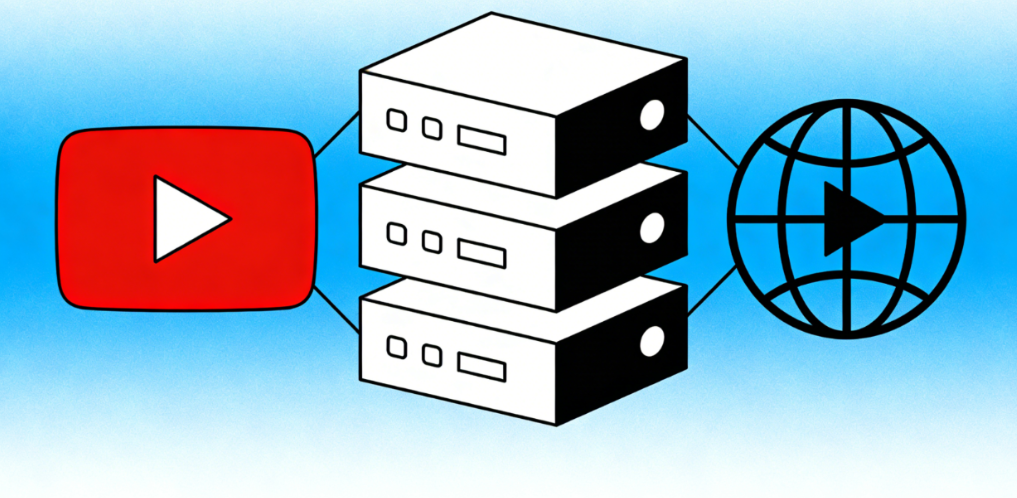
When you configure a proxy on your mobile device, all the traffic from your Wi-Fi connection is routed through the proxy server. This includes traffic from the YouTube app, your browser, and any other apps that use the internet.
From the perspective of the Wi-Fi network administrator, all they can see is that your phone is communicating with the proxy server. They have no way of knowing that you’re actually watching YouTube.
Why Residential Proxies Are Better for Mobile
Just like on desktop, residential proxies are the best choice for mobile YouTube access. Data center proxies are easily detected by YouTube’s anti-proxy systems, which can result in CAPTCHAs, blocked access, or even account restrictions.
Residential proxies use IP addresses assigned to real homes and mobile devices, which makes your connection look exactly like regular mobile internet traffic. This makes them almost impossible to detect and block.
IPFLY’s Mobile-Optimized Network
IPFLY’s residential proxy network is specifically optimized for mobile devices. Our servers are located in over 190 countries, ensuring that you can always find a fast, low-latency server near you.
We also offer dedicated mobile proxy endpoints that are designed to work seamlessly with both Android and iOS devices. Whether you’re using the YouTube app, Chrome, Safari, or any other browser, you’ll enjoy smooth, buffer-free streaming without any configuration headaches.
Step-by-Step Android Proxy Setup
Setting up a proxy on Android is straightforward, but the exact steps may vary slightly depending on your device manufacturer and Android version.
System-Level Proxy Configuration
This method will configure the proxy for all Wi-Fi traffic on your Android device, including the YouTube app and all browsers.
1.Open the Settings app on your Android device
2.Tap on “Network & internet” (or “Connections” on some devices)
3.Tap on “Wi-Fi”
4.Find the Wi-Fi network you’re connected to and tap the gear icon next to it
5.Tap the “Edit” icon (pencil icon) in the top right corner
6.Tap “Advanced options” to expand the menu
7.Scroll down to the “Proxy” setting and tap on it
8.Select “Manual” from the dropdown menu
9.Enter the proxy hostname (server address) and port number provided by your proxy service
10.If your proxy requires authentication, enter your username and password
11.Tap “Save” to apply the changes
Once you’ve saved the settings, all your Wi-Fi traffic will now be routed through the proxy server. Open the YouTube app and try playing a video – it should now load without any issues.
Browser-Specific Proxy Setup
If you only want to use the proxy for your browser and not for the YouTube app or other applications, you can configure a browser-specific proxy.
Chrome for Android:Chrome for Android uses the system proxy settings by default, so you’ll need to use a different browser if you want browser-specific proxy configuration.
Firefox for Android:Firefox for Android has its own internal proxy settings, which makes it ideal for browser-only proxy use:
1.Open Firefox for Android
2.Tap the menu button (three dots) in the top right corner
3.Select “Settings”
4.Scroll down to the “Advanced” section and tap on “Network Settings”
5.Select “Manual proxy configuration”
6.Enter the proxy address and port
7.Check the box that says “Use this proxy for all protocols”
8.Tap “OK” to save
Common Android Proxy Issues
- Proxy not working after disconnecting and reconnecting to Wi-Fi: Some Android devices forget proxy settings when you disconnect from a Wi-Fi network. You may need to re-enter the settings each time you connect.
- YouTube app not working with proxy: Some older versions of the YouTube app have issues with proxy servers. Try updating the app or using the YouTube mobile website in your browser instead.
- Slow speeds: If you’re experiencing slow speeds, try switching to a proxy server that is closer to your location.
Step-by-Step iOS Proxy Setup
Setting up a proxy on iPhone or iPad is even simpler than on Android, and the steps are the same for all recent iOS versions.
Wi-Fi Proxy Configuration
iOS only allows you to configure proxies on a per-Wi-Fi network basis. This means you’ll need to set up the proxy for each Wi-Fi network that blocks YouTube.
1.Open the Settings app on your iPhone or iPad
2.Tap on “Wi-Fi”
3.Find the Wi-Fi network you’re connected to and tap the “i” icon next to it
4.Scroll down to the “HTTP Proxy” section and tap on “Configure Proxy”
5.Select “Manual”
6.Enter the server address and port number provided by your proxy service
7.If your proxy requires authentication, toggle on “Authentication” and enter your username and password
8.Tap “Save” in the top right corner
That’s it! Your iOS device will now route all Wi-Fi traffic through the proxy server. Open the YouTube app and you should be able to watch any video without restrictions.
Using Proxies with Safari and Chrome
Both Safari and Chrome for iOS use the system proxy settings by default, so once you’ve configured the proxy in your Wi-Fi settings, it will automatically work in both browsers.
If you want to use a different proxy for your browser than for the rest of your device, you’ll need to use a third-party browser that supports internal proxy settings. However, most users find that the system-level proxy works perfectly for all their needs.
iOS-Specific Proxy Tips
- Proxy settings are per-network: Remember that you’ll need to reconfigure the proxy settings every time you connect to a new Wi-Fi network.
- VPN conflicts: If you have a VPN app installed on your iOS device, it may override your proxy settings. Make sure to disconnect any VPNs before using a proxy.
- YouTube app updates: Occasionally, YouTube app updates can break proxy compatibility. If you experience issues after an update, try using the YouTube mobile website in Safari until the issue is resolved.
Advanced Mobile Proxy Tips
Now that you know how to set up a basic proxy on your mobile device, let’s look at some advanced tips for getting the best possible experience.
SOCKS5 Proxies for HD Streaming
If you’re watching a lot of HD or 4K video on your mobile device, we recommend using a SOCKS5 proxy instead of a standard HTTPS proxy. SOCKS5 proxies handle large data packets more efficiently, which results in faster streaming speeds and less buffering.
IPFLY’s SOCKS5 proxies are fully compatible with both Android and iOS devices, and they offer unlimited bandwidth for all your streaming needs.
Bypassing DNS and SNI Blocks
Some advanced networks use DNS and SNI filtering to block YouTube, even when you’re using a proxy. To bypass these blocks, you can change your device’s DNS settings to use a public DNS server.
Changing DNS on Android:
1.Go to Settings > Network & internet > Wi-Fi
2.Tap the gear icon next to your network
3.Tap Edit > Advanced options
4.Change “IP settings” to “Static”
5.Enter “8.8.8.8” as DNS 1 and “8.8.4.4” as DNS 2
6.Tap Save
Changing DNS on iOS:
1.Go to Settings > Wi-Fi
2.Tap the “i” icon next to your network
3.Tap “Configure DNS”
4.Select “Manual”
5.Remove any existing DNS servers and add “8.8.8.8” and “8.8.4.4”
6.Tap Save
Optimizing Streaming Speed
To get the fastest possible streaming speeds on your mobile device:
- Always choose a proxy server that is geographically closest to your location
- Use residential proxies instead of data center proxies
- Avoid using free proxies, which are almost always overloaded
- Close any other apps that might be using bandwidth in the background
- If possible, connect to a 5GHz Wi-Fi network instead of 2.4GHz
Mobile Proxy Best Practices
To ensure a safe and reliable experience when using proxies on your mobile device, follow these best practices:
- Use a reputable proxy provider: Never use free public proxies on your mobile device, as they can pose serious security risks.
- Protect your privacy: Make sure your proxy provider doesn’t log your activity or share your data with third parties.
- Avoid sensitive activities: While proxies hide your traffic from the local network, they don’t provide the same level of encryption as VPNs. Avoid doing online banking or entering sensitive passwords while using a proxy.
- Disconnect when not needed: If you’re not using YouTube, disconnect the proxy to restore your normal internet connection speed.

Unblocking YouTube on your mobile device using a proxy is a simple and effective way to watch your favorite videos on any Wi-Fi network, without using your mobile data. Whether you’re using Android or iOS, the setup process only takes a few minutes, and the results are well worth it.
By using a high-quality residential proxy service like IPFLY, you can enjoy smooth, buffer-free streaming in up to 4K resolution, without the hassle of CAPTCHAs or detected proxies. Our global network of mobile-optimized servers ensures that you’ll always have fast, reliable access to YouTube, no matter where you are in the world.
In our next guide, we’ll cover advanced proxy techniques for bypassing even the most stubborn network restrictions, including deep packet inspection and advanced filtering systems.
