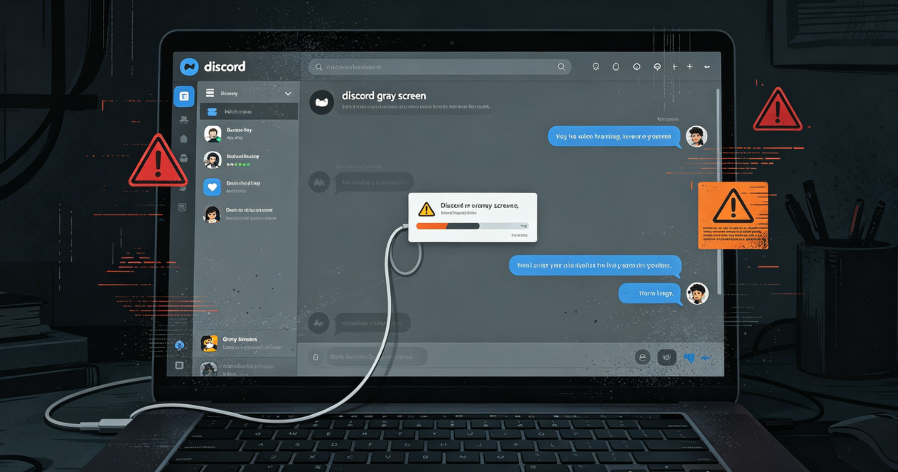
Discord has become an indispensable communication platform for gaming communities, professional teams, educational groups, and social circles worldwide. With millions of daily active users relying on the platform for real-time voice, video, and text communication, any disruption to the service can significantly impact productivity and social connectivity. Among the most frustrating issues users encounter is the Discord gray screen—a situation where the application launches but displays nothing but a blank gray interface, often accompanied by an endless spinning loading animation.
This comprehensive guide examines the root causes of the Discord gray screen issue, provides systematic troubleshooting approaches, and explores the role of network configuration—including proxy settings—in resolving or contributing to the problem. Whether you are a casual user, a community manager, or an IT administrator supporting multiple Discord users, this article delivers the technical depth required to diagnose and resolve this persistent issue.
Understanding the Discord Gray Screen Phenomenon
What Exactly Is the Discord Gray Screen?
The Discord gray screen manifests when the application launches but fails to render its user interface properly. Instead of displaying the familiar server list, channel view, and chat interface, users see a blank gray window. In some cases, the Discord logo may appear with a spinning animation that never completes. The application may appear to be running in Task Manager, yet the window remains unresponsive.
This issue differs from other Discord problems such as:
- Connection errors – Where the app loads but cannot connect to servers
- Crash-on-startup – Where the application closes immediately after launching
- Audio or video issues – Where the interface loads but media functions fail
The gray screen specifically indicates a rendering or initialization failure that prevents the application from reaching its fully operational state.
Why Does the Gray Screen Occur?
The gray screen issue stems from multiple potential causes, ranging from local data corruption to network interference. Understanding these root causes informs the troubleshooting approach and helps users select the most effective solutions.
Common Causes Include:
- Corrupted cache and application data – Discord stores temporary files that can become corrupted over time, preventing proper loading. This is among the most frequent causes of the gray screen.
- Outdated or conflicting graphics drivers – As a Chromium-based Electron application, Discord relies on GPU rendering. Incompatible or outdated graphics drivers can cause rendering failures.
- Network restrictions and proxy interference – Firewalls, and proxy configurations can block Discord’s required connections, resulting in a stalled loading screen. The desktop application lacks built-in proxy configuration options, making it particularly vulnerable to system-level network restrictions.
- Stuck background processes – When Discord fails to close completely, residual processes may hold onto corrupted cached memory, preventing a clean restart.
- Incomplete or failed updates – Discord updates automatically, but interrupted update processes can leave the application in an inconsistent state.
- IP address blocking or rate limiting – In some cases, the user’s IP address may be temporarily or permanently blocked by Discord’s servers, preventing successful connection.
- System compatibility issues – Conflicts with other applications, incorrect system time settings, or permission problems can also trigger the gray screen.
Step-by-Step Troubleshooting Guide
Level 1: Immediate Quick Fixes
Before diving into more complex solutions, users should attempt these simple, non-invasive fixes that often resolve the issue immediately.
1. Refresh the Discord Window
The simplest solution—pressing Ctrl + R (Windows/Linux) or Cmd + R (Mac) refreshes the Discord interface, forcing it to reconnect to servers and reload the interface. This works when the application is already running but stuck on a gray screen.
2. Restart Discord Completely
Open Task Manager (Ctrl + Shift + Esc), locate all Discord processes, select each one, and click “End Task”. Then relaunch Discord. This ensures no residual processes with corrupted memory remain active.
3. Minimize and Maximize the Window
A surprisingly effective workaround—simply minimizing the Discord window and then maximizing it again can trigger a re-render of the interface.
4. Run Discord as Administrator
Right-click the Discord shortcut and select “Run as administrator.” This provides the application with elevated permissions that may resolve permission-related rendering issues.
Level 2: Cache and Data Clearing
If quick fixes fail, the next step involves clearing Discord’s locally stored data. Corrupted cache files are among the most common culprits behind the gray screen.
Clear Discord AppData (Windows)
- Press
Win + Rto open the Run dialog box - Type
%appdata%and press Enter - Locate the Discord folder
- Delete the entire
Discordfolder or at least theCachesubfolder - Restart Discord
Clear Discord Cache (Mac)
- Open Finder
- Press
Cmd + Shift + Gand enter~/Library/Application Support/discord/ - Delete the
Cachefolder - Restart Discord
Clear Discord Cache (Linux)
- Navigate to
~/.config/discord/ - Delete the
Cachefolder or the entire Discord directory - Restart Discord
Level 3: Graphics and Hardware Configuration
When rendering failures persist, graphics-related issues are a likely cause.
Disable Hardware Acceleration
Hardware acceleration allows Discord to use your GPU for rendering, which can improve performance but may cause conflicts with certain graphics drivers.
- Open Discord (if possible) and navigate to User Settings > Appearance
- Scroll to “Hardware Acceleration” and toggle it off
- Restart Discord
If you cannot access settings due to the gray screen, you can modify the configuration file directly:
- Navigate to
%appdata%/discord/settings.json(Windows) - Add or modify:
"disableHardwareAcceleration": true - Save and restart Discord
Launch Discord in Safe Mode
Discord’s safe mode disables hardware acceleration and other potentially problematic features:
- On Windows: Create a shortcut to Discord and add
--safe-modeto the target path - Alternatively, use the protocol handler:
discord://safe-mode
Update Graphics Drivers
Outdated or corrupted graphics drivers frequently cause rendering issues. Visit your GPU manufacturer’s website (NVIDIA, AMD, or Intel) to download and install the latest drivers for your specific graphics card.
Run Discord in Compatibility Mode (Windows)
- Right-click the Discord shortcut and select Properties
- Navigate to the Compatibility tab
- Check “Run this program in compatibility mode for”
- Select an earlier version of Windows (e.g., Windows 8)
- Click Apply and restart Discord
Level 4: Network and Proxy Configuration
Network-related issues—particularly those involving proxies or firewalls—are frequently overlooked causes of the Discord gray screen.
Understanding Discord’s Proxy Sensitivity
Discord uses WebSocket connections for real-time communication and HTTPS for API calls. When a system-level proxy is configured, Discord attempts to route traffic through it. However, the desktop application does not include native proxy configuration options, meaning it relies entirely on the operating system’s proxy settings. If these settings are misconfigured or point to an unavailable proxy server, Discord may hang on the loading screen.
Check System Proxy Settings (Windows)
- Press
Win + R, typeinetcpl.cpl, and click OK - Select the Connections tab
- Click “LAN settings”
- If “Use a proxy server for your LAN” is checked and you are not using a proxy, uncheck it
- If you are using a proxy, verify that the address and port are correct and that the proxy server is online
Check System Proxy Settings (Mac)
- Open System Preferences > Network
- Select your active network connection
- Click Advanced > Proxies
- Review the configured proxy settings
- Ensure they are correct or disable them if unnecessary
Check System Proxy Settings (Linux)
- Check environment variables:
echo $http_proxyandecho $https_proxy - If set incorrectly, unset them:
unset http_proxy https_proxy - Check GNOME or KDE network settings for proxy configuration
Temporary Proxy Bypass
If you suspect proxy interference but cannot immediately resolve the configuration:
- Temporarily disable the proxy in your system settings
- Launch Discord to verify if the issue resolves
- Re-enable the proxy after confirming the cause
Firewall and Antivirus Exceptions
Overzealous firewall or antivirus software may block Discord’s required connections. Add Discord to the exception list of your security software:
- Open your firewall or antivirus settings
- Locate the application control or exception list
- Add Discord.exe (typically in
%localappdata%/Discord/) - Ensure both inbound and outbound connections are allowed
IP Address-Related Issues
In some cases, the gray screen may result from Discord blocking your IP address due to rate limiting or security flags. This can occur when:
- Multiple failed login attempts originate from your IP
- Your IP is in a range that has been flagged
- Your ISP is restricting Discord traffic
If you suspect IP-related issues:
- Restart your router to obtain a new IP address (if using dynamic IP)
- Contact your ISP to verify they are not blocking Discord traffic
- Consider using a residential proxy service to route traffic through a different IP address
Clear Step-by-Step Proxy IP Tutorials
Master proxy setup, integration and performance optimization quickly with IPFLY guides
Level 5: Advanced Solutions
Reinstall Discord
If all else fails, a clean reinstall often resolves persistent issues:
- Uninstall Discord through Control Panel (Windows) or by dragging to Trash (Mac)
- Delete any remaining Discord folders in
%appdata%(Windows) or~/Library/Application Support/(Mac) - Download the latest version from discord.com
- Install and launch
Use the Web Version
As a temporary workaround, access Discord through your web browser at discord.com/app. This bypasses the desktop application entirely and can confirm whether the issue is application-specific or system-wide.
Check Discord Status
Before spending time on troubleshooting, verify that Discord’s servers are operational:
- Visit status.discord.com
- Check Discord’s official Twitter/X account for outage announcements
- If there is a widespread outage, wait for Discord to resolve the issue
The Role of Proxy Networks in Discord Accessibility
Why Proxy Configuration Matters for Discord
For users in regions where Discord access is restricted or for organizations implementing network security policies, proxy networks play a crucial role in maintaining connectivity. However, improper proxy configuration can precisely cause the gray screen issue discussed throughout this article.
The desktop Discord application, built on Electron, inherits its networking behavior from Chromium. It respects the operating system’s proxy settings but does not provide a built-in interface for configuring proxies independently. This design choice means that:
- System-level proxy misconfigurations directly impact Discord’s ability to connect
- Users cannot easily switch proxies without modifying system settings
- Organizations must carefully manage proxy infrastructure to avoid disrupting Discord
Common Proxy-Related Scenarios Causing Gray Screens
Scenario 1: Misconfigured System Proxy
When the operating system is configured to use a proxy server that is offline, unreachable, or incorrectly specified, Discord’s connection attempts fail. The application may attempt to load, receive no response from the proxy, and hang indefinitely on the gray screen.
Scenario 2: Transparent Proxy Interception
Corporate networks sometimes implement transparent proxies that intercept all outbound traffic. If these proxies do not properly handle Discord’s WebSocket or HTTPS traffic, the connection may stall.
Scenario 3: SOCKS Proxy Compatibility
Discord’s gateway connections may have specific requirements when routed through SOCKS proxies. Certain SOCKS proxy configurations can cause connection failures if not properly implemented.
Scenario 4: IP Reputation and Blocking
When multiple users share a single IP address through a proxy, Discord’s rate-limiting mechanisms may temporarily block that IP. This results in connection failures that manifest as a loading screen that never completes.
Leveraging Professional Proxy Infrastructure
For organizations and power users who require reliable Discord access through proxy networks, professional proxy solutions offer significant advantages over generic or free proxy services.
Key Considerations for Discord-Compatible Proxies:
- Protocol support – Ensure the proxy supports HTTPS and WebSocket traffic
- Geographic diversity – Access to IP addresses across multiple regions provides fallback options if one IP is blocked
- IP reputation – Residential IP addresses generally have better reputations than datacenter IPs for social platforms
- Reliability – Consistent uptime and low latency are essential for real-time communication
IPFLY’s dynamic residential proxies provide access to over 90 million residential IP addresses across 190+ countries, offering the geographic diversity and IP reputation needed for reliable Discord access. The low response times—as fast as 0.6 seconds—ensure minimal impact on communication quality, while the support for HTTP(S) and SOCKS5 protocols accommodates diverse network configurations.
For organizations requiring consistent IP assignments for compliance or monitoring purposes, IPFLY’s static residential proxies offer 100% exclusive IP resources that remain stable over time. This consistency proves valuable when maintaining whitelisted IP addresses for corporate network policies.
For users who need high-performance connectivity for data-intensive applications alongside Discord, IPFLY’s datacenter proxies deliver 99.9% availability with global coverage across major regions, providing the bandwidth and reliability required for uninterrupted communication.
Prevention and Best Practices
Maintaining a Stable Discord Environment
Preventing the gray screen issue requires ongoing attention to both system maintenance and network configuration.
Regular Cache Maintenance
Discord’s cache can grow significantly over time. Periodically clearing the cache—perhaps monthly for heavy users—prevents corruption from accumulating.
Keep Software Updated
- Maintain current graphics drivers
- Allow Discord to complete its automatic updates
- Keep your operating system updated
Monitor Proxy Configuration
If you use a proxy:
- Document your proxy settings for easy verification
- Regularly test proxy connectivity
- Have a backup configuration ready for troubleshooting
Use Quality Proxy Infrastructure
When proxy usage is necessary, invest in professional proxy services rather than free alternatives. Free proxies often have:
- Poor IP reputations leading to blocks
- Unreliable uptime
- Slow performance affecting communication quality
- Shared IP addresses increasing block risks
IPFLY offers enterprise-grade proxy infrastructure with the reliability and performance required for professional and power-user applications, including Discord access.

The Discord gray screen issue, while frustrating, is almost always resolvable through systematic troubleshooting. The causes range from simple cache corruption to complex network configuration problems, and the solutions scale accordingly from quick refreshes to comprehensive system reconfiguration.
The key to effective resolution lies in methodical diagnosis:
- Start with the simplest fixes—refresh, restart, and cache clearing
- Progress to graphics and hardware configurations if rendering issues persist
- Examine network settings, particularly proxy configurations, when connectivity is the suspected cause
- Consider professional proxy infrastructure if network restrictions require ongoing management
For users and organizations relying on Discord for critical communication, understanding the interplay between the application, system configuration, and network infrastructure is essential. When proxy usage is necessary, selecting quality proxy services with strong IP reputations, protocol support, and geographic diversity ensures both accessibility and reliability.
Discord’s position as a leading communication platform makes troubleshooting these issues a valuable skill for technical professionals and everyday users alike. With the systematic approach outlined in this guide, the gray screen need not be a permanent obstacle to staying connected.
For organizations and users who require reliable network connectivity for Discord and other communication platforms, professional proxy infrastructure provides the foundation for uninterrupted access. IPFLY offers comprehensive proxy solutions designed for performance and reliability:
- Dynamic Residential Proxies – Access over 90 million residential IP addresses across 190+ countries with low-latency performance for real-time communication.
- Static Residential Proxies – Exclusive, persistent residential IP addresses for consistent network identity and compliance.
- Datacenter Proxies – High-performance proxy infrastructure with 99.9% availability for bandwidth-intensive applications.
Build reliable network infrastructure today. Visit IPFLY’s homepage to explore the full range of proxy solutions, or register now for immediate access to professional proxy capabilities that support your communication and operational needs.