Discord works at home, but the moment you connect to school or office Wi-Fi, it stops loading. Or perhaps messages work, while voice chat stays stuck on “RTC Connecting.” Both problems can feel like Discord has been blocked, but they may have different causes.
If you’re looking for a way to get Discord unblocked, start by finding out what has failed. A service outage, a problem with the desktop app, and a restriction on your current network call for different fixes. This guide helps you identify the cause, try the simplest options first, and decide which solution is useful.
Is Discord Blocked or Just Not Working?
“Discord won’t open” does not always mean it has been blocked. Look at where the problem occurs before choosing a fix:
- It fails across different devices and networks: Discord may be experiencing a service issue.
- It works on mobile data but not school or office Wi-Fi: The issue may be specific to that network.
- Discord Web works, but the desktop app does not: The app or device is the more likely cause.
- Messages work, but voice does not: The problem is specific to voice connections.
These results are clues, not a final diagnosis. For instance, working on mobile data points toward the Wi-Fi connection, but does not tell you which setting or rule is responsible.
Why Is Discord Blocked at School or Work?
Schools and workplaces may limit access to messaging platforms on their networks or managed devices. A network rule could prevent Discord’s website from loading, interfere with the app’s connection, or affect voice chat while leaving other features available.
Schools and workplaces may restrict Discord for several reasons:
- To reduce distractions. Messages, notifications, and voice channels can interrupt classes or work.
- To manage network usage. Voice calls, video, and screen sharing can consume bandwidth on a shared connection.
- To enforce security policies. Administrators may limit access to messaging platforms that allow file sharing, external links, or conversations outside approved tools.
- To control managed devices. School or company computers may have browser, app, or installation restrictions in addition to Wi-Fi rules.
These policies can affect Discord’s website, desktop app, or specific features in different ways. If you need Discord for an approved activity, check your organization’s access rules before changing settings.
How to Get Discord Unblocked
There is no single method that works for every Discord access problem. Choose an option based on what your earlier checks showed.
Check Discord’s Status and Your Local Connection
Before changing your network settings, check whether the Discord feature you need is affected by an incident on the Discord status page. If Discord reports a problem, wait for an update. If its services appear available, narrow down where the connection fails:
- Check whether other websites load on your current connection.
- Fully close and reopen Discord, then check for app updates.
- Open Discord Web in another browser. If the web version works but the desktop app does not, focus on the app and device settings first.
- If Discord still gets stuck, work through the relevant connection or loading-screen steps in Discord’s troubleshooting guide.
These checks are especially useful if Discord also fails on your home network. An empty or grey desktop window points to a different symptom than a blocked website; start with the likely causes of a Discord grey screen before assuming the network has blocked access.
Try Discord Web
If you cannot install the desktop app, go to discord.com/app in a browser. This is often the easiest way to use Discord without downloading software. It also helps you test whether the desktop app, rather than your connection, is causing the problem.
If the page opens but voice or video does not work, check that your browser has permission to use the microphone and camera. Then, in Discord’s User Settings → Voice & Video, confirm that the correct input and output devices are selected and that you are not accidentally on Push to Talk.
For a school Chromebook, this is a sensible first check because it requires no installation. If the Chromebook or its network is managed, however, its administrator may control which sites and settings are available.
Test Another Permitted Network
On a personal device, switching from Wi-Fi to mobile data can help identify the source of the problem. If Discord works immediately on mobile data, the Wi-Fi network or its configuration is a likely place to investigate.
A phone hotspot may also provide temporary access for a personal laptop, where its use is permitted. Keep an eye on your data allowance, particularly if you plan to join calls or stream video. A hotspot is most useful as a quick test or short-term option; it does not explain or repair the original Wi-Fi issue.
If you need Discord for a school club, class, or work community, asking for access through the appropriate channel may be the more dependable solution.
Consider a VPN
A VPN routes your device’s connection through a remote server. It may help if the issue is specific to your current network and you’re allowed to use one, but it is not always the most practical option for Discord.
First, a VPN usually changes the connection route for the whole device, even if you only need Discord Web in one browser. It may also require software installation, which can be restricted on school or work devices. And loading Discord successfully does not mean calls will work: Discord notes that VPNs can interfere with voice connections and that its voice feature requires a VPN with UDP support. If messages work but a call stays on “RTC Connecting” or “No Route,” test with the VPN turned off to help identify the cause.
A VPN also cannot resolve a Discord outage, an app error, or an account restriction. If you only need to configure a connection for Discord Web, a browser proxy may offer more targeted control, which the next section explains.
Full-Industry Proxy IP Application Solutions
Power scalable growth for every cross-border business scenario with IPFLY’s reliable global proxy network
Use a Proxy for a Configurable Browser Connection
A proxy sends traffic from a configured browser or application through another server. For Discord Web, this can be useful when you need control over the browser connection’s exit IP and have permission to configure the device.
A proxy is more hands-on than opening Discord Web or switching networks. You need compatible software, correct connection details, and a way to test whether the browser is actually using the proxy. A browser-level proxy also does not automatically route every other app on your device through the same connection.
The key question is whether the proxy addresses your diagnosed problem. It may offer another route for an authorized browser connection, but it will not repair Discord’s servers, lift an account restriction, or guarantee that voice calls work. Avoid entering Discord credentials into an unknown “unblocked Discord” site or free web proxy. Use Discord’s official website when you sign in.
How to Set Up an IPFLY Proxy for Discord Web
If your test points to a connection issue and you can configure your own browser environment, you can try Discord Web with an IPFLY proxy. The goal is to test a different, controlled connection route, then confirm that the Discord features you need work on it.
Step 1: Choose a proxy that fits your usage.
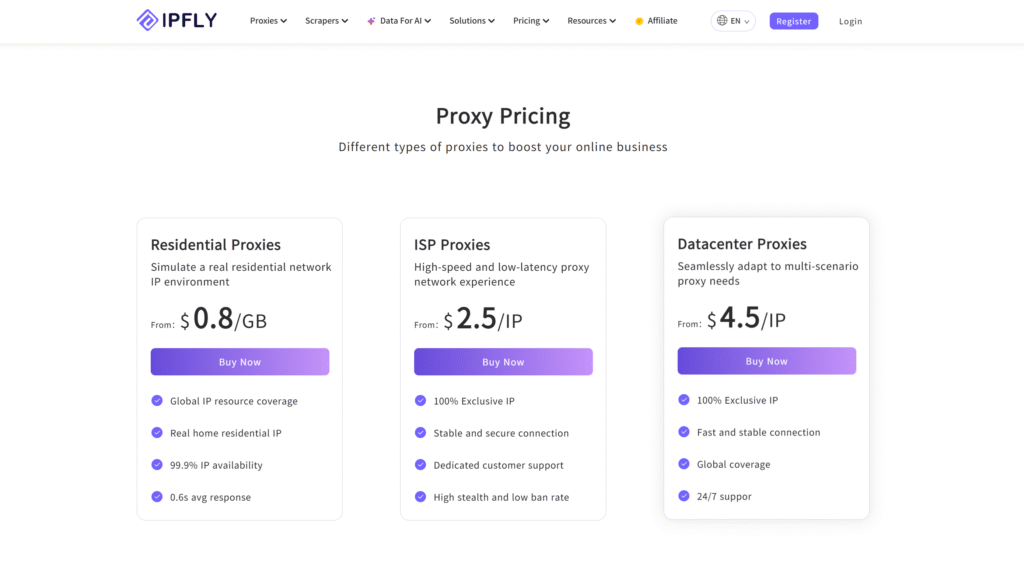
IPFLY offers residential, ISP, and datacenter proxies. If you want to keep the same exit IP for ongoing browser sessions, its static ISP proxy option is designed around a fixed address. Review the product details and choose based on your connection needs and budget; a rotating IP is not automatically better for an everyday login.
Step 2: Get your connection details.
In your IPFLY account, find the proxy host, port, supported protocol, and authentication details for the proxy you selected. Keep your credentials private.
Step 3: Configure a browser environment you control.
In Chrome, open Settings, search for proxy, and select Open your computer’s proxy settings. Enter your IPFLY connection details there. This changes your operating system’s proxy settings, so other applications may also be affected. If you want to control the connection within the browser instead, use a compatible proxy extension and enter the same details there.
Step 4: Test before opening Discord.
Confirm that ordinary pages load and that your browser shows the expected exit IP. If pages fail to load, recheck the host, port, protocol, and authentication rather than repeatedly trying to sign in to Discord.
Step 5: Open the official Discord Web app.
Visit Discord web, then test in stages: page loading, login, messages, and finally voice if you need it. A successful page load is only one part of a working setup.
Discord Still Not Working? Troubleshoot by Symptom
Work from the symptom you can observe. This saves time and helps you avoid changing several settings at once.
| Symptom | What to check next |
| Discord’s website will not open | Check Discord Status, test another permitted network, and see whether other sites load. |
| The desktop app is stuck loading | Try Discord Web. If it works, restart or update the desktop app and follow Discord’s app troubleshooting steps. |
| You cannot log in | Read the exact message shown. Check your credentials and Discord’s account help; do not assume a network change will fix it. |
| Messages work, but voice does not | Check browser permissions, firewall settings, VPN or proxy interference, and Discord’s voice connection guide. |
| The proxy connects, but Discord Web fails | Confirm the proxy settings and test ordinary browsing first. Then compare Discord Web with a direct connection where available. |
If you contact support or a network administrator, include the error message, device and browser, whether Discord Web or the desktop app is affected, and the results of your network tests.
Get Discord Working Again
Getting Discord unblocked starts with identifying what is stopping it. An outage calls for patience; an app or voice issue needs troubleshooting; a restriction on one network calls for a connection option you’re permitted to use. Testing Discord Web and another network can help you choose the right next step.
If you need to access Discord Web through a configurable proxy connection, explore IPFLY’s proxy options and follow the setup steps above. Check that your browser uses the selected IP, then test the Discord features you need.
Frequently Asked Questions
How can I get Discord unblocked at school without downloading it?
Try the official Discord Web app first. It does not require desktop download. If the school network or managed device also blocks Discord’s website, the web app may be unavailable. Check the network’s rules and request access if you need Discord for an approved activity.
Why does Discord work on mobile data but not school Wi-Fi?
The difference suggests that the Wi-Fi network or its settings may be affecting access. It is a useful diagnostic clue, though it does not identify the exact rule. Network administrators can help if Discord is needed for a permitted purpose.
Can a proxy help with Discord voice chat?
A proxy may change the connection route for the browser traffic you configure, but working text chat does not guarantee working voice chat. Test calls separately.
Can I use Discord on a Chromebook?
You can try Discord Web in the Chromebook’s browser. What works depends on the device and network settings. A school-managed Chromebook may restrict websites, extensions, installations, or proxy changes.
Is a network block the same as a Discord account ban?
No. A network block concerns the connection used to reach Discord. An account restriction concerns access to your account, while a server ban concerns a particular community. Identify which message or symptom you have before choosing a solution.