If Facebook keeps showing the “Session Expired” message and asking you to sign in again, something is interfering with your login session — and signing in again will not permanently fix it until you identify what that something is.
A session expiration that happens once is usually harmless. But repeated logouts across the same browser, app, or account suggest a specific underlying cause: corrupted cookies, an outdated app, frequent network changes, account security events, or occasionally a service-side problem on Facebook’s end.
This guide covers all eight causes in plain terms, with separate troubleshooting steps for desktop and mobile, and a diagnostic flow that helps you identify which cause applies to your situation before you start making changes.
What Does “Facebook Session Expired” Actually Mean?
When you log into Facebook, the platform creates a session — an active login state that allows you to use Facebook without re-entering your credentials every time you navigate to a new page or reopen the app.
A session has a lifespan. Facebook may end the session for normal security reasons: inactivity, password changes, or device changes. When the session ends, Facebook shows the “Session Expired” message and asks you to sign in again.
The important distinction:
- A single session expiration is usually caused by a normal event (inactivity, software update, password change) and can be resolved by signing in again.
- Repeated session expirations mean something is actively preventing your session from persisting — and that requires identifying the specific cause before trying fixes.
8 Reasons Facebook Keeps Saying “Session Expired”
- The Session Timed Out Due to Inactivity
The simplest explanation is inactivity.
If Facebook has been open in a background tab or on a locked phone for a long time without any meaningful interaction, the existing session may reach its normal lifetime and become invalid.
This is standard security behavior and is not a sign that anything is wrong with your account, browser, or network.
How to tell: The session expiration happens after a long period of not using Facebook — several hours or more — rather than immediately after opening the app or switching networks.
Fix: Sign out, close Facebook completely, reopen it, and sign in again. If the message does not return during normal use, the session had simply reached its natural endpoint.
- Cookies or Cached Data Have Become Corrupted
Facebook uses cookies to maintain your login session between visits. If those cookies become outdated, corrupted, or blocked, Facebook cannot read the existing session data and treats the login as invalid.
This can happen after:
- A browser update that changes how cookies are stored
- A Facebook website update
- A browser crash
- A manual privacy data clearout that removed session cookies
- A change to privacy settings
- A conflicting browser extension
How to tell: The session expires repeatedly in one specific browser but not in another.
Desktop fix (Chrome): Settings → Privacy and Security → Clear browsing data → Check “Cookies and other site data” and “Cached images and files” → Set time range to “All time” → Clear data → Restart browser → Sign in again.
Desktop fix (Firefox): Settings → Privacy & Security → Cookies and Site Data → Manage Data → Search “facebook” → Remove → Save Changes → Restart browser.
Mobile fix (Android): Settings → Apps → Facebook → Storage → Clear Cache → Clear Data → Reopen app → Sign in.
Mobile fix (iOS): iOS does not provide a standalone cache-clear option for Facebook. The most reliable method is to uninstall the Facebook app, reinstall it from the App Store, and sign in again. This clears all locally stored session data.
- The Facebook App or Browser Is Outdated
An outdated app or browser can create compatibility problems when Facebook updates its login or authentication systems on the server side.
The reverse is also possible: a newly released Facebook app update may contain a temporary bug that affects session handling until a patch is released.
How to tell: The session-expired error started immediately after an update, or only happens in one specific browser or app version.
Desktop fix:
- Update Chrome / Firefox / Safari / Edge to the latest version
- Restart the browser after updating
- Test Facebook in a second browser to confirm whether the problem is browser-specific
Mobile fix (Android):
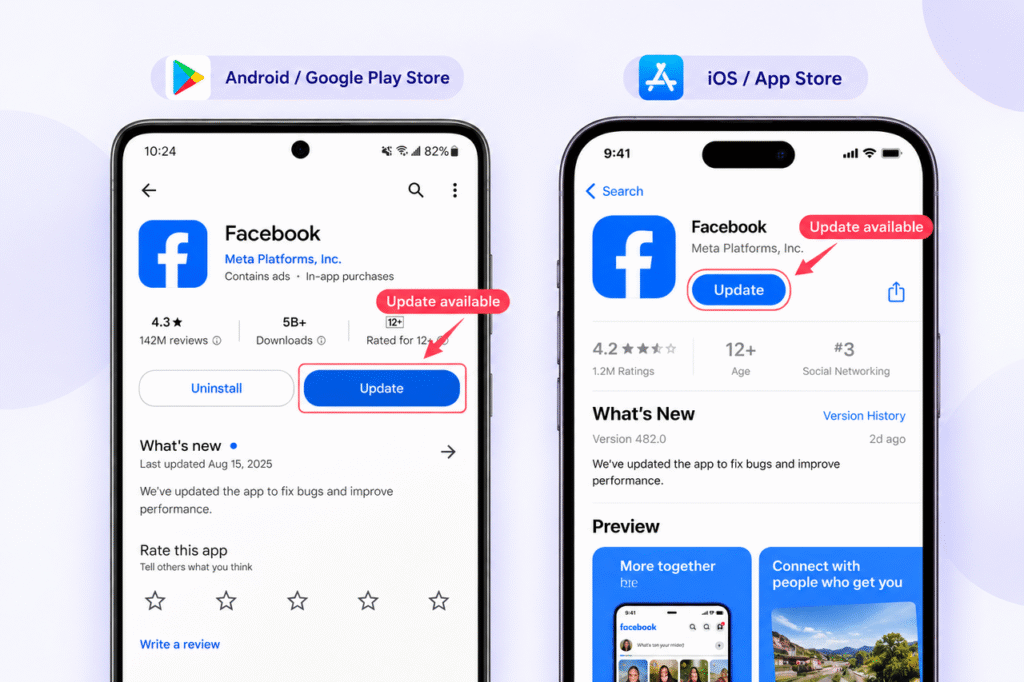
- Open Google Play → My Apps → Update Facebook if available
- If updating does not resolve the issue, uninstall and reinstall the Facebook app
- Restart the device before testing again
Mobile fix (iOS):
- Open the App Store → Search Facebook → Update if available
- If the error continues after updating, delete the app and reinstall from the App Store
- Restart the device
- You Are Switching Between Multiple Devices
Using Facebook across a phone, laptop, and tablet simultaneously is normal, but repeatedly switching between devices can cause session conflicts.
Facebook may invalidate one session when it detects an active login from a different device or location, particularly if the device pattern looks unusual compared to your account’s history.
How to tell: The session expiration appears immediately after switching from one device to another, rather than after a period of inactivity.
Fix:
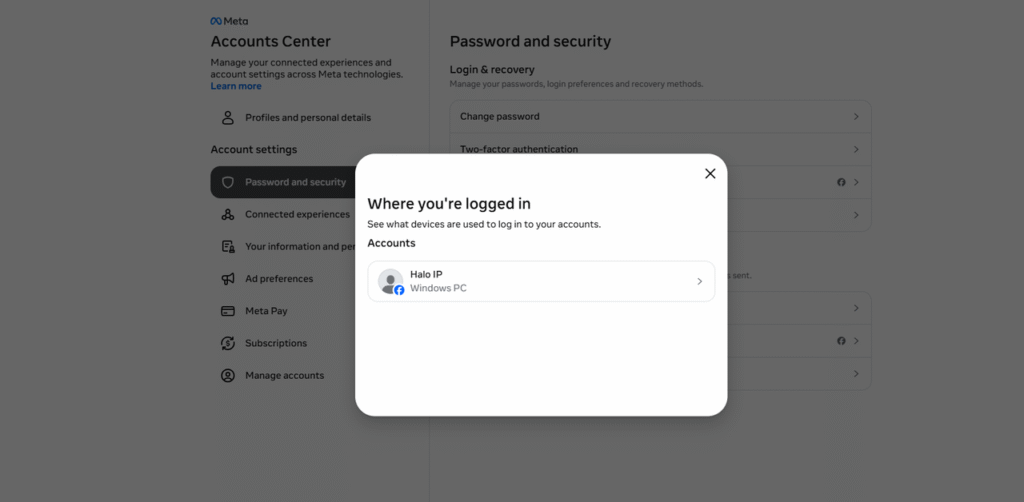
- On any device where Facebook is working, go to: Settings & Privacy → Settings → Password and Security → Where You’re Logged In
- Review all active sessions
- Click “Log Out” on devices you are no longer using
- On the affected device, sign in again after clearing the old sessions
If you see devices or locations you do not recognize, change your password before attempting anything else and review your account security settings.
- Your Network or IP Address Is Changing Frequently
A login session is tied to more than your credentials and cookies. Facebook also takes note of the network context in which the session was established.
Frequent or unexpected changes to your network environment — moving from Wi-Fi to mobile data, switching between different Wi-Fi networks, or connecting through an unstable connection — can cause the session context to differ from the one that was established at login. When this mismatch is significant, Facebook may treat the existing session as suspect and end it.
This matters most when:
- You use Facebook primarily for business or operational workflows where maintaining an active session over a long period is important
- Your device regularly switches between Wi-Fi and mobile data in the background
- Your public IP address changes frequently as a result of your ISP’s dynamic address assignment
How to tell: Sign in on a stable network (home broadband, office Wi-Fi) and stay on that network for an extended session. If Facebook does not expire the session, the network transitions are a relevant factor.
Basic fix: Where possible, stay on one network while using Facebook. On mobile, disable automatic switching between Wi-Fi and mobile data when network stability matters.
For workflows where consistent IP matters:
If your situation involves managing Facebook accounts professionally — ad verification, account monitoring, long-running session workflows — an IP address that changes frequently becomes a practical problem, not just a minor inconvenience.
IPFLY’s static residential proxies provide a fixed, ISP-assigned residential IP address for the duration of your rental period. The IP does not change on reconnection, network switches, or session timeouts. For workflows where a consistent network endpoint is part of a stable operating setup, a static residential IP addresses the network variable directly.
For workflows that do not require a fixed IP but need a higher-quality residential address, IPFLY’s dynamic residential proxies provide IP diversity while maintaining genuine ISP-origin residential addresses.
It is worth emphasizing: a stable IP does not fix corrupted cookies, an outdated app, or account security issues. Address the other causes in this list first, and consider IP consistency only if network transitions have been confirmed as part of the pattern.
- A Security Event Changed Your Account State
Facebook automatically ends active sessions following important account security events. This is intentional — it prevents an old session from remaining valid after a security-sensitive change.
Events that trigger session termination include:
- Changing your password
- Using “Log Out of All Devices” from account settings
- Completing an account recovery process
- Confirming a security alert from Facebook
- Facebook detecting an unfamiliar login and taking a protective action
How to tell: The session expiration happened immediately after or shortly following one of these events.
Fix: In most cases, signing in again after the security event is all that is required, and the session will persist normally afterward.
If you did not initiate any security event but are being logged out repeatedly, check your recent login activity at: Settings & Privacy → Settings → Password and Security → Where You’re Logged In.
If there are logins you do not recognize, treat this as a security issue rather than a technical one — change your password and enable two-factor authentication before attempting other fixes.
- A Browser Extension Is Interfering With Session Data
Browser extensions can modify how cookies, scripts, and page data are handled. Extensions designed for privacy protection, content blocking, or cookie management can sometimes interfere with how Facebook maintains its session data — even without targeting Facebook specifically.
How to tell: Facebook works normally in a private browsing window or in a different browser profile, but repeatedly expires the session in your regular browser.
Desktop fix:
- Open Facebook in a private / incognito window (which runs without extensions by default)
- If Facebook stays logged in normally, the problem is in your regular browser
- In the regular browser, disable extensions one at a time and test Facebook after each
- When you find the extension that is causing the conflict, keep it disabled for Facebook or look for an updated version
Common extension types that cause this:
- Cookie auto-delete tools
- Privacy Badger, uMatrix, or similar tracker-blocking tools
- Ad blockers with aggressive cookie rules
- Security extensions that modify page headers
Mobile note: This cause does not apply to the Facebook mobile app, which does not use browser extensions.
- Facebook Is Experiencing a Temporary Service Issue
Not every session-expired message originates from your device.
Facebook infrastructure issues — temporary authentication problems, server-side bugs, deployment errors — can affect login sessions at scale. These events are typically short-lived but can affect large numbers of users simultaneously.
How to tell: The simplest diagnostic is scope comparison.
| Scope | Most Likely Cause |
| Only one browser on one device | Browser or extension issue |
| Only one device across browsers | Device or app issue |
| Multiple devices, same network | Network issue |
| Multiple devices, multiple networks | Account-level or Facebook-side issue |
| Widespread reports from other users | Facebook service issue |
Check whether other users are reporting the same issue before making significant changes to your account or device setup.
Clear Step-by-Step Proxy IP Tutorials
Master proxy setup, integration and performance optimization quickly with IPFLY guides
Step-by-Step Fix Guide: Desktop and Mobile
Use this order. Start from Step 1 and move to the next step only if the problem continues.
Step 1: Sign In Again and Monitor
Close Facebook completely. On mobile, close the app from the app switcher rather than just pressing Home.
Reopen Facebook and sign in. Use Facebook normally for a period and note whether the session expires again.
If it does not return: the original session had likely reached its natural endpoint.
If it returns quickly: continue to Step 2.
Step 2: Clear Session Data
Desktop: Clear cookies and cached data specifically for Facebook (see Cause 2 above for browser-specific steps). Restart the browser. Sign in again.
Mobile (Android): Settings → Apps → Facebook → Storage → Clear Cache, then Clear Data. Reopen the app and sign in.
Mobile (iOS): Delete the Facebook app from your home screen. Reinstall from the App Store. Sign in again.
Step 3: Update Facebook and Your Browser or OS
Desktop: Update your browser. Check whether a Facebook website update changed behavior by testing in a second browser.
Mobile: Update the Facebook app from the App Store or Google Play. Update your device’s operating system if an update is pending. Restart the device after updating.
Step 4: Test in a Different Browser or Device
This is the fastest way to determine whether the problem is with a specific environment or with the account itself.
- Same account + different browser → session works: the problem is in the first browser
- Same account + different device → session works: the problem is with the first device
- Same account + multiple devices + multiple browsers → session expires: the issue may be at the account or network level
Step 5: Check Your Network
Test Facebook on a different network: switch from mobile data to Wi-Fi, or connect to a different Wi-Fi network.
If Facebook stays logged in on one network but not another, the network is a relevant variable.
For professional or business use cases where network consistency is important, see the discussion of static residential IPs in Cause 5 above.
Step 6: Review Account Security
Go to: Settings & Privacy → Settings → Password and Security → Where You’re Logged In
Remove sessions on devices you no longer use. If you see unfamiliar activity, change your password immediately and enable two-factor authentication.
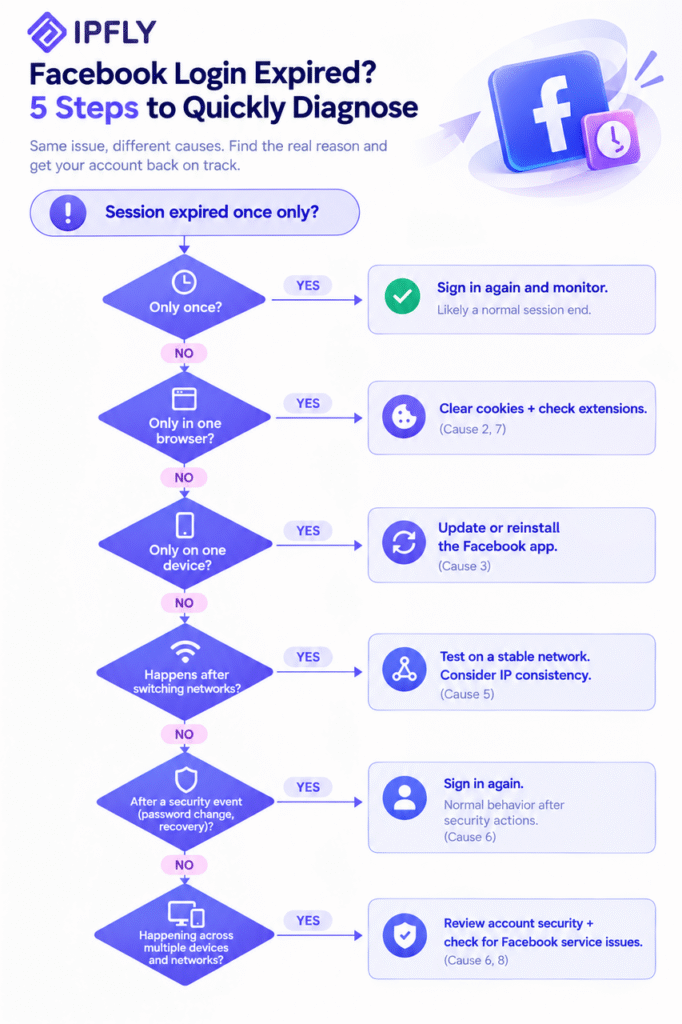
A Simple Diagnostic Flow
How to Prevent Facebook Session Expired Errors
Once the current issue is resolved, the following habits reduce the likelihood of repeated session problems:
- Keep the Facebook app and your browser updated at all times
- Avoid clearing all browser cookies site-wide if the goal is only to fix Facebook — clear Facebook-specific data only
- Review active sessions periodically and remove devices you no longer use
- Enable two-factor authentication for additional account protection
- If you use browser extensions that handle privacy or cookies, verify that they are not set to clear Facebook cookies automatically
- For professional workflows involving Facebook, maintain a consistent network environment where possible rather than frequently switching between networks
- Investigate repeated logouts rather than repeatedly signing in — the fix is faster once the cause is identified
Frequently Asked Questions
Q: Why does Facebook say “Session Expired” every time I open the app?
If the session expires every time you open the Facebook app — not just after a long break — the most common causes are corrupted local data (clear cache and reinstall on mobile) or an outdated app version. On Android, go to Settings → Apps → Facebook → Storage → Clear Cache. On iOS, delete and reinstall the app. If the problem continues after reinstalling, test on a different network to rule out a network-related cause.
Q: Does “Facebook Session Expired” mean my account has been hacked?
Not automatically. Session expiration is a normal security response to events like inactivity, software updates, device changes, or password resets. It does not by itself indicate unauthorized access. However, if you see unfamiliar devices listed under “Where You’re Logged In,” or if you receive security alerts you did not trigger, treat that as a separate account security issue and change your password immediately.
Q: Why does Facebook session expire immediately after I change my password?
Changing your Facebook password automatically invalidates all existing sessions as a security measure. This is intentional — it prevents an old session from remaining valid after a credential change. You need to sign in again on each device after a password reset. This is normal behavior and should not repeat itself after the new session is established.
Q: How do I fix Facebook session expired on an iPhone?
On iOS, the most effective fix is to delete the Facebook app from your home screen and reinstall it from the App Store. iOS does not allow users to clear an app’s cache directly. Reinstalling removes all locally stored session data. After reinstalling, sign in and test whether the session persists normally. If the problem continues after reinstalling, test on a different Wi-Fi network to identify whether the issue is network-related.
Q: Why does Facebook keep logging me out when I switch from Wi-Fi to mobile data?
Each time your device switches between Wi-Fi and mobile data, your public IP address may change. Facebook’s session system can detect this transition and, in some cases, treat the changed network context as a reason to invalidate the existing session. If this is a consistent pattern, try keeping your device on one network during Facebook sessions. For professional workflows that require long-running Facebook sessions without interruption, a static IP address that does not change on network transitions can address this variable specifically — IPFLY’s static residential proxies are designed for this type of use case.
Summary
The Facebook Session Expired message is a symptom, not a single defined problem.
The eight causes covered in this guide range from simple inactivity and outdated apps to browser extension conflicts, frequent network changes, and account security events. Most cases can be resolved by working through a structured diagnostic sequence rather than making random changes.
The fastest diagnostic path:
Browser-specific problem → Clear cookies + check extensionsDevice-specific problem → Update or reinstall the appNetwork-correlated problem → Test on a stable connection + evaluate IP consistencyAccount-level problem → Review active sessions and security settingsWidespread problem → Check for Facebook service issues
For personal use, the fixes in this guide cover the full range of common causes.
For business or professional workflows where maintaining active Facebook sessions over extended periods is operationally important, network consistency is a variable worth controlling directly. IPFLY’s static residential proxies provide a fixed ISP-assigned IP address that does not change between connections, removing the network variable from the session stability equation.
Experiencing repeated Facebook logouts linked to network changes?