The Essential Guide to Your Wi‑Fi Password
There is a quiet but crucial moment in every new device setup. You have just unboxed a shiny new laptop, smart TV, or gaming console. The screen glows with a straightforward request: “Enter your network security key.” This phrase can be a minor roadblock, often leading to a quick search for the sticker on the back of the router or a call to a tech-savvy family member.
This code is more than just a string of random characters printed on a label. It is the guardian of your digital home. It is the barrier that keeps your personal files private, prevents strangers from using your internet connection, and helps ensure that your smart devices are secure. It is one of the most important passwords you own.
This guide is designed to be your complete resource for understanding this essential part of your digital life. It covers everything from the basic definition to the various types of security standards, detailed instructions for locating your key on any device, common troubleshooting steps, and the best practices to keep your home network locked down tight.
What Is a Network Security Key in Plain English?
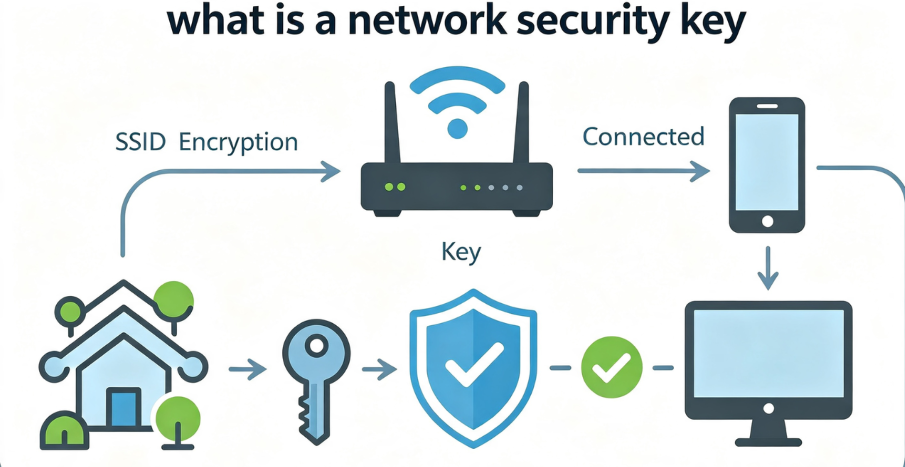
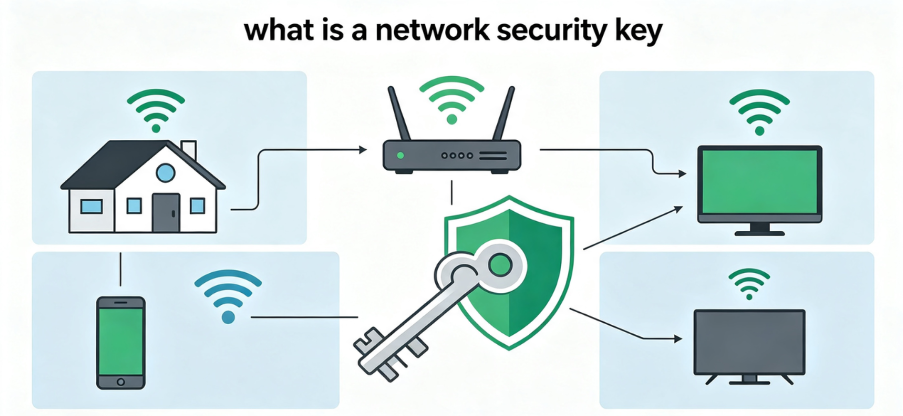
A network security key is a password that protects your Wi‑Fi network from unauthorized access. It serves as a security measure that allows devices to connect securely to a wireless network.
When you enter this key on your phone, laptop, or any other device, the router checks if the code matches. If it does, you are granted access. If not, access is denied. This prevents unauthorized users from joining your network without your permission.
The key also sets up encryption, which scrambles your data into unreadable code while it travels between your device and the router. Even if someone intercepts your data, all they would see is a mess of characters. Only devices with the correct key can unscramble that data.

The Simple Terminology Breakdown
One of the most common points of confusion is the terminology. A network security key is also referred to as a Wi‑Fi password, wireless password, or network password. In a professional setting, you might hear terms like WPA key or WEP key, which are references to the underlying encryption protocol.
All these terms mean the same thing: the code you need to join a wireless network. For the average home user, “Wi‑Fi password” is the most common and understandable term. However, manufacturers and IT professionals often use the technical term “network security key” to describe this code.
Why This Password Is So Important
Without a network security key, your Wi‑Fi is essentially an open door. Anyone within range—neighbors, passersby, or potential hackers—could connect to your network. This opens up a range of serious problems.
Unauthorized users can consume your internet bandwidth, slowing down your connection for legitimate devices. They can access shared devices on your network, potentially exposing your files and personal data. In some cases, malicious actors could intercept unencrypted traffic or use your connection for illegal activities, which could put you at legal risk.
A strong network security key is not just a convenience—it is a critical line of defense for your digital privacy and security.
The Four Major Security Protocols Explained
The phrase “network security key” is often used interchangeably with the type of wireless security standard you are using. The most common standards today are WEP, WPA, WPA2, and WPA3. Each one offers a different level of protection.
WEP (Wired Equivalent Privacy)
This is the oldest and weakest security protocol, introduced in 1997. It was designed to provide a level of security comparable to a wired network, but it was fundamentally flawed from the start. The encryption system it uses is static, meaning the same key is used to encrypt every packet of data. This makes it relatively easy for hackers to crack the code using readily available software. It is so insecure that it can be broken in minutes.
If you have an older router that only supports WEP, you should replace it immediately. WEP should never be used on a modern network.
WPA (Wi‑Fi Protected Access)
Developed as an emergency replacement for WEP, WPA introduced the TKIP encryption protocol, which dynamically changes the encryption key with each data packet. This was a significant improvement over WEP. However, WPA also has known vulnerabilities that can be exploited. It is now considered outdated and should be avoided if possible.
WPA2 (Wi‑Fi Protected Access 2)
WPA2 became the standard in 2004 and is still the most common security protocol in use today. It replaced TKIP with a much stronger encryption algorithm called AES (Advanced Encryption Standard). AES is used by government agencies and financial institutions to protect classified and sensitive data. WPA2 is considered safe and reliable for most homes and businesses.
WPA3 (Wi‑Fi Protected Access 3)
This is the newest and most secure protocol. It was finalized in 2018 and introduced several major security enhancements. One of the most significant is its protection against offline dictionary attacks, making it much harder for hackers to brute-force passwords.
WPA3 also provides a feature called “forward secrecy,” which means that even if your password is compromised in the future, old, encrypted traffic cannot be decrypted. The main limitation of WPA3 is device compatibility, as older devices may not support it.
Which Protocol Should You Use?
If you have modern devices, you should aim for WPA3. If not all devices support it, WPA2 is still a solid and secure choice. WEP and WPA should be avoided entirely.
| Protocol | Encryption | Security Level | Recommendation |
| WEP | Static | Very Weak | Avoid |
| WPA | Dynamic (TKIP) | Moderate | Avoid if possible |
| WPA2 | Strong (AES) | High | Recommended |
| WPA3 | Very Strong (SAE) | Very High | Ideal |
How to Locate Your Network Security Key
Finding your Wi‑Fi password is a common task. The method varies slightly depending on your device, but it is generally straightforward.
Start with the Router Label
Most routers come with a sticker on the back or bottom that lists the default network name and password. If you have never changed your Wi‑Fi password, this is the easiest place to look. The label may refer to it as the “network key,” “WPA2‑PSK,” or “Wi‑Fi password.”
On a Windows PC
For users already connected to the Wi‑Fi network, the password can be found in the system settings.
Open the Network and Sharing Center, which is typically located in the Control Panel or by right-clicking the Wi‑Fi icon in the taskbar. Click on your Wi‑Fi network name and then select “Wireless Properties.” Under the Security tab, check the box that says “Show characters,” and your password will be revealed.
For advanced users, the command prompt offers a quick alternative. Simply enter netsh wlan show profile name="yourWifiName" key=clear and look for the “Key Content” field.
On a Mac
Mac users can find their password in the Keychain Access utility. Open the utility, which is located in the Utilities folder within Applications. In the search bar, type the name of your Wi‑Fi network. Double‑click on the result and check the box that says “Show password.” You will need to enter your Mac’s administrator password to confirm your identity.
On an Android Device
Android devices also make it relatively simple to view saved Wi‑Fi passwords. Navigate to the Wi‑Fi settings and tap on the network you are connected to. Look for a “Share” or “QR Code” option. Tapping this will generate a QR code, and the password will be displayed underneath.
Complete Proxy IP Fundamentals
Build a full proxy knowledge framework — from core principles to protocol selection
On an iPhone
For iPhones, the process is similar. Go to the Wi‑Fi settings, tap the information icon next to your network, and tap on the password field. You will need to authenticate using Face ID, Touch ID, or your passcode.
Log into Your Router’s Admin Panel
If you cannot access the password through your device, you can go straight to the source. Open a web browser and enter your router’s IP address. Common default addresses include 192.168.1.1 and 192.168.0.1. Log in using the administrator credentials. Once inside, look for a menu labeled “Wireless” or “Wi‑Fi Settings.” The password will be visible in that section, where you can also change it.
Troubleshooting Common Network Security Key Issues
Sometimes, even with the correct password, you may encounter errors or connection problems.
The “Network Security Key Mismatch” Error
This is perhaps the most common problem. It typically means that the password you entered does not match what is stored on the router. Start by double-checking your password for typos, as the key is case-sensitive. If you are confident the password is correct, the issue may be a temporary glitch. Try restarting your router and the device you are trying to connect. If that fails, consider changing the network security key through the router’s admin panel and reconnecting your device.
The Key Is Not on the Label
If the default password has been changed and you cannot find it, you will need to use a device already connected to the network to find it. If no devices are connected, you will need to reset your router to its factory settings. This will erase all custom configurations and restore the default password printed on the label.
Device Compatibility Problems
Sometimes, a device may not support the security protocol your router uses. For example, an older laptop may only support WPA2, while your new router might be set to WPA3. In this case, you will need to adjust the router’s security settings to a protocol the device can use, such as WPA2.
The Device Says “Authentication Problem”
This is a generic message that often accompanies a mismatch error or a compatibility issue. Try the steps above to resolve it. If it persists, your device’s Wi‑Fi adapter driver may need to be updated.
Best Practices for Securing Your Network
A strong password is your first line of defense, but a comprehensive security strategy involves more than just that.
Use a Strong Password
Create a network security key using uppercase and lowercase letters, numbers, and special characters. Avoid predictable elements like your name, the name of a loved one, your birthdate, or any combination that is easy to guess.
Change Your Wi‑Fi Password Regularly
Change your Wi‑Fi password every 3‑6 months. According to recent survey data, 86% of people have never changed their router’s admin password, and over half have never touched the factory settings. That means millions are still using the default details printed on the back of their routers—details hackers also know.
Disable WPS
Wi‑Fi Protected Setup is designed to make connecting devices easier, often through a PIN or a button. However, it has known vulnerabilities and can be exploited. Disabling WPS in your router’s settings closes a potential security gap.
Keep Your Router Firmware Updated
Router manufacturers regularly release firmware updates that patch security vulnerabilities. Log into your router’s admin panel periodically to check for and install these updates.
Monitor Connected Devices
Regularly check the list of connected devices in your router’s admin panel. If you see an unfamiliar device, change your password immediately.
How IPFLY Extends Your Privacy Beyond the Router
While a network security key secures your local Wi‑Fi, it does not protect your data once it leaves your router and travels across the public internet. IPFLY provides a solution for extending that protection to all your online activity.
Residential proxies like those offered by IPFLY route your internet traffic through a network of real, ISP‑assigned residential IP addresses. This masks your real IP address, making it significantly harder for websites, advertisers, and tracking companies to monitor your behavior. It is a powerful tool for maintaining online privacy.
The benefits of using IPFLY extend to managing multiple social media accounts, bypassing regional restrictions, protecting your identity when using public Wi‑Fi, and preventing websites from building a profile on you based on your IP address.
IPFLY offers flexible proxy plans for every use case:
- Dynamic Residential Proxies – Real residential IPs with automatic rotation, ideal for bypassing restrictions and protecting your identity.
- Static Residential Proxies – Dedicated, ISP‑registered IPs with consistent identity. Perfect for long‑term account management.
- Datacenter Proxies – High‑performance IPs for speed‑critical operations.
Get started today: Register for an IPFLY account and explore the full product lineup on the IPFLY homepage. Protect your privacy and browse with confidence.
Frequently Asked Questions
What is a network security key?
A network security key is the password for your Wi‑Fi network. It is used to authenticate devices and encrypt data transmitted between devices and the router.
Is a network security key the same as a Wi‑Fi password?
Yes. The network security key and Wi‑Fi password are the same thing.
Where can I find my network security key?
You can find your network security key on a router label (usually on the back or bottom of the device), through system settings on Windows or macOS, or in the Wi‑Fi settings on your phone.
What is the difference between WEP, WPA, WPA2, and WPA3?
These are different security protocols for Wi‑Fi networks. WEP is outdated and insecure. WPA improved on WEP but is now outdated. WPA2 is the current standard with strong encryption. WPA3 is the latest and most secure standard.
How do I fix a network security key mismatch error?
Check for typos, ensure your device supports the router’s security protocol, update your network drivers, or forget the network and reconnect.
How often should I change my network security key?
You should change your Wi‑Fi password every 3‑6 months.
Is WPA2 still safe?
Yes. WPA2 is safe and reliable for most modern networks. However, WPA3 offers stronger protection if your devices support it.
The network security key is a fundamental component of your home or office network. It is more than just a password; it is a foundational element of your digital safety. Understanding the different types of security protocols—from WEP to WPA3—helps you make informed decisions about your network’s protection.
Knowing how to find, change, and troubleshoot your key ensures that you remain in control of your connection, keeping your devices secure and your personal data private. Whether you are a tech enthusiast or a casual user, understanding this essential element of modern internet use is a step toward a safer and more secure online experience.