

Can’t open a gaming website or access a service because of your IP address? A gaming proxy may help—but choosing one can be confusing when you’re faced with terms like SOCKS5, static IPs, and sticky sessions.
This guide explains when a proxy is useful, how it differs from a game accelerator, and what to check for your device. You’ll also learn how to choose a suitable plan, configure your connection, and test it before playing.
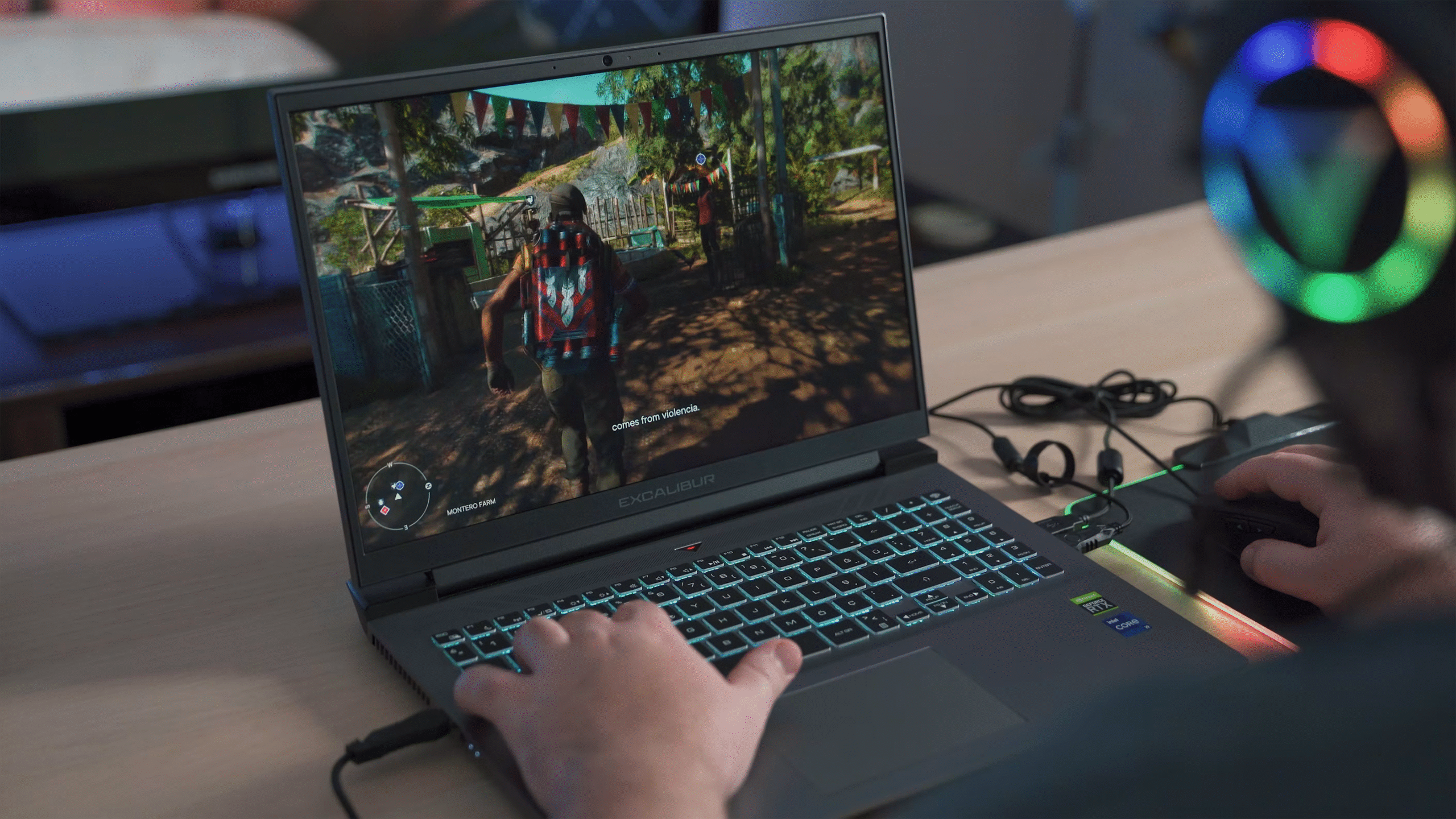
Why Do Gamers Need a Proxy?
You can browse the internet, but a game website won’t open. A friend in another country can access content you can’t see. Or switching connections keeps triggering login checks.
In some cases, these problems involve your IP address—the public address websites and game services see when you connect. A gaming proxy sends supported traffic through another server, giving that connection a different IP address. Here’s when that can be useful.
Access Gaming Websites Your Connection Cannot Reach
A game website may be blocked on your network or refuse connections from your current IP address. If the restriction depends on that address, a compatible proxy may offer another way to connect.
The important question is where the connection fails. Can you open the website but not sign in? Does the launcher work, but multiplayer won’t connect? These use different connections, so a proxy that opens the website may not support the game itself. It also won’t fix a game server that is offline.
View Gaming Content Available in Another Region
You might follow a game announcement only to see “not available in your region,” or notice that a friend sees a different store page.
A proxy with an IP in another country may let you view content available to visitors there. This can be useful for checking regional game pages, announcements, or service availability.
However, changing your IP does not change your account’s country. Access and purchases may still depend on your account settings, payment method, and the platform’s rules.
Keep the Same IP Instead of Switching Locations
If you already need a proxy, changing its location repeatedly can create new problems. A service may ask you to verify a login from an unexpected country, and switching IPs during a session may interrupt your connection.
A static proxy keeps the same exit IP, helping you maintain a consistent connection location. Some other proxies offer “sticky sessions,” which keep an IP temporarily. This matters most when you need a particular regional connection over time.
Gaming Proxy vs. Game Accelerator: What’s the Difference?
The main difference is IP control versus route optimization. A gaming proxy lets you choose the exit IP for supported connections. A game accelerator focuses on finding a better network path between your device and the game server.
| Gaming proxy | Game accelerator | |
| Main focus | The IP address the destination sees | The route your game traffic takes |
| Choose it when | You need a particular region or a consistent exit IP | You want to address high ping, packet loss, or unstable latency |
| Check before buying | Device compatibility, protocols, and session duration | Supported games, server regions, and trial results |
Think of it this way: a proxy helps you choose where your connection appears to come from; an accelerator tries to improve how it gets to the game server.
Some features overlap, but neither guarantees lower ping. If IP-based restrictions are preventing access, a gaming proxy may help.
Can You Use a Gaming Proxy on Your Device?
Gaming proxies can work with different devices, but the setup varies. Some applications accept proxy details directly. Others need a compatible tool or router to send their traffic through the proxy. Before buying, check whether the proxy supports both your device and the game you want to play.
PC Gaming: Windows and macOS
On a PC, you may be able to configure a proxy in an application, through system settings, or with a compatible traffic-routing tool—a program that directs selected connections through your proxy.
However, changing your browser or system proxy settings does not mean every game will use them. A launcher such as Steam or Epic Games may load its store successfully while the game itself connects separately.
Check whether your setup covers the actual game, including any required voice chat or multiplayer connections. If a routing tool is needed, confirm that it supports Windows or macOS and the traffic your game uses.
Consoles: PlayStation, Xbox, and Nintendo Switch
Console setup depends on the model. PlayStation and Nintendo Switch include proxy options in their network settings, but those options do not guarantee that every game feature will use the proxy.
For Xbox, or when built-in settings cannot handle your chosen proxy, you may need a compatible router or gateway—a device that forwards the console’s connections through the proxy.
Also check how the proxy verifies your access. It may require a username and password or an approved home IP address, often called an IP allowlist. Your chosen setup must support that method.
Test sign-in, multiplayer, and voice chat separately. Passing the console’s internet connection test is only the first check.
Mobile Gaming: Android and iOS
Android and iOS offer proxy settings for Wi-Fi connections, although the menus vary. These settings belong to the selected Wi-Fi network; they do not automatically carry over when you switch to mobile data.
A mobile game may also handle connections differently from your browser. Opening a gaming website through a proxy does not prove that the game app uses it.
Depending on the game, you may need a compatible proxy client. Before purchasing, check that the client supports your phone, your connection type, and the game’s traffic.
Emulators and Cloud Gaming
For emulators, there are two places to consider: the computer running the emulator and the Android environment inside it. A proxy configured on your computer may not automatically apply inside the emulator, or vice versa. Confirm where the game’s connections are routed before choosing a setup.
For cloud gaming, the game runs on a remote server and streams video to your device while receiving your controls. This makes steady delivery especially important: delays, packet loss, or sudden changes in connection quality can affect both the picture and responsiveness.
A proxy that opens the cloud gaming website may not support the live stream. Check streaming compatibility and data costs, then test a playing session rather than just the login page.

How to Choose a Proxy Based on Your Gaming Needs
Before buying a gaming proxy, identify what you need it to do: access a blocked service, connect through a particular region, or keep the same IP during longer sessions. Then check these five factors.
Choose Between Static and Rotating IPs
If you plan to stay logged in or play for hours, look for an option that keeps your IP consistent. An address change during a session may interrupt the connection or trigger another login check.
- Static IP: Keeps the same exit address while it remains assigned to you.
- Sticky session: Holds an address for a limited period, subject to the provider’s conditions.
- Rotating proxy: Changes addresses according to its rotation settings.
For continuous gameplay, a static IP is generally a more practical starting point than frequent rotation. If you choose sticky sessions, check their duration and what happens if the connection drops.
Match the Proxy Type to Your Use Case
Proxy types differ in where their IPs come from, how they are billed, and how destinations treat them.
| Proxy type | When to consider it | What to check |
| ISP / Static residential | You need the same exit IP across sessions | Location, game compatibility, and traffic limits |
| Residential | You need flexible regional access | Sticky-session duration and cost per GB |
| Datacenter | You want a lower-cost option for a compatible service | Whether the target service accepts the IP and performance meets your needs |
An IP type alone does not guarantee a smooth gaming connection. Test it with your specific game before committing to a longer plan.
Check Protocols, Ports, and Authentication
A proxy that opens a game’s website may still fail when you join a match. Gameplay can use different traffic from web browsing.
Ask whether both the proxy service and your setup support the game’s requirements, especially UDP, a type of traffic commonly used for real-time communication. A SOCKS5 label alone does not confirm that the required UDP traffic is supported.
Also check how you sign in to the proxy: with a username and password, or by approving your home IP through an IP allowlist. Your device or configuration tool must support that method.
Clear Step-by-Step Proxy IP Tutorials
Master proxy setup, integration and performance optimization quickly with IPFLY guides
Choose a Location and Test Connection Quality
If you need access from a particular country, start with an exit IP there. If performance matters, test the route to your actual game server as well.
A nearby proxy is worth testing, but distance alone does not determine quality. Compare:
- Ping: How quickly the game responds.
- Jitter: How much that delay varies.
- Packet loss: Missing data that can cause stuttering or rubber-banding.
- Stability: Whether you can stay connected throughout a session.
Test at your usual playing time. Fast downloads alone do not prove that multiplayer will run smoothly.
Compare Pricing and Usage Limits
Per-GB plans charge for the data you send and receive. They may suit occasional access, but game updates, downloads, and cloud gaming can consume your allowance quickly.
Per-IP plans charge for an address over a set period. They can make ongoing costs easier to estimate, but check any traffic, speed, or fair-use limits.
Start with a small purchase or an available trial, and read the refund conditions before paying. To confirm compatibility, send the provider a simple message:
I play [game] on [device] and need an IP in [region]. Does your service support the game’s required traffic and ports, including UDP where needed? Can I keep the same IP throughout a session, and is there a way to test the setup first?
Choosing an IPFLY Proxy for Your Gaming Setup
The right IPFLY plan depends on whether you need a fixed IP, flexible location choices, or an option for occasional access. Start with that need, then confirm compatibility with your game and device.
Static Residential Proxies for Fixed-IP Needs
If you need the same exit IP across gaming sessions, IPFLY’s static residential proxies provide a dedicated address that stays assigned to you during the service period.
HTTP(S) and SOCKS5 support offer configuration options for compatible applications and tools. Unlimited traffic can also make costs easier to plan when usage varies, although actual speed and game compatibility still need testing.
Residential Proxies for Regional Access and Testing
If your priority is accessing gaming websites from different locations, IPFLY’s residential proxies offer country, state, and city targeting where available.
For example, you can check how a game store or regional content page appears from your chosen location. Sticky sessions let you temporarily keep the same exit IP, so check the available session duration if you need a longer connection.
These plans charge by data usage. Keep large downloads, updates, and cloud gaming streams in mind when estimating your budget.
Match the Plan to Your Actual Use
For a fixed exit address, start by considering static residential proxies. For occasional regional access, compare residential plans against your expected traffic. IPFLY also offers datacenter proxies for services that accept datacenter IPs; compare their pricing and compatibility before choosing.
Before purchasing, share your game, device, target region, and intended use with IPFLY support. Confirm the required ports and UDP support for both the proxy and your configuration tool—SOCKS5 support alone does not establish compatibility with every game.
How to Set Up and Test Your Gaming Proxy
Once you have confirmed compatibility, configure the proxy and test it before starting a longer session or competitive match.
Step 1: Decide Which Connections to Route
Identify what you want to use the proxy for: opening a gaming website, signing into a launcher, or playing the game itself.
These connections may work separately. If you need the proxy for gameplay, make sure your setup covers the game’s traffic—not just its website or launcher.
Step 2: Get Your Proxy Details
Have the following information ready:
- Server address and port: Where your device connects to the proxy.
- Protocol: Such as HTTP(S) or SOCKS5, depending on your setup.
- Authentication: Your username and password, or instructions for adding your current public IP to an allowlist.
If you use a sticky session, check how to enable it and how long it keeps the same IP.
Step 3: Configure Your Device or Compatible Tool
Enter the details in the supported application, device settings, or routing tool. For IPFLY connections, follow the relevant proxy setup documentation.
If your tool lets you choose applications, select the game and any required launcher processes. Confirm that it supports the traffic your game needs, including UDP where required. A browser extension alone will not route a separate game application.
Step 4: Check That the Game Uses the Proxy
An IP-checking website can confirm your browser’s exit IP, but it cannot prove that your game uses the same connection.
Check your routing tool’s connection logs or traffic monitor, where available, to see whether the game’s connections pass through the proxy. If the result is unclear, ask the provider how to verify your setup.
Step 5: Test a Complete Gaming Session
Try signing in, joining a match, playing for a while, and using voice chat if needed. Watch for delays, sudden ping changes, disconnects, or repeated login checks.
Compare the results with your normal connection using the same game server and similar conditions. Keep the proxy location and IP consistent during the test.
Common Problems to Check
- The website opens, but the game will not connect: Check whether the game itself uses the proxy and whether the required traffic and ports are supported.
- Login works, but matchmaking fails: Confirm that connections to matchmaking and game servers are covered by your configuration.
- The game disconnects mid-session: Check sticky-session expiry, unexpected IP changes, and local network stability.
- Ping becomes higher: Try another suitable proxy location and compare results. The added route may be slower than your direct connection.
- Login verification keeps appearing: Avoid repeatedly switching regions, check whether your exit IP changes, and follow the platform’s account security prompts.
FAQs About Gaming Proxies
Can I use a free gaming proxy?
You can try one, but public proxies may be crowded, unstable, or run by an unknown operator. They may also lack the protocols your game needs. Avoid entering account credentials through untrusted web proxy pages.
Can a proxy unblock every game?
No. A proxy may help with some IP-based restrictions, but access can also depend on your account region, device, or the game’s availability. The proxy must also support the connections your game uses.
Can using a proxy get my gaming account banned?
It depends on the platform’s rules and how you use it. Some platforms restrict proxy use, and frequent location changes may trigger security checks. A dedicated IP does not guarantee protection from account restrictions.
Can a gaming proxy fix an account ban?
No. Changing your IP does not remove a ban attached to your account. If your account has been suspended, use the platform’s official appeal process.
Does a gaming proxy protect against DDoS attacks?
A proxy can hide your home IP from destinations reached through it, but that is not the same as DDoS protection. It will not protect other connections or an address that is already exposed. Dedicated protection requires infrastructure designed to handle attacks.
Conclusion
Choosing a gaming proxy starts with understanding your problem. If access is limited by your IP address, a compatible proxy may help. Then check your device, required protocols, location, and session needs before buying.
IPFLY offers static residential, residential, and datacenter options for different connection needs. Confirm compatibility with your game and start with a small test before committing to a longer plan.