

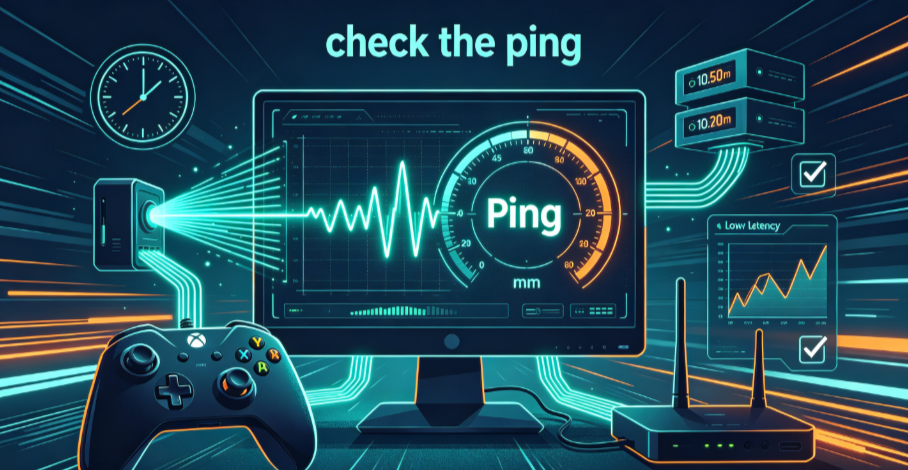
Every time you click a link, send a message, or load a video, a tiny packet of data travels from your device to a server somewhere in the world—and then travels all the way back. The time that round trip takes is called ping. It is one of the most fundamental metrics for understanding network performance, yet it is often misunderstood or overlooked.
Ping measures the time required for data to travel from your device to a server and back, significantly influencing network responsiveness, download speeds, and connection stability. Whether you are a gamer trying to reduce lag, a remote worker joining video conferences, or a professional using proxies for data collection, understanding how to check and interpret ping is essential.
This guide explains everything you need to know about ping in 2026—what it is, why it matters, how to test it, how to interpret the results, and how to optimize your network for the lowest possible latency.

Part 1: What Is Ping?
At its simplest, ping is a measure of network latency—the time it takes for a data packet to travel from your device to a destination server and back again. It is typically measured in milliseconds (ms).
Think of ping like sending a letter to a friend and waiting for them to send one back. The time between when you send your letter and when you receive their reply is your “ping” to that friend. Lower times mean faster communication; higher times mean delays.
How Ping Works
When you run a ping test, your device sends a small packet of data (an ICMP Echo Request) to a target IP address or domain. The target server, if reachable, responds with an ICMP Echo Reply. The time between sending the request and receiving the reply is your ping time.
This simple test reveals several important things:
- Whether the target is reachable – If you get no response, the server may be down, or a firewall may be blocking the connection
- How fast the connection is – Lower ping times indicate faster, more responsive connections
- Network stability – Inconsistent ping times (jitter) can indicate network issues
Ping vs. Download Speed vs. Upload Speed
Many people confuse ping with download or upload speed, but they measure different things:
| Metric | What It Measures | Why It Matters |
| Ping (Latency) | Time for data to travel round-trip | Responsiveness for real-time activities |
| Download Speed | How fast data is received | Loading content, streaming, downloading files |
| Upload Speed | How fast data is sent | Sending emails, uploading videos, video calls |
Download and upload speeds affect how quickly you can move data. Ping affects when that data arrives. For activities like gaming, video conferencing, and live streaming, ping is often more important than raw speed.
Part 2: Why Checking Ping Matters
Ping is a critical metric for evaluating an Internet connection’s quality. High ping times can detrimentally affect data transfer rates, crucial for activities such as online gaming, video conferencing, and streaming.
Online Gaming
In competitive gaming, every millisecond counts. A high ping means your actions take longer to register on the server, putting you at a disadvantage. Professional gamers often insist on ping times below 20ms. Casual gaming is usually fine below 50ms. Anything over 100ms becomes noticeable and frustrating.
Video Conferencing and VoIP
When you are on a video call, high ping causes delays in audio and video, leading to awkward interruptions and poor communication. For smooth video conferencing, ping times should ideally stay below 50ms.
Streaming and Real-Time Content
While streaming video is more sensitive to download speed than ping, high latency can still cause buffering and delays when loading new content or seeking through a video.
Proxy Performance
When you use a proxy, your traffic is routed through an additional server. That extra hop adds latency. Checking ping to your proxy server helps you determine whether the location is suitable for you. The lower the latency, the better.
Web Browsing and API Calls
For everyday web browsing, ping matters less than download speed. However, for applications that make many small API calls—like web scrapers, automation tools, and real-time dashboards—high ping can significantly slow down performance.
Part 3: What Is a Good Ping Time?
Ping times are typically categorized as follows:
| Ping Time | Quality | Impact |
| 0–20 ms | Excellent | Ideal for competitive gaming and real-time applications |
| 20–50 ms | Good | Suitable for most gaming, video calls, and streaming |
| 50–100 ms | Acceptable | Noticeable but still usable for most activities |
| 100–150 ms | High | Gaming becomes frustrating; video calls may have delays |
| 150+ ms | Very High | Significant lag; problematic for real-time activities |
A ping over 100 ms is considered high, but it won’t affect website usage. For activities like browsing or checking email, even higher ping times are generally acceptable. The impact of ping depends entirely on what you are doing.
Part 4: How to Check Ping – Methods and Tools
There are several ways to check ping, ranging from built-in command-line tools to online web-based testers.
Method 1: Command Line Ping (Windows, macOS, Linux)
The most basic and universally available ping test is the command-line ping utility.
Windows:
- Press
Windows Key + R, typecmd, and press Enter - Type
pingfollowed by the IP address or domain name: - Press Enter. You will see results showing the time in milliseconds.
macOS / Linux:
- Open Terminal
- Type
pingfollowed by the IP address or domain name: - Press Enter. To stop the test, press
Ctrl + C.
Example output:
Pinging google.com [142.250.185.78] with 32 bytes of data:
Reply from 142.250.185.78: bytes=32 time=14ms TTL=115
Reply from 142.250.185.78: bytes=32 time=12ms TTL=115
Reply from 142.250.185.78: bytes=32 time=13ms TTL=115
Reply from 142.250.185.78: bytes=32 time=14ms TTL=115

Ping statistics for 142.250.185.78:
    Packets: Sent = 4, Received = 4, Lost = 0 (0% loss),
Approximate round trip times in milli-seconds:
    Minimum = 12ms, Maximum = 14ms, Average = 13ms
Method 2: Online Ping Test Tools
Web-based ping tools allow you to check ping from your browser without using the command line. These tools are convenient and often provide additional insights.
How to use an online ping test:
- Visit a ping testing website
- Input the desired IP address or website URL for testing
- Choose a test package from the options provided
- Click the “Start scan” button to initiate the test
Results are available in seconds. For comprehensive insights, testing with various packages is advisable.
Method 3: Ping from Different Locations (Geo-Ping)
One of the most useful ways to check ping is to test from multiple geographic locations. This helps you understand how latency varies based on server location. If you are choosing a proxy server, testing ping from different locations helps you select the optimal endpoint.
Method 4: Continuous Ping and Traceroute
For more advanced diagnostics:
- Continuous ping (
ping -ton Windows) sends ping requests until you stop it, helping you monitor network stability over time - Traceroute (
tracerton Windows,tracerouteon macOS/Linux) shows the path your data takes to reach a destination, helping you identify where latency is introduced
Part 5: How to Interpret Ping Test Results
Understanding ping test results goes beyond just looking at the number.
“Host Down” or “Request Timed Out”
If you receive a “Host Down” message, it means the target server did not respond to your ping request. This could indicate:
- The server is offline
- A firewall or router is blocking ICMP requests
- The IP address or domain name is incorrect
- Your network connection is having issues
Packet Loss
Packet loss occurs when some of your ping requests do not receive a response. Even small amounts of packet loss can cause noticeable issues for gaming, VoIP, and video calls. Ideally, packet loss should be 0%.
Jitter
Jitter is the variation in ping times over time. If your ping times jump between 10ms and 100ms, you have high jitter. This inconsistency can be just as problematic as high ping, causing stuttering in games and choppy audio in calls.
Ping to Different Targets
Ping times vary depending on the target. Pinging a local server will give you much lower times than pinging a server on the other side of the world. When evaluating your connection, test ping to the specific servers you actually use.
Part 6: Common Causes of High Ping
Understanding what causes high ping helps you diagnose and fix issues.
Geographic Distance
The physical distance between your device and the server is the most fundamental factor affecting ping. Data can only travel so fast—even at the speed of light, a round trip across the globe takes time. The further away the server, the higher the ping.
Network Congestion
When many users share the same network connection—at school, in an office, or on public Wi-Fi—congestion can increase ping times. Peak usage hours often see higher latency.
Clear Step-by-Step Proxy IP Tutorials
Master proxy setup, integration and performance optimization quickly with IPFLY guides
Wi-Fi vs. Wired Connection
Wi-Fi introduces additional latency compared to a wired Ethernet connection. Interference, distance from the router, and the number of connected devices all affect Wi-Fi ping times.
Proxy Overhead
Using a proxy adds an extra hop to your connection. The additional server introduces latency. However, a well-optimized proxy with low latency can minimize this overhead.
ISP Routing
Your Internet Service Provider determines the path your data takes to reach its destination. Poor routing—sending data through inefficient paths—can significantly increase ping times.
Background Applications
Applications running in the background—especially those downloading updates, streaming, or syncing data—can consume bandwidth and increase ping times.
Part 7: How to Lower Your Ping
If your ping is higher than you would like, here are proven ways to reduce it.
1. Use a Wired Connection
Switch from Wi-Fi to a wired Ethernet connection. Wired connections are more stable and have lower latency than wireless connections.
2. Close Background Applications
Close applications that use bandwidth in the background, such as streaming services, large downloads, and cloud sync tools.
3. Choose Servers Closer to You
When selecting a proxy or game server, choose one geographically close to your location. The shorter the distance, the lower the ping.
4. Optimize Your Network
- Restart your router and modem
- Update router firmware
- Use Quality of Service (QoS) settings to prioritize gaming or video conferencing traffic
- Considerupgrading to a faster internet plan
5. Use High-Quality Proxies
The quality of your proxy infrastructure directly affects ping times. Low-quality proxies often route traffic through overloaded servers, introducing unnecessary latency. Professional residential proxies with optimized routing can deliver significantly lower ping times.
6. Test During Off-Peak Hours
Network congestion is often worse during peak usage hours. Testing and using your connection during off-peak times can result in lower ping.
Part 8: Ping and Proxy Performance
For users of proxies—whether for web scraping, multi-account management, or accessing geo-restricted content—ping is a critical performance metric.
Why Ping Matters for Proxies
When you use a proxy, your traffic is routed through an intermediary server. That extra hop adds latency. The higher the ping to the proxy server, the slower your overall connection will feel.
A proxy with low ping ensures:
- Faster response times for web requests
- Smoother browsing and streaming
- Better performance for automation and scraping workflows
- Reduced timeouts and connection errors
The Proxy-Ping Relationship
The lower the latency, the better. When evaluating proxy providers, checking ping to their servers helps you determine if a location is suitable for your needs. A proxy server with high ping may still work for basic browsing but will struggle with real-time applications or high-volume data collection.
Geographic Targeting and Ping
If you need a proxy in a specific country, choose a provider with servers in that country. However, keep in mind that a proxy in the same country as you will generally have lower ping than one on the other side of the world. The trade-off between geographic targeting and latency is one you need to balance based on your use case.
Part 9: How IPFLY Powers Low-Ping Proxy Connections
For users who rely on proxies for performance-sensitive tasks—gaming, streaming, web scraping, or multi-account management—low ping is essential. IPFLY provides the residential proxy infrastructure that delivers the low latency and high reliability that these workflows demand.
The IPFLY Advantage for Ping-Sensitive Operations
IPFLY’s residential proxy network is optimized for performance. With over 90 million residential IPs across 190+ countries, IPFLY offers:
- Low latency connections – Optimized routing ensures minimal delay between your device and the proxy server
- Global coverage with local performance – Choose IPs from specific countries and cities while maintaining competitive ping times
- 99.9% uptime – Reliable connections that don’t drop when you need them most
- Full protocol support – HTTP, HTTPS, and SOCKS5, with SOCKS5 offering the best performance for low-latency applications
- Dedicated bandwidth – No sharing means consistent performance without congestion-related latency spikes
IPFLY Static Residential Proxies (ISP Proxies)
For users who need consistent, low-latency access for gaming, streaming, or automation, IPFLY’s Static ISP proxies provide unparalleled stability.
Key advantages for low ping:
- 100% dedicated IP – Exclusive use with no sharing means no congestion from other users
- ISP-registered authenticity – Traffic routes through optimized residential networks
- IP will not change – Consistent identity avoids the latency spikes that come with IP rotation
- Low latency – Optimized routing delivers delays as low as 50ms
- Unlimited bandwidth – No throttling during peak usage
- Full protocol support – HTTP, HTTPS, and SOCKS5
Static residential proxies are ideal for users who need consistent, low-ping connections for performance-sensitive operations.
👉 Explore IPFLY Static Residential Proxies
IPFLY Dynamic Residential Proxies
For users who need geographic flexibility while maintaining low ping, IPFLY’s dynamic residential proxies offer real residential IPs with automatic rotation capabilities from a pool of over 90 million addresses covering 190+ countries.
Key advantages for low ping:
- Real residential IPs – From a pool of residential addresses, ensuring low-latency connections
- Automatic rotation – Distribute traffic across diverse IPs while maintaining performance
- Sticky session support – Maintain a consistent IP for hours or days when needed
- Geographic flexibility – Choose IPs from specific countries and cities
- Full protocol support – HTTP, HTTPS, and SOCKS5
- High success rate – Over 99% connection stability
Dynamic residential proxies are ideal for users who need geographic diversity without sacrificing performance.
👉 Explore IPFLY Dynamic Residential Proxies
IPFLY Datacenter Proxies
For speed-critical operations where residential authenticity is less important, IPFLY’s dedicated datacenter proxies offer the lowest-latency connections available.
👉 Explore IPFLY Datacenter Proxies
How IPFLY Compares for Ping Performance
| Feature | Free Proxy | IPFLY Residential Proxy |
| Latency | Unpredictable, often high | Optimized for low latency |
| Connection Stability | Frequent drops | 99.9% uptime |
| Bandwidth | Shared, throttled | Dedicated, unlimited |
| Geographic Coverage | Limited | 190+ countries |
| Protocol Support | Limited | HTTP/HTTPS/SOCKS5 |
| Performance Consistency | Variable | Consistent |
Ping as a Window into Network Performance
Ping is one of the simplest yet most revealing metrics for understanding network performance. A quick ping test can tell you whether a server is reachable, how responsive your connection is, and whether your proxy is performing as expected.
Key takeaways:
- Ping measures round-trip latency – The time for data to travel from your device to a server and back
- Lower ping is better – Below 50ms is good; below 20ms is excellent
- Ping matters for real-time activities – Gaming, video calls, and streaming are most sensitive to latency
- Geographic distance is the biggest factor – The further away the server, the higher the ping
- Wi-Fi adds latency – Wired connections are faster and more stable
- Proxy quality affects ping – High-quality residential proxies deliver lower latency than free or shared proxies
- Check ping regularly – Monitoring ping helps you identify and fix network issues early
Whether you are a gamer chasing lower latency, a remote worker ensuring smooth video calls, or a business relying on proxies for data collection, understanding and optimizing ping is essential for a smooth online experience.
Optimize Your Ping with IPFLY
Low ping is essential for gaming, streaming, video conferencing, and high-performance proxy operations. IPFLY provides the residential proxy infrastructure that delivers the low latency and reliability you need.
IPFLY offers flexible proxy solutions for every use case:
- Static Residential Proxies – 100% dedicated, ISP-registered IPs with low latency and consistent performance. Perfect for gaming, streaming, and performance-sensitive operations.
- Dynamic Residential Proxies – Real residential IPs from 190+ countries with geographic flexibility and low-latency connections.
- Datacenter Proxies – Ultra-low latency IPs for speed-critical operations.
Get started today: Register for an IPFLY account and explore the full product lineup on the IPFLY homepage. Experience the difference that low-latency, high-performance proxy infrastructure makes.


